Everything You Need to Know about Content Services

||||

A couple of years ago, software reviewer Gartner proclaimed that enterprise content management, as a term, was dead. Instead, they repackaged and expanded the concept into a term called “Content Services.”

Even though the proclamation happened a few years ago, the term really hasn’t caught on. The general public – and the industry – still widely calls it document management software or enterprise content management.

laptop document management systemHere on the Datamation blog we’ve talked about the difference between document management and enterprise content management. So what’s the deal with content services?

We cover a lot about content services in this blog post, so here are quick links if you wanted to jump to a particular section:

What are Content Services?

Content Services is a term used to describe the entire ecosystem of your company’s information. This can include document management systems, workflow, application programming interfaces (APIs) and integrations, web-based tools and platforms, and anything used to help your information move smarter and your employees be more productive.

What is the Difference between Content Services and ECM?

The idea of an enterprise content management system was that this one system would be the go-to source for all content in the company. However, this rarely happened in practice. Invoices would be created in one location, employee information was stored elsewhere, and there were many legacy systems that needed specialized integrations.

ECM was envisioned as a “closed” environment that would handle all information needs. Content services promotes openness and connectivity among multiple repositories and systems.

In practice, you’ll likely hear people use ECM and Content Services interchangeably. But for specific definitions:

Document management system (DMS) refers specifically to how you store and access your documents, along with monitoring the lifecycle of those documents.

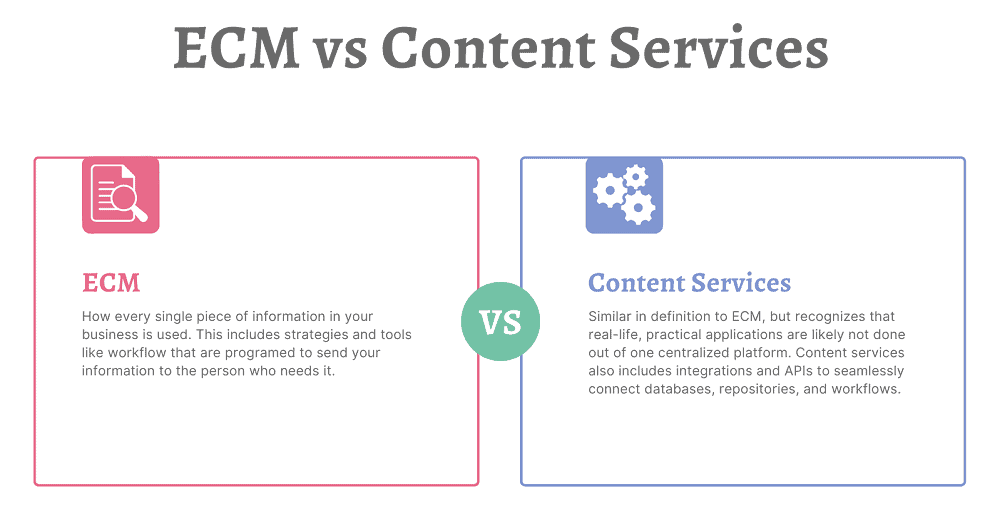
Enterprise content management (ECM) is how every single piece of information in your business is used. This includes strategies and tools like workflow that are programed to send your information to the person who needs it.

Content services (CS) is very similar in definition to ECM, but recognizes that real-life, practical applications are likely not done out of one centralized platform. Content services also includes integrations and APIs to seamlessly connect databases, repositories, and workflows.
That being said, there are many platforms that aim to store, streamline, and automate your content that are also rich in integration opportunities. Those are called Content Services Platforms (CSPs).

What is a Content Services Platform?

According to Gartner, a content services platform is:

“a set of services and microservices, embodied as an integrated product suite and applications that share common APIs and repositories. A CSP exploits diverse content types and serves multiple constituencies and numerous use cases across an organization.”

small version of animated robot for rpaEssentially, a Content Services Platform is the next evolution of an enterprise content management system. It allows organizations to create, store, manage, and transfer information. A content services platform can include:

  • Electronic forms
  • Workflow automation
  • Robotic (RPA) and other intelligent process automation
  • Integrations with leading software (ERP, CRM, HRM, etc.)

Again, while CSPs are designed to be the main system of information management, they also feature the ability to be integrated into other software.

What Are the Different Elements of Content Services?

Content Services are broken into three main elements:

1. Content Services Platforms: the base platform that includes a content repository and acts as the main connector to other services. See above section for more details.

2. Content Services Applications: applications that provide business-focused solutions for functions like HR or IT. These can be separate or built into the content services platform. A good example is the Solution Marketplace for Laserfiche.

3. Content Services Components: components that provide a very specific function. This includes (but is not limited to) document imaging/data capture, electronic signatures, and language translation.
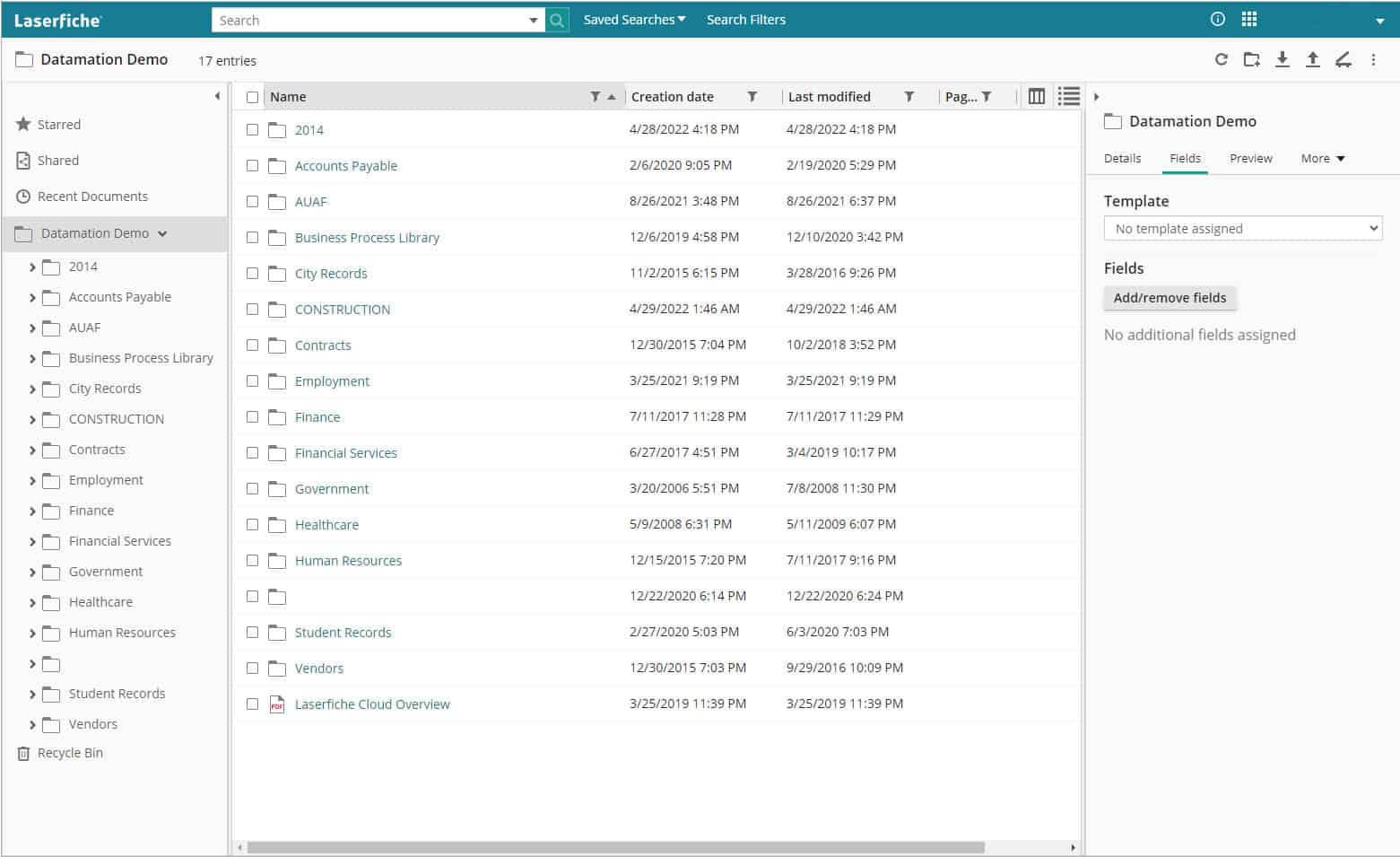
(click image to enlarge)

Why Do I Need a Content Services Platform?

One question that we hear a lot is: why do I need a content services platform when I can just store my files on our company servers or in general cloud storage?

The difference comes down to whether your files are living, active documents or just archival records.

If you’re storing archival records that rarely need to be accessed, then keeping them on your internal servers is a solution that will likely work well. As long as your network is secure, there shouldn’t be any problems with storing those records.

But companies that have lots of active, living documents that need to be accessed by multiple employees and/or departments can gain serious benefits by managing these files in a content services platform.

Benefits of a Content Services Platform

There are many benefits to investing in and using a content services platform.

Known Costs

Content services platforms will have upfront pricing based either on users or storage. There will be no surprises when your bill comes around and it’s easy to estimate costs if you need to scale up.

If you are using an online storage system (like Google Drive, OneDrive, Box, etc.), you can easily reach your free storage limit. We’ve had customers who reached that limit, but continued to upload documents, and were being billed without realizing it.

Records Retention
animated drawing of filing cabinetOften when it comes to records retention, companies just keep everything—just in case. But there’s no reason to. For example, most accounting-related information only needs to be kept for seven years (and depending on the document type, even less than that).

The problem with storing documents in a network folder is that you can’t assign searchable metadata to those files. So you either have to set up a very elaborate folder structure and hope that your employees stick to it, or manually search through the data to determine what can be deleted.

Content services platforms can automate all of this. Simply import documents, and the CSP can pull out relevant metadata (or you can add yourself), file the document in the correct folder, and tag it for a deletion report when it hits the end of its life. What may have taken hours or days manually will take minutes with a content services platform.

Standardized Filing

If you go into any organization, you will find that every employee names and files their documents a little differently.

With a content services platform, decision makers can determine a filing structure and then enforce it across the organization. Permission levels can be set to make it impossible for employees to change or modify the filing structure. This not only makes finding documents easier today but will make it easier for generations to come.

 Accessibility

A paper file can only be in one place at a time (unless there are multiple printed copies and that can cause other issues). An electronic file on a server can likely only be accessed at the office (or via a VPN). Content services platforms are designed specifically so your employees can access them from anywhere. The leading services are cloud-based so employees simply need to log into a portal from a browser.

One thing we hear a lot is that organizations don’t require a CSP because they store all their documents as PDFs in their ERP or CRM system. Not only does this not allow them to be widely searchable, but it can potentially make it harder for employees to access the documents they need if they are not in a centralized repository.

Security

data security privacy integrityDigital documents already have more security than paper ones, because people can’t just pick them up from a desk or pluck them from a filing cabinet.

But content services platforms take security even further. Administrators can assign special permissions to employees (either separately or as a group) so that they are only allowed to see the documents that they should and, if applicable, cannot delete anything from the repository. This means that only people processing invoices can see the Accounts Payable documents and only the highest level of Human Resources managers can see sensitive personal information.

These systems also feature document history and audit trails, so you know exactly who has opened and edited documents.

Additionally, CSPs feature some of the leading cybersecurity to keep your data safe and secure. Most also allow for two-factor authentication for organizations that want to add another layer of security.

Productivity and Time Savings

Being able to log into a document repository, make a search, and immediate find the information you need will allow your employees to work efficiently and service your customers (or students, or members, or whoever you need to provide information to) faster than ever before.

Additionally, process automation tools practically eliminate the time needed for basic tasks. When you’re working on paper, or even with digital documents, how long does it take you to get full and final approval? When you digitize and automate that process, you can reduce approval turnaround from days to minutes.

Ease of Use

Content services platforms are designed for anyone to use. Like all new software, there is a learning curve, but once you get the basics down, you can quickly find whatever information you’re looking for. Folders and projects are simple to add documents to, which is essential for your active, living files.

Most CSPs are built on folder or project structures, which means you can click down into the documents you need. Or you can do a text search and bring up all matching documents that you have access to.

CSPs are low- or no-code platforms, which means that advanced features like e-forms, workflow, and RPA (bots) are easy for people to setup without advanced coding knowledge.

Though for organizations with developers on staff, there is plenty of advanced functionality where you can design robust e-forms, workflows, and integrations. More about integrations in the next section.

Integrations

One of the most useful things about content services platforms is their ability to integrate with your other applications.

Think about the next time you hire an employee. With the click of a button, your HR management system can push information to your content services platform, which will in turn generate documents, inform relevant parties, email the onboarding forms, and kick off workflows for ordering equipment or creating user accounts on other systems.

Integrations are key for CSPs, and many of the leading platforms have native integrations with some of the leading accounting, HR, CRM, and ERP systems either right out of the box or easily added. There are also APIs and robotic process automation to connect the CSP to other disparate systems.

Now that we’ve covered some of the many benefits of a content services platform, let’s look at what you need to consider when selecting one for your business.

What Should I Consider When Shopping for a Content Services Platform?

There are a lot of CSPs, and each has their own strengths and weaknesses. However, you can find the right one for your business by doing some research.

animated checklist icon1. Determine which of your current systems are essential for business

As in, make a list of the software that you use and want to keep using for your organization. This includes ERPs, HR and/or accounting software, CRMs, and other custom applications built and used in your business (commonly referred to as line of business or LOB applications). You’ll want to have this list ready to see if your prospective content services platform features any direct integrations or easily added connector software.

Running older programs that don’t generally have APIs or integrations? Not to worry – depending on what you use the software for, RPA can likely log in and perform basic tasks (e.g. data scraping, copy/pasting).

2. Think about what functions your organization will use now and how you would like to grow

While having all of your documents digitized in one centralized location is a great start to digital transformation, the real power of content services platforms is how you collect and use data. Think about what information you collect via paper forms and your processes around them. It’s likely that all of that can be digitized, and a lot of it can be automated, but you’ll need to make sure that your CSP has that capability.

3. Partner with a consultant

Because there are so many different content services platforms, we recommend finding a trusted consultant or partner who can match your company and its needs with the right software.

We recommend this because consultants are intimately acquainted with the software and can answer your questions, offer realistic recommendations, provide best practice scenarios, and determine what integrations or workflows you will need. They also work closely with the software companies, so they will know about new features coming up in the product development. Additionally, they have access to demo accounts so you can try systems for free before you commit.

In full disclosure: Datamation is a content services consultant, and we would love to work with any company on their digital transformation journey!

4. Start your research

If you prefer to handle your project internally, then it’s time to do some research. Armed with your notes from steps one and two, it’s time to start diving into systems.

Start by going to software review websites to see how experts and customers rank their systems. Some great places to start are:

Remember: Enterprise content management systems and document management systems can also be content services platforms.

Pay extra attention to platforms listed as customers’ choice—these are ranked by actual users of the platform and not the website review team. It’s good to know how actual users feel because it doesn’t matter how cool a system looks, or how many features it boasts, if your employees don’t use it. It is not worth your investment.

Make a list of 5-10 content services platforms that you would like to research further and then go to their websites. The software websites will show you top features more in-depth and should have a listing of their integrations.

From there, you should be able to narrow down your list to 2-3 platforms. This is when you would request information from the sales team or setup a demo account. When you have demo accounts, make sure to use actual files from your organization so you can test how you and others would interact with the platform.

After gathering more information and/or trying the demo accounts, the right CSP for you should be obvious. But if you’re still unsure, consider looking for that right consultant or partner for more guidance!

There’s a lot to content services, so if you want to review a section, here are the quick links again:

Thinking about a new content services platform for your organization? We’d love to help you find the right one for your business. Contact us or give us a call at (630) 321-0601.

Questions or comments on this article? Find us on LinkedIn or Twitter.

6511

publish

2022-07-15 16:51:38

content-services
Record Retention Rules and Best Practices for Multiemployer Funds

Datamation has worked with benefit funds, including multiemployer funds subject to Taft-Hartley compliance, for over 25 years. And in those 25 years, we’ve learned that no two funds have the same set of retention rules for their documents.

If your fund office doesn’t have an official record retention policy, or maybe a loose set of guidelines that aren’t exactly enforced, rest assured that you are not alone. That’s why we recently partnered with benefit fund administration software company, ISSI Systems, on a webinar reviewing retention rules for fund offices, how you can start on your own retention policy, and best practices on how to stick to those schedules.

We’ve embedded the replay below, or you can continue on with the blog post.

How Long Do I Need to Keep Fund Office Records?

Whenever we start working with a new fund office client, we often hear, “How long do I need to keep these records?” And the answer? It really depends on the record!

In general, all plan-related records should be kept for at least seven years, but many need to be maintained permanently, and others until the participant in question is paid their benefit under the plan.

We’ll list specific types of documents below. We gathered all this information via the International Foundation of Employee Benefit Plans.

Fund Documents Recommended to Keep Permanently

These records should be kept permanently:

  • animated safeMinutes of board meetings
  • Contribution reports*
  • Participant files
  • Trust agreement and amendments
  • Investment guidelines
  • Form 5500
  • Form 990
  • Application for IRS qualifications
  • Summary plan descriptions
  • Documents evidencing trustee appointments
  • Fiduciary liability insurance
  • Reports from independent auditors
  • Actuarial reports
  • Jurisdiction

*Parts of contribution reports are sometimes classified as accounting files and thus have a retention of seven years. See next section for more.

Fund Documents Recommended to Keep Six Years + Current Year

animated filing cabinetMost of the records listed here are your financial documents:

  • Collective bargaining agreements
  • Pension payments
  • Bank statements
  • Canceled checks
  • W-2 forms
  • 1099 forms
  • Expired insurance policies
  • Fidelity bond
  • Actuarial reports

The recommendation of six years plus the current year is generally simplified into seven years in retention schedules.

 Fund Documents Recommended to Keep Four Years

There’s only one record type that currently has a four-year retention guideline:

  • Enrollment cards

Many funds store enrollment cards with participant files. So while you may be able to dispose of them after four years, it’s a lot of manual work to comb through participant files and pull out enrollment cards that have met their retention. We’ll get to solutions for that soon.

Making a Document Retention Schedule for Your Benefit Fund

animated checklist iconNow that you’ve read the recommendations for file retention, we want to be clear that this does not mean that you should copy and paste these lists and call it a day. Every fund office has different needs and may have different state or local guidelines. This is just a starting point to your official retention policy.

When it comes to drafting an official document retention policy, you must meet these three criteria:

  • The policy must be in writing.
  • The policy must be reviewed by your legal counsel.
  • The policy must be approved by your board.

All of these are necessary, but the legal counsel piece is key. Every state has different rules about how long documents need to be kept, so you will need to keep those in consideration as you draft your policy.

Determine Your Level of Risk

Additionally, you also need to consider your level of organizational risk. Some fund offices like to keep records longer than federal mandates. Some offices like to keep documentation forever. However, if you keep documents and data longer than their necessary retention, your organization will be liable for that data.

For example, if litigation comes up that requires documentation from your fund, you are required to turn over all necessary data. However, if the data has already met its retention and been purged, you would not be required to produce it.

There are pros and cons to keeping data longer than required, so it’s up to you, your legal counsel, and your board to decide what level of risk is right for your fund office.

It’s also important to stay up to date on any legal changes that may impact your retention policy. Many states seem to be trending to shorter retention periods. So something that may need to kept for seven years now could be shortened in the future.

Here are some additional resources for developing your records retention policy:

Best Practices for Managing Document Retention Schedules

Now that we’ve gone over the foundation for creating a record retention policy, let’s cover some best practices on managing said retention policy.

Digitize Your Multiemployer Fund Office Files

The simplest way to management your documents and their retention schedules is to digitize your files. Digitizing your files opens up the possibility to automate your retention policy. As in, you can set the retention schedule for a document and you don’t need to think about it again until it reaches the end of its lifecycle.

You’ll need to look into a document management system to accomplish automated retention schedules. We recommend the PaperVision or ImageSilo systems as we have direct integrations with leading benefit fund software. However, nearly any leading document management system will have this capability.

Remember the enrollment cards from before? With a document management system you can flag those documents for a four year retention. When their retention has been met, you will get an alert from the system. That’s a lot more efficient than looking through individual file folders!

Scanning Your Paper Records

When it comes to the actual conversion of paper records, you can either purchase scanners and do this yourself, or you can outsource your backfile scanning to a document scanning company.

Keeping the scanning in-house allows greater control over the project, but it is also a time-consuming process. Also, once the backfile scanning is complete, you may have equipment that isn’t useful going forward. Read our article about in-house vs outsourced scanning for more.

In general, our clients opt to handle the day forward scanning themselves, but let us manage their backfile paper and microfilm scanning.

Complete a File Assessment

Whether you decide to digitize your files or not, it’s a good idea to get a full understanding of the documents that you have.

First, gather your files. They may be on-site in filing cabinets and boxes, off-site in a warehouse, or they could already be scanned and sitting in folders on your server.

Second, look through these documents and classify them (e.g. contribution report, board minutes, etc.).

Third, decide on the record’s disposition. This generally falls into the buckets of capture/scan, shred/destroy, and warehouse/store. Should we scan the record? Should we destroy the record? Do you want to scan it and then store it off-site anyway? There isn’t just one choice, so make sure that you have the right decision makers involved with these conversations.

Please note that while fund offices can do this themselves, a good document management company (like us!) will be able to do this for you or give you the tools to simplify your own assessment.

Other Benefits of Digitizing Your Multiemployer Fund Office Files

woman looking at tablet digital transformationConverting your documents into electronic files doesn’t just make retention easier. There are plenty of other benefits, such as:

  • Immediately gain more space in your office
  • Access documents from anywhere, whether working remotely or traveling
  • Superior privacy and compliance, especially for HIPAA
  • Digital backups for quick disaster recovery
  • Simplified auditing process: auditors can only see the files you allow them to see and can access files remotely
  • File integration with other digital systems, like ISSI

To learn more about the ISSI integration, please watch the video embedded higher up on this page. There is a demo at the 18 minute mark.

Your Next Steps

We’ve covered a lot in this article, so once again, here are steps you should take:

  • Review or create document retention schedules using the resources here as a starting point
  • Stay up to date on legal changes both at the federal and state level
  • Confirm retention policy with legal counsel and board
  • Find and assess your fund’s records
  • Consider digitizing your files to streamline retention schedules and other processes

If at any point you have questions about this process or want some more insight, don’t hesitate to contact us or call (630) 321-0601. If you have comments on this article, please find us on LinkedIn or Twitter!

6183

publish

2021-02-11 12:00:39

record-retention-rules-multiemployer-funds

Top 3 Areas Driving Demand for Digital Files Due to COVID-19

When state governments enacted stay at home orders to slow the spread of COVID-19, the need for digital files skyrocketed. While many companies were already making a transition to paperless offices or had formal work from home policies, there some that were still relying heavily on paper.

As a document scanning and management company, we’ve seen a large interest in digitizing files in three areas: human resources, mailrooms, and microfilm records. These three departments are rapidly digitizing, no matter what the industry. This makes sense as all of these areas require timeliness, privacy, and accessibility for their records.

Let’s get into why these areas are seeing such a demand in digitizing.

1. Digitizing Human Resource Records and Processes

Human Resources is by far the most common area where businesses are scanning their records. We’ve spoken with industry peers across the country and they are also seeing a huge demand in human resources scanning.

And really, this makes a lot of sense. Human Resources is heavily dependent on paper and information. They require lots of processes and approvals for a variety of daily functions. When offices closed, they didn’t have access to their filing cabinets. But employees still needed to perform essential functions like hiring and onboarding. Having all existing and incoming personnel paperwork digitial enables the HR employee to work productively even while remote.

Here at Datamation we’ve seen a large increase in web traffic and calls about scanning HR files. Some are smaller companies that previously relied on paper-based processes. However, most are large companies with multiple offices that absolutely need virtual access and digital routing of personnel records. Without the ability to access their records virtually, HR employees are heading to the office to access records. Depending on the company, this can require management clearance, an exception to the remote work policy, and an office cleaning. Not to mention it can possibly compromise the employee’s health and safety.

2. Incoming Mailroom Processing and Scanning

Even if your employees aren’t in the office because of COVID-19, your mail is still heading there. As many companies don’t want to compromise the health of an employee, or need to make cuts due to the current recession, they’re looking to outsource their mailroom.
The process is simple: incoming is mail is picked up or routed to a scanning company (like us!) or sent to a P.O. Box managed by the third-party company. The company opens, scans, and indexes the mail by the intended recipient. After that, the digital images are uploaded to an FTP site so the company can download the images and process them accordingly, or a cloud-based document management system so each user can access their own mail independently.

Receiving your mail digitally enforces privacy. It also ensures quick document delivery to remote workers for prompt processing. Businesses need to receive about 50 pieces of mail per day to really see the benefit, but it’s simple to implement and cost-effective.

3. Scanning and Digitizing Microfilm and Microfiche

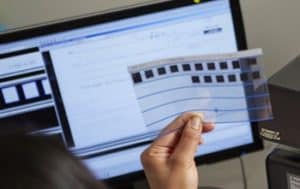
One of the most surprising things has been the increase in demand for microfilm scanning. While converting microfilm and microfiche to digital is one of our standard services, we’ve seen organizations of all sizes and industries reach out about digitizing this type of media.
This is because so many more people are working remotely and can’t access the microfilm and appropriate reader equipment at the office. For any company that was considering a conversion but wasn’t quite ready to make the investment, the pandemic reshuffled their priorities.

Records on microfilm and microfiche are generally archival in nature, so they don’t need to be accessed that often. But when they do (for example: when needing to check a 45-year-old life insurance policy or a 57-year-old student record), someone still has to go find the right piece of fiche or roll of film and then use antiquated equipment to find the right cell. Digitizing these records doesn’t just mean instant access at home—it also means that you never have to use a microfilm reader again.

Digitizing these records also increases their privacy. You can lock a digital file in a content management system with a password and/or user permissions so only those with the proper access can see it.

Finally, converting film and fiche to digital images means that the data will be around forever. Despite early claims that microfilm and microfiche could last for hundreds of years, much of it has started to degrade.

Other In-Demand Applications for Document Scanning

These three areas have seen a huge increase in digital files, but those aren’t the only places. Here are a few other applications for document imaging that we’ve worked on over the past few months:

  • Customer Service: With customer service employees working from home, they don’t have access to customer files in an office filing cabinet or on a server. Virtual access allows them to maintain a high level of customer service while working remotely.
  • Contracts: Storing contracts on a content management system allows for secure sharing. Proper approval parties can receive contracts via workflow. A system can keep all versions of this document without any kind of physical copy.
  • Tax Records: Sales tax, payroll tax, state tax, tax exemption and other large tax records frequently require office access to see these records. This is especially true in the event of an audit. Now employees and auditors alike can access these files remotely.
  • Legal Files: Virtual access to legal files provides fast access and more time for lawyers to perform billable services.
  • Accounting: Many companies are either outsourcing their accounts payable or using an in-house system where invoices can be digitized, and key data extracted so that their system can then automatically receive, route, and pay invoices.

The demand for digital files and these applications has increased this year. And it’s unlikely this will end when the COVID-19 pandemic does. Workplaces have been trending digital for the last few decades, and this was simply a push to accelerate the process. With fewer costs, more productivity, and less needed office space, there are so many benefits from having your records digitized and on a document management system.

If you need to digitize your files or a better way to access those files, we’re happy to help. Contact us or give us a call at (630) 321-0601.

Has your company adopted digital files for any of these departments or applications? What other trends have you noticed because of the pandemic? Find us on Twitter or LinkedIn.

6156

publish

2020-12-09 06:00:05

demand-digital-files-covid-19

Why Should I Upgrade to a New Document Scanner?

Have you had your document scanners for a few years (or more)? If so, then you’ve probably wondered if it’s the right time to upgrade your equipment.

If your scanners are lagging, developing weird quirks, or requiring more frequent maintenance, then the answer to that is clear. But even if there aren’t any major problems it could still be a good idea to future proof your company and processes by investing in some new scanners.

Here are a few reasons why you should upgrade your document scanners.

Reasons to Upgrade Your Document Scanner

The reasons to upgrade your scanner aren’t entirely dissimilar from the reasons you would purchase a new smartphone or car.

1. Old Scanners May Be Incompatible with New Software

It’s very likely that older scanners are not Windows 10 compatible and are no longer being supported. Keeping older scanners means that you need to continually invest time and training in discontinued software. It also means expensive consultations or repair time if your scanner stops communicating with that older software.

2. Get the Latest Technology and Software

Just like most electronics, new scanners come with the latest software. This software makes it easier to program jobs for your scanners and produce higher quality images.

Additionally, scanner manufacturers are shipping scanners with features like on-board image processing. This means that the scanner will do a lot of the heavy lifting on processing your scanned documents and it lessens the strain on your PC.

3. Can Take Advantage of Trade-in Deals

Many production scanner manufacturers have a trade-in value or rebate for your current scanner that you can apply to the cost of a new one. Just ask about these when you’re looking to upgrade!

4. Make Scanning Legal-Sized Documents a Breeze

If you scan a large quantity of legal documents or papers that are larger than the standard A4 (8.5” x 11”) size, upgrading to a high volume document scanner with a 12” feeder will significantly cut down on scanning time. It will also give you a higher quality image.

5. Scan More Paper for a Lower Cost

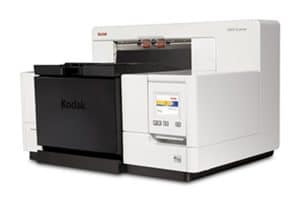
Kodak i5650 Document ScannerNewer scanners are generally faster than older models. By increasing your scanning speed, you can save on labor costs. Over time, labor costs far exceed the cost of your document scanners.

6. New Scanners May Cost Less Than Maintaining Your Old Scanners

Just like owning a car, there’s a point where maintaining an old scanner is more expensive than purchasing a new one. Additionally, most new document scanners include a warranty of some length.

For example: many desktop scanners (like ones that are great for a home office) come with a 3-year warranty. Why pay for maintenance on those when you can have a brand-new model with an included warranty?

Reasons to Upgrade Your Document Scanner with Datamation

Not only are there many reasons to upgrade your scanners, but there are some great reasons why you should upgrade with Datamation.

1. Datamation Is a Top Preferred Reseller

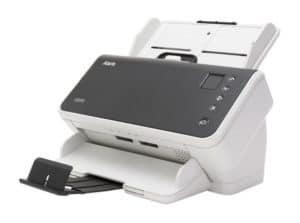
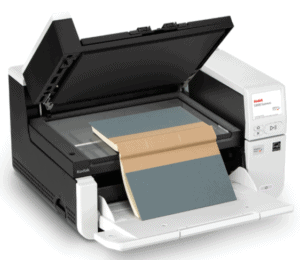
Kodak S2070 Document ScannerWe have a longstanding partnership with the top scanner brands like Kodak Alaris. Between our relationships with manufacturers and the amount of companies we’ve helped with their scanner needs, we’re proud to hold the title of Preferred Reseller.

As a Preferred Reseller, we have access to pricing that is not available elsewhere.

2. We Offer Lease and Rent to Own Programs

If you need a scanner for a few projects and don’t anticipate needing it full-time after that, we can rent you a scanner for the length of your project.

Additionally, if you do want a scanner full-time and don’t quite have the room in your budget for the total price upfront, we offer rent-to-own programs to let you pay for your equipment in installment payments.

3. Datamation Is a One-Stop Shop for All Things Desktop and Production Scanners

Once you have your scanners, you will need to clean them frequently and replace worn down parts so that they last for years. Datamation sells parts, accessories, and cleaning supplies to keep your scanners running efficiently. No need to shop around – just give us a call.

4. We’re More Than Just an Office Equipment Store

When you upgrade your scanner or buy a new one from Datamation, it isn’t just a single transaction and it’s over. We are partners with our clients and will always be there for you when you have questions.

Not sure what kind of scanner you need? Call us. Unsure what the best output specifications are? We’ll help you decide. We won’t just deliver your scanner and never interact with you again.

If you’re thinking about upgrading your scanner, give our document scanner selector tool a try! You can filter by brand, price, and more! Now is also the time to also revisit your needs so that you’re buying the right scanner for your business.

Have any more questions? Give us a call (630) 321-0601 or contact us!

6145

publish

2020-11-10 06:00:03

upgrade-new-document-scanner

7 Things to Know Before Buying a Document Scanner

So you’ve decided that you want to buy a document scanner and start scanning the paper files in your office to reap the many benefits of going paperless. But there are so many document scanners to choose from that it’s hard to know where to start.

Now, you could dive right in and use our document scanner search filters to start narrowing down your choices. But first we’d recommend reviewing these seven things to help you determine exactly what kind of document scanner is going to be the right fit.

1. Determine Your Needs Before You Start Shopping

As with most purchases, it’s critical that you consider your needs and requirements before buying a document scanner.

Here are some factors that you should consider:

  • How many pages per day do you need to scan?
  • Are there peak periods for your scanning? You’ll need a scanner that can handle these peak periods.
  • How many hours per day do you have available to scan records? Are you hiring someone to scan? Will scanning be a new task assigned to current staff? How will staff be trained on these scanners?
  • Do you need individual scanners for every person, or can a department share one localized scanner?
  • Will you be scanning oversized pages?
  • Will you be scanning many color pages?
  • Do you have many two-sided (duplex) pages?
  • Do you need to scan records at a high resolution?
  • Where do the scanned documents need to go? These could be a document management system, server folder, cloud storage, etc.
  • Do you have pages/items that need to be scanned on a flatbed because they will not go through a paper transport?
  • Do you have a PC, MAC, or Linux?
  • Do you need a scanner attached to a network? If so, do you have IT personnel to support it?

Knowing exactly what you need will make the rest of the buying process easy.

2. Don’t Buy a Scanner That Doesn’t Actually Meet Your Requirements

Here’s one of the most important things to know about purchasing a desktop scanner: the daily duty cycles published by the scanner manufacturers are way too high. You might be able to physically scan 4,000 pages per day on a desktop scanner, but you’ll need to be prepared to be at the office all night scanning.

Make sure that you buy a unit that can scan all of your necessary documents in 3-4 hours per day or less. You might feel that you’re buying more than you need, but over time, the labor cost of scanning is much higher than the purchase price of the scanner. A fast, more durable scanner completes your work is less time, which frees up you or your employees to perform other, better work.

3. Feed and Speeds Can Be Deceiving

This is an extension of point number two, but we really want you to understand how scanners are marketed. Yes, a scanner brochure, or even a product page on our website, may say that the scanner can scan 5,000 pages per day. And that’s true, but only if you have 12+ hours to scan every day.
Most of these duty cycles are based on an artificially perfect environment with perfect paper (no fading, no tears, no dog-eared pages, etc.). So if you run thousands of pages (which probably are not in perfect condition) through a desktop scanner all day, every day, the scanner will eventually not be as reliable. Your time is valuable, so pick a scanner that will cut down on scanning time.

4. Evaluate the Software in Addition to the Hardware

Every document scanner comes with software that runs the scanner. However, all scanning software is not created equal. Some comes packed with features you may never intend to use, and some may not have enough features to do everything you need.

Make sure you evaluate the scanning software so that it meets your needs and that it’s easy to use. Software to the scanner is like a transmission to a car; the software governs how you change settings and runs the scanner. You don’t want to be unhappy with your scanner because the software frustrates you!

5. Don’t Depend on a Copier/Multi-Function Printer

scanner services consumables maintenanceWe hear this a lot: “I don’t need a scanner because I just use our copier.” And if the only thing you’ll be scanning is a page or two a week and the image quality doesn’t matter, then you can rely on your copier.

But if you need to scan a decent amount of paper every week, having a desktop scanner will save you time. Instead of getting up multiple times per day to run a document through the copier, you can stay at your desk and have your scanned file in seconds.

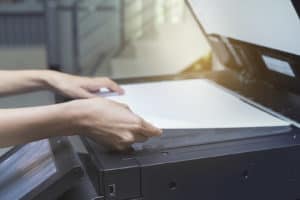
Additionally, a scanner will give you a much better image. A scanner scans a document using thresholds, algorithms, and filters. This provides high-quality images that accurately represent the original. Copiers simply duplicate pages. They create blacked-out areas where there is shading and do not provide a preview of each image for review.

If you are scanning private information or sensitive documents, you should also consider investing in a scanner. Images scanned on a workstation document scanner have superior security as they are not stored on the hard drive of the copier.

6. Don’t Forget the Service Contract and/or Warranty

Many desktop scanners come with 3- to 5-year warranties. Larger production scanners require you to purchase a service contract once the initial (generally 3 months) warranty runs out.

So, when doing your research, don’t forget to account for the cost of a service contract. You’ll appreciate having it as many service agreements include a 4-hour response time which minimizes your downtime.

Additionally, know who will service your scanner and the process for having it serviced. Research the following:

  • Do you have to send in the scanner for repair or replacement?
  • Will a field technician come to your office to repair the unit?
  • Is the technician from the scanner company or a third party?
  • What is the availability and lead time on parts?
  • For optimal uptime, should you acquire an extra scanner in the event one needs repair?

Finally, when ordering your scanner, make sure that you ask about consumables and cleaning kits so that you can keep your scanner working in top condition.

7. Consider Outsourcing Part of Your Work

Are you looking at buying a document scanner because you have a backlog of work to be scanned? Then you should consider outsourcing part or all of it to document scanning company (also called a scanning conversion bureau).
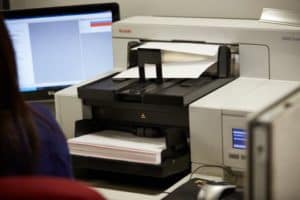
Using a scanning company means that you don’t have to invest in a production scanner that may be underutilized when your backlog is gone. It also eliminates the burden of scanning and enables you to focus on key aspects of your job.

Once the backlog is gone, you can simply purchase smaller desktop scanners to scan any ongoing work.

Related resource: Should You Outsource Document Scanning or Do It In-House?

Wrapping it up…

Once you go through these different research steps, you should be well on your way to determining the best document scanner for your needs.

But if this is all still a little murky, don’t hesitate to give us a call and ask our opinion! We’re happy to recommend several scanners that will meet your needs and there’s absolutely no cost to you to do this. We use production scanners every day as part of our scanning services, along with multiple different types of desktop scanners for our own paperwork, so we know a thing or two about scanning.

Additionally, we can provide:

  • Demonstrations and recommendations on the different software for the scanner(s) you may be interested in
  • Installation assistance after you receive your scanner
  • Training on the use of the scanner optimized on how you will be using it
  • Options for warranties, extended warranties, and service contracts
  • Quotes to do backlog scanning by our conversion bureau

We know that some of these scanners are serious investments, so we want to make sure that you’re getting exactly what you need, and that the scanner will run smoothly for a very long time.

Give our scanner selector tool a try and then us a call at (630) 321-0601 or contact us. We’re here to help!

6049

publish

2020-09-10 06:00:38

buying-document-scanner

How to Get Started with Document Management and Scanning

Many offices have the goal of achieving the paperless office. However, going paperless is a seriously intricate task, with many paths and solutions. Where do you start? What do you need?

As we have helped hundreds of clients start their paperless journey, we wanted to share the steps you need to take to move towards streamlined document management.

While we have numbered the steps for simplicity, you will want to keep all of these things in mind throughout the process.

Step 1: Outsource Your Document Scanning to a Trusted Partner

document scanning equipmentConverting the paper you already have into digital files must be one of your first steps. And the reason that we recommend it as the first step is because a seasoned document management and scanning company will be a great partner in helping you go paperless. Not only do they have the experience in scanning your files, but a good company will also be up to date on document management software and strategies.

Outsourcing your scanning allows you to immediately gain office space and/or stop paying monthly storage fees for boxes.

After selecting that scanning partner, they will work with you to determine the right document management strategy for your business. Once you understand proper scanning procedures, you and your document management partner can determine your future state. Is this something you would prefer to take in-house with your own scanners, continue to outsource, or take a blended approach?

Step 2: Transform Your Paper Forms into Digital Intake

fill out eforms anywhere document managementWhile you’re having your current paper documents scanned, you’re also going to want to think about how to eliminate the creation of new paper documents.

Instead of printing and mailing, many documents can be delivered via email or secure share as PDF files. This is the easiest change to make as it requires only a simple process change.

Next, much of your paperwork can probably be converted to electronic forms. Consider building forms for processes that require a lot of paper but rarely change in content, like HR onboarding.

If your business works with outside vendors, or you are a public body that answers to citizens, you should build an online portal. With an online portal, your partners and customers can self-serve or use a form to make a request.

Step 3: Choose Your Document Management Software

laptop document management systemYou should be researching document management software along with your scanning and electronic forms. After all, you’ll need to know where you’re going to store electronic files, in what format, and how they can be accessed.

At first, a simple folder structure on a network or shared drive may be a sufficient archive. But as you work with active digital files, you will need more flexibility and features.

Document Management Solutions

You will need to determine what kind of system is best for your organization. For businesses that want to have complete control over their software and hardware, you’ll want to invest in an on-premises solution. This does require significant hardware and personnel to manage appropriately.

If you still want to have control over your software but don’t want to have the burden of physical hardware, consider a hosted content management solution. A cloud hosted solution allows for a third-party company (possibly your document management partner) to maintain and upgrade your content management.

For the latest updates and lowest maintenance, consider a cloud subscription. This software is a set monthly rate that doesn’t require an investment in software, hardware, or personnel. Like the hosted option, a cloud subscription means that you can access your files from anywhere. This is key for distributed teams, multiple offices, or remote workers.

There are many options and features with document management, which is why we recommend connecting with a document management expert. A good partner will be able to work with you to discuss immediate needs and how you’d like to grow, and then determine the best system for you. If you didn’t connect with a document management and scanning company in step one, this is the time to look for one.

Step 4: Take it to the Next Level with Automation

workflow feature document managementThis step, unlike the first three, can be put off until later. But eventually, you will want to take full advantage of your electronic files and streamline your processes with automation. Workflow and robotic process automation can move files, process invoices, and eliminate repetitive tasks. They help your business run smarter and let your employee focus on better work.

Most document management software has automation options, either at the base level or for an additional cost. Make sure that you talk with your document management company or a consultant about your options and what kinds of process automation they recommend.

While you can’t change your company overnight, these steps will get you well on your way to achieving a paperless, efficient office. Make your plan, find a good partner, research your options, and make gradual changes.

Thinking about moving from paper to digital files and processes? Don’t hesitate to contact us or call (630) 321-0601.

Comments or questions on this article? Find us on LinkedIn or Twitter.

This post is part of the Datamation Guide to Document Scanning.

5737

publish

2020-08-04 06:00:29

get-started-document-management-scanning

How to Choose a Document Scanning Company

So you’ve decided to, or are thinking about, outsourcing scanning to convert a bunch of your backfiles. Excellent! Now the question becomes: where do you start when selecting a document scanning company?

To answer this question, read on to learn about everything you should know and ask when vetting a company to scan your documents.

Pro tip: scanning and imaging can be used interchangeably.

1. Document Scanning Technology

document scanning equipmentThe first thing you will need to understand are the basics of scanning/imaging technology and software. A good vendor will help you with this as it’s pretty simple, though not a process that most people know about!

Having a loose idea of technology will make understanding the full scope of your project much easier.

2. Company Goals

Next, you should look at your organization’s priorities, goals, and objectives. Some of these include:

  • What is the retention schedule of the documents? Or, how long do these documents need to be kept?
  • How many people/users need to access these records?
  • How are records stored, provided, and backed up?
  • Is training and orientation necessary?
  • Should you run a test to benchmark the process?
  • How long will the conversion take?
  • Can I access these records when they are at the service provider?
  • Will the security and privacy requirements of these records be maintained?
  • What special requirements need to be discussed?

Knowing the answers to these questions will allow your scanning partner to recommend the best solution for your company culture and budget, along with ensuring that everyone is on the same page for the scanning project.

3. Selecting a Document Scanning Company

You should evaluate at least two service providers. Trustworthy companies are easy to find via the internet through a search, an online directory like Yelp, or trade organization websites. Visit the business’ website to make sure that they are a reputable business. Read online reviews if there are any. Check out their social media accounts to see if they’re active.

If you have a good relationship with other companies your size or in your industry, reach out to them to see if they have used a scanning company before, and if so, if they would recommend them.

4. Touring the Facilities

tour the document scanning companyIt is highly recommended that you tour the company’s facility as this is a true reflection of the quality, process, and management of that provider. You’re going to want to know who is handling your records, so you can, in-person, gauge the expertise and attitude of key staff.

Please note: only request a tour if permissible by local health guidelines. If not available, see number seven and ask for additional references. Watch any company videos that include their processes. Call the company and ask to speak to the Production Manager.

While you tour the facility, the following should be evaluated:

  • How is the production run?
  • What equipment is being used and why?
  • What is the general appearance of the facility on the inside as well as the outside?
  • How is the general employee work environment?
  • Are clients’ jobs are handled with care they deserve?
  • Remember to ask if the company makes use of the latest national and industry standards.

If you are not able to physically visit the location, make sure that you ask about the production process and for customer references.

5. Expertise and Experience

A document scanning company should employ scanning specialists who are trained, certified, and have had several years of experience. Find out how long the employees have been with the company. This will reveal the level of experience and expertise in the company. It should have trained operators, along with qualified supervisors, for everything it does. Its staff should be knowledgeable enough to aid with any problems or issues that arise.

If the company provides professional services and/or offers consulting services, its staff consultants should be experienced in in systems design and be formally trained and certified in the imaging and document management software used in that company.

You should also meet with one of the principals of the company. The management of a good scanning company should be closely involved with the operation and customers. Most owners and c-level executives are seriously passionate about document management and love to talk about it!

6. Cost and Location

As with all things, you get what you pay for. And as such, beware of companies that offer extremely low prices for their services. This can be a sign that the company is desperate for business and may be financially unstable. It also may be a sign that the company is cutting corners on processing to undercut its competition.

On the other hand, they shouldn’t overcharge you either. Document scanning services do take many hours of labor, but you should be quoted a fair market rate based on the nature of your work. All charges should be clearly stated on the agreement so that there are no surprises on the final bill.

Ideally, the company will be located somewhat close to you so that transportation costs and turnaround time are reasonable.

7. Reputation and Financial Strength

reviews and reputationThe service company should provide some references of current clients. You should contact these references to validate the firm’s reputation. The company will most likely give the names of satisfied customers, so try to ask some pointed questions such as “What did you not like about the services provided by the company?”

You should ask questions about the company’s financial strength as this also dictates a well-managed company. When measuring financial strength, one good indication is the company’s longevity. If the company has been in existence for over five years, it is probably being run reasonably well from a financial standpoint.

8. Reliability and Turnaround

Measuring quality and turnaround can be easily determined through a simple pilot test. Send a representative sample (a box of paper documents or a roll of microfilm) with actual documents of varying quality. The varying quality is important because you’ll want to see if the company can properly scan files of both good and poor quality.

When doing this, keep the following in mind:

  • How quickly does the company turn this sample around? If it finishes in a couple of days or under a week, then it was a priority and is a good reflection of the prospective vendor.
  • Does the provider have the necessary capacity to process your work in the event of some equipment downtime or other challenges? Software, hardware, networks, and labor are all areas that can cause downtime. Ask the vendor about this to ensure they can meet your turnaround requirements. Check when their peak loads are and whether they can handle increased volumes during these times.

9. Quality

One of the most important factors to determine about a scanning bureau is whether it guarantees the quality of its work. This is easy to tell based on the results of that sample of work from the last step. To cover yourself, you can put an escape clause in the agreement to allow you to take your work to another company of the quality is unsatisfactory.

10. Privacy, Security, and Integrity of Data

data security privacy integrityYou should find out how many people will be handling the material and put privacy agreements in place as needed. In addition, protective storage should be provided in the company’s facilities. Obviously you’re going to want to make sure that your records are protected from loss or damage while they are processed. The company should have the ability to store your records in a locked cage when not being worked on.

There should also be a means of adequately and securely disposing of your records if you do not want the physical files back. Find out what options there are for the disposition of your records.

Finally, the company should have a security and fire alarm system as well as be thoroughly insured with policies covering errors and omission, liability and cyber insurance.

One Last Thing

Here’s the last thing to keep in mind: after selecting a company, you are not cleared of responsibility. The records are yours and the ultimate responsibility of the quality of these records is yours, as well as the system you use to manage these records.

If you’re not entirely sure how you want to manage your records going forward or just want some advice, a good service provider should be able to walk you through multiple solutions.

In summary, a good document scanning company can provide you all the benefits of imaging while freeing you of capital investments and labor. In addition, a good scanning company can provide a complete solution or provide the scanned records in a format ready for your document management or imaging system.

Naturally, we’d love to work with you on converting your physical documents and film into high quality digital files. If you’re interested in starting a scanning project, give us a call at (630) 321-0601 or contact us!

This post is part of the Datamation Guide to Document Scanning.

4359

publish

2020-05-20 06:00:59

choose-document-scanning-company

Keep Business Moving: Online Document Management & Digital Mailroom

In these unprecedented times, it’s essential that people stay safe and healthy, and that all of us keep our businesses moving. That means more Zoom calls, Slack chats, and new software like online document management. We here at Datamation wanted to cover the multiple ways we’re here to help you keep your organization’s data secure and accessible while some or all of your staff works from home.

Online Document Management Software

document management remote workWith the influx of employees needing to work remotely, organizations need ways to stay connected and productive, and keep business processes moving. Datamation has always offered free 30-day access to leading cloud-based document management software for US-based companies, which we will continue to offer and support. With this trial, you and your employees can access and work on key documents from wherever you are.

Online document management software is secure, accessible, and collaborative. Using software like this ensures that you don’t have duplicate documents, everyone has access to the data they need when they need it, and employees can collaborate on documents and processes just as they would face-to-face. Documents and data are stored on a secure cloud server with multiple layers of security. The software is easily scalable to organizations of all sizes.

We’re proponents of document management software for everyone, but we especially recommend it for highly-regulated industries and any company/department that is audited often. These systems have built-in audit trails, so you always have a record of who accessed what.

Do you work in highly-regulated industry (like healthcare or finance) that still relies heavily on faxing? You may want to look into HIPAA-compliant cloud digital faxing solutions.

Emergency Mail Scanning and Digital Mailrooms

Even though offices are temporarily closed, we know how critical it is that you still receive and process your mail. Datamation can be your mailroom while your workers are at home.

We can collect or receive your mail, prep it, scan it, and then deliver it electronically to a central repository. We can also place it into workflow that will deliver it directly to the recipient or department. Depending on the type of document management software you have, we may even be able to upload it directly to your system.

Document Scanning Services

If you’re finding it difficult to get things done because your processes are mostly on paper and locked away in a filing cabinet, we can help you digitize your documents.

We’ll work with you to determine which documents are critical and how to prioritize scanning them. Then you can ship them to us, or we’ll do a low-contact pickup and bring them to our secure, SOC 2 Type 2 audited facility. After that, our HIPAA trained staff will scan, index, QC, and deliver the electronic files.

Desktop Scanners

Or, if you rather scan documents yourself, Datamation is a leading reseller of high quality, affordable, desktop scanners.

Some of our favorite scanners cost between $350 and $600 and don’t take up much room on a desk. They are easy to install and come with intuitive scanning software included. Your employees, whether remote or social distancing, can be up and running on their own scanners in less than an hour. Read our post about the best document scanners for remote work.


We can also help with any kind of paperless initiative you have. Maybe you want to create a public portal or forms for your customers. Or maybe you want to integrate your ERP with an online document management system for maximum productivity.

When it comes to your business information, we’re here to help. Contact us today.

4716

publish

2020-04-03 15:04:38

business-online-document-management-digital-mailrooms

Which File Format Should I Use for Scanned Documents?

So you’ve decided take your office paperless and are going to scan your documents or outsource the project. That’s great! There are lots of things to consider, but one item on the checklist should be which file format you’re going to use to store your scanned documents.

Let’s cover the most common types of file formats used in document scanning and which one may be best for your company.

As a disclaimer: we know that different file formats are good for different uses. This blog post and our opinions reflect our observation and usage from over 25 years in the industry.

PDF: Portable Document Format

PDF files are one of the most common file formats for scanned documents (and just about any kind of electronic document). Adobe designed the format so metadata, which is descriptive information about the file, could be captured from any application. Best of all, most computer users are familiar with the format and how to use them.

PDF is a great choice for your documents because they have built-in optical character recognition (OCR) technology, which means that they can be text searchable. For example, an instruction manual can be searched for specific text or phrases.

Have a relatively small volume of files? Those can be easily and conveniently stored in a PDF format. In fact, most desktop scanners come with software that will enable you to scan, name, and save a file in PDF format.

When to Use PDF:

  • If you’re going to scan your documents and just store them on your server or a hard drive
  • You only need to scan a low volume of files per day
  • If you plan to print any documents
  • Your company requires storing archived documents as PDF/A (see below)
  • You don’t use document management software
  • You don’t have a large volume of files

Pro tip: if you are scanning your documents just to have as an archive, and you don’t plan to edit them or access them often, you may want to save them in a PDF/A format. The PDF/A was created specifically for archiving. The format includes a “profile,” which means that it also stores data about fonts and colors so that the files can be read for years and years to come, regardless of what kind of software or internet browser is popular in the future.

If you’re an insurance company or benefit fund that needs to retain records for 60+ years, you may want to have both PDF and PDF/A copies for your archives.

PDFs can also be saved as:

  • PDF/E (for engineering and technical documentation archiving)
  • PDF/X (for graphics and printing)

You may also see the PDF options of PDF/UA and PDF/VT. These are standards created for accessibility and variable data printing, respectively.

TIFF: Tagged Image File Format (also seen as TIF)

TIFF files are the other most common file format for scanned documents. These are image files that hold a lot of detail. TIFF files also can compress very well and are commonly used to store scanned business records, patient files, student files, and government records.

If you have a large quantity of files to scan, it’s better to scan in a TIFF format. TIFF files can be efficiently compressed to optimize performance and file size. In addition, files scanned in a single-page TIFF format are compliant with health care privacy guidelines. For example, if you open a 400-page large patient file that is all contained in one PDF file, then you have most likely violated privacy guidelines. Also, the PDF file will be large, take more time to open, and be more susceptible to hackers and other unwanted parties.

As TIFF files can be comprised of single pages, it’s easy to add and subtract pages of documents. For example, if you’re working on an employee’s HR file, it’s easier to add to that file with TIFF images.

When it comes to scanning, one of the reasons that TIFF files are favored over PDFs is because a TIFF file is a true picture of the original document. That true picture preserves the integrity of the document whereas a PDF can be manipulated.

One of the drawbacks of TIFF files is that if you want them to be text searchable, you’ll also have to store a separate text file. However, if you’re working on these files within a document management system, this entire process is pretty seamless.

When to Use TIFF:

  • When you’re working with files that need to be added to frequently
  • If you primarily work with 200+ page documents
  • If you frequently use or plan to implement a document management system
  • When you have a large amount of files to convert to digital
  • If you plan to annotate or edit your documents after scanning them
  • When you’re working with files that must meet certain compliance standards (e.g. HIPAA)

JPEG: Joint Photographic Experts Group (also seen as JPG)

document scanning equipmentJPEGs are one of the most common image file formats for digital photography and web images, but not usually the best choice for your scanned documents. As images are resized or modified, the quality and data can be lost.

However, if you are scanning something like an archive of old posters or something graphics-heavy, JPEGs might be a great format.

Also, if you are using a content management system to hold all of your files and data, JPGs are perfect for storing logos, marketing assets, backups of website images, and printable collateral.

PNG: Portable Network Graphics

PNGs, like JPEGs, are great for web graphics. Like a JPEG, you may want to use this format for marketing materials and website image backups.

However, as they have a lower resolution than both TIFFs and PDFs, we also don’t recommend the format for scanned documents.

GIF, BMP, DOCX, and Other File Formats

We love a good GIF as much as the next person, but with fewer colors and a lower file quality, they aren’t a good file type for your documents.

BMP is an older file format that’s mostly been replaced by TIFF. You should only consider BMP if your ERP is an old, legacy system. And even then, it’d be better to initially scan as TIFF, make a backup, and then convert a duplicate set of TIFF files to BMP.

DOCX, PPTX, and other Microsoft Office files are good for living documents that require collaboration or updates. They’re not recommended for a historical or archived document that you don’t want changed, or files with personal information.

Again, if you’re going to be using an enterprise content management system for your files, you can store any kind of file in there without concern. Older scanned documents, new digital-born documents, pictures, audio files, and so much more can all be stored in one location.

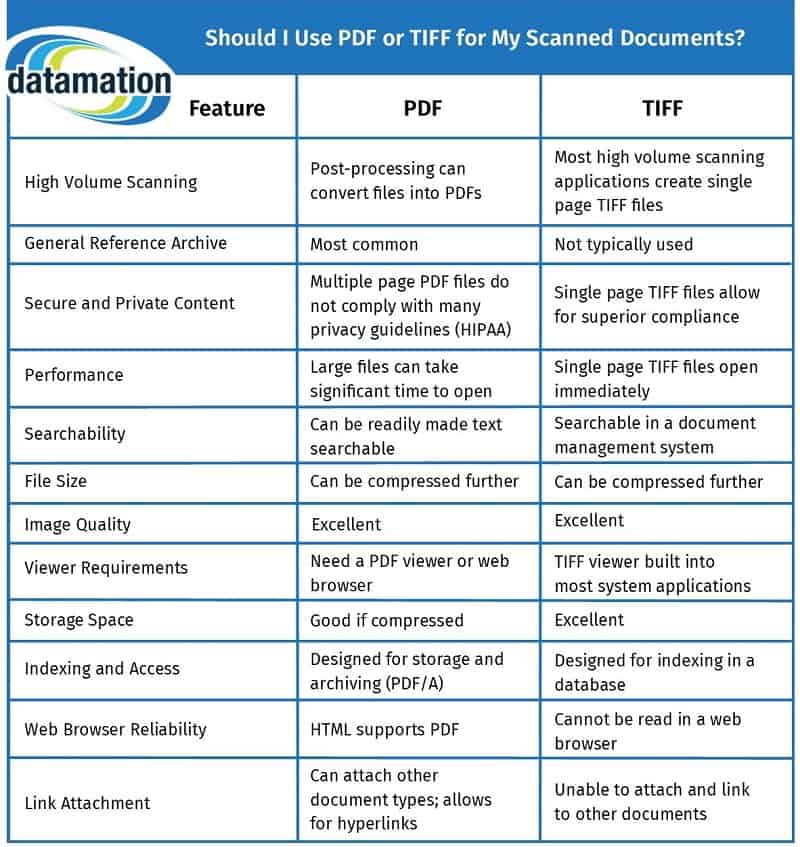
Should I Use PDF or TIFF for My Scanned Documents?

If you’re still on the fence, take a look at our comparison chart:

Ultimately, the file format you use for document imaging isn’t going to make or break your digital transformation. Consider how your digital files will be stored and accessed, along with any kind of business standards your organization has. And remember: TIFF files can be converted into PDF files and vice versa.

What’s most important is being able to retrieve an image as quickly as possible when you need it. And that usually comes down to the kind of system you’re using.

Storing My Files in a Content Management System

laptop document management systemAs we mentioned earlier, if you’re using a true content management system for your files, then you can store everything you want in whatever format you want. There’s no need to convert any files unless your business has certain standards for storing documents.

Now here’s a fun fact: many content and document management systems store images in their native format but render (convert) these images to a different format as they are retrieved and viewed. Generally, the user doesn’t even know that this is happening.

There are multiple reasons for this:

  • By being stored natively, the original file/image is more secure.
  • The viewed/rendered image is now a working copy of the original image. It’s used for a very specialized purpose and safe from hackers and other unwanted sources.
  • Displaying an image in a common format enables the viewer to have more functionality. The viewer window can now easily email, annotate, reorder images, add or delete pages from a file, redact, lock, create a new version, print, integrate to an application, sign, download, perform routing, and carry out workflows.

In conclusion: the format of your files should be considered, but the choice is ultimately which format is best for your company, software, compliance and regulations, and the types and volume of documents to be scanned.

Essentially, don’t worry! A successful digitization project does not come down to whether you scan to PDF or TIFF files.

If you have any questions or comments on this article, reach out to us on LinkedIn or Twitter. If you’d like an expert opinion for your scanning project, don’t hesitate to contact us or give us a call at (630) 321-0601.

This post is part of the Datamation Guide to Document Scanning.

4636

publish

2019-11-05 06:00:56

file-format-scanned-documents-pdf-tiff

Everything You Need to Know About Document Management

Are you still doing the majority of your organizational tasks on paper? Do you loathe a request because you know that you’re going to need to walk down to the storage room and rummage around paper files for an hour? Then it sounds like it’s time for a document management solution.

Every day business moves faster, more goes digital, and it’s costly to stick to old systems and habits just because it’s what you’ve been doing. Scanning your files and media provides a ton of benefits and you don’t necessarily have to change everything overnight.

Let’s go through the three levels of document management, what they each mean, and how you can implement them for your own business.

If you want to jump to a specific section:

1. Basic Scanning and Archiving

The first level is basic archiving. This means scanning your records how they are in their file folders and naming your new digital files after the folder. Once documents are scanned, you can store digital files on your network server or an external hard drive. Not only will this clean up your paper files, but it creates a reliable back up in case of a disaster.

You have two options when you want to scan your files: do it yourself or outsource it to a document scanning company.

DIY, Internal Scanning

If you want to scan your own files, you’ll need to purchase or rent a document scanner. Personally, we recommend desktop scanners from Kodak or Epson. These scanners are easy to use and can usually be purchased for under $350. If you know you’re not going to need or want a scanner after conversion, these and other production scanners can also be rented.

Outsourced Scanning

If you choose to outsource your scanning, the company will come to your office, box up your records, take them back to their office, and scan them at your specifications. Make sure that you decide prior to conversion exactly how you want your files to be named and what format you want them in (e.g. PDF, TIFF, etc.). If unsure, ask the company!

Outsourcing will also allow your files to be made text searchable so you can find anything you need within the body of the document.

The cost to outsource is around $.05 to $.08 per image scanned. This makes a standard banker’s box of files cost around $200 for a full scan with text searchability.

Related resource: Should You Outsource Document Scanning or Do It In-House?

2. Document Management System for Storage and Retrieval

The next level, and what most companies are migrating towards these days, is a document management system for storage and retrieval. You may have also heard these referred to as content management systems or imaging systems. The focus of this system is to have a centralized repository of all of your content – and not just your previously scanned files. These can include emails, PDFs, spread sheets, video, audio, and CAD files, among others.

Are Document Management and Enterprise Content Management the Same Thing?

laptop document management systemSometimes document management system is used interchangeably with enterprise content management, but they aren’t entirely the same thing.

Document management system (DMS) refers specifically to how you store and access your documents, along with monitoring the lifecycle of those documents.

Enterprise content management (ECM) is how every single piece of information in your business is used. This includes strategies and tools like workflow that are programed to send your information to the person who needs it. We’ll touch on ECM more in level three.

Now that you know the basic differences, let’s go more in-depth with document management software.

Benefits of a Document Management System

The power of a document management system lies in its capability and scalability to become an enterprise solution. Benefits of a document management system include:

  • improving business processes
  • protecting information from theft and disaster
  • helping comply with regulations and guidelines
  • collaborating among teams, whether in-person or remote

Types of Document Management Systems

Cloud computing imageThere are two methods for implementing a document management system: on-premises software or an outsourced cloud.
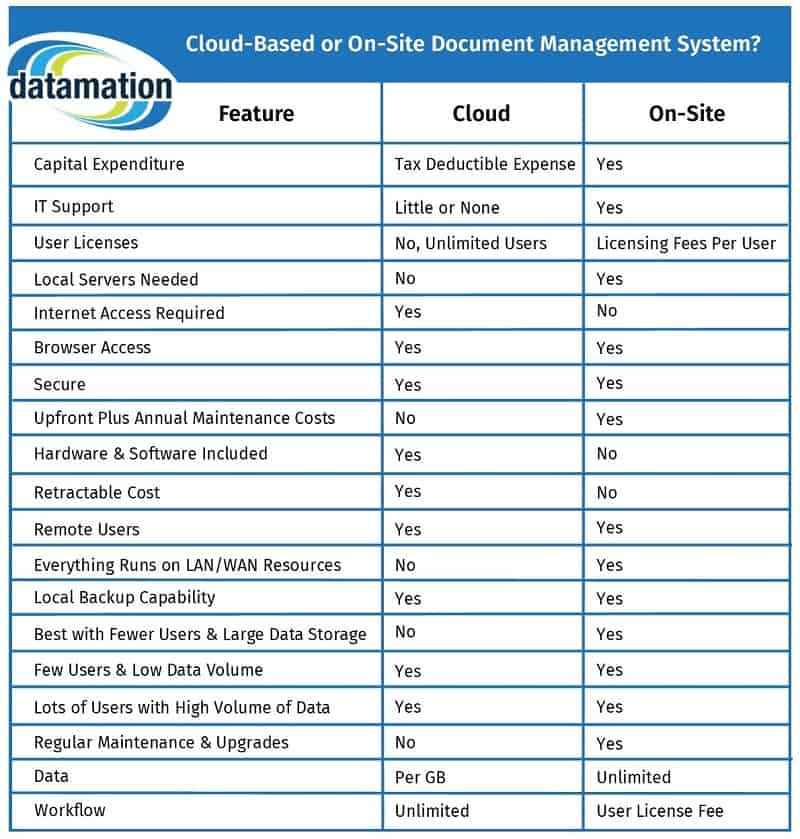

For an internal, on-site system, you’ll need to purchase software. These sell for around $1,800 to $2,500 per license, though does not include any kind of installation or training services. All of this is hosted on your own servers and will need continual IT resources.

Outsourced cloud solutions start around $120 per month. For some software, you can have unlimited users. Others, they may charge per user but provide far more features. There is no term minimum or maximum – you use the system as long as you want. And since the software is hosted and maintained elsewhere, you do not need to have nearly as many dedicated IT resources, if any.

Which Document Management System is Best for My Business?

Either solution is a good solution, but it’s really up to your organization and culture to decide what will work best for you. Here’s a side-by-side comparison chart to help.

Please note that this chart compares PaperVision Enterprise software to ImageSilo. Other software comparisons may differ.

cloud-based or on-site document management chart datamation

For a downloadable PDF of this chart, click here.

More and more small and mid-sized businesses are choosing cloud-based systems so they don’t have to invest heavily in IT support. Larger organizations tend to favor on-premises systems so that they have full control over every facet of their information.

That being said, it’s still best to analyze your current and future business goals when making this decision!

3. Fully Integrated Document Management Solution

collaborate with integrated document management softwareThe last level is implementing advanced system features to have a fully integrated document management solution. This is basically your enterprise content management, or possibly content services, as you will need to consider multiple processes and tools in addition to your document storage.

At this level, you can use advanced features to really revolutionize the way that you work. You can change your business processes to be more efficient than ever. In fact, many companies choose their document management systems based on what advanced features they can have.

Depending on the system you have, these will either be included in your price or need to be purchased as add-on licenses.

The advanced system features fall into three main buckets:

  • workflow
  • integration
  • e-forms

Workflow

workflow feature document managementThe most commonly implemented advanced feature is workflow. Workflow provides automated routing, checklists, approvals, integrations, and reporting.

Examples include:

  • Tracking and assigning insurance claims based on workload and processor specialty
  • Routing an invoice to a department head for approval and general ledger (GL) coding
  • Matching and approving an invoice based on the purchase order (PO) and receiving information
  • Administering and calculating a retirement benefit based on the appropriate plan for that employee

Integration

Integration is a powerful capability that connects the document management system with other key applications in your organization. This helps improve productivity and service levels as the systems will be able to speak with each other. Also, employees won’t manually have to switch back and forth between applications.

Some examples include:

  • A school employee works in the school student information system. By clicking an “open file” button she can pull up the student file from the document management system
  • A Human Resources specialist works in the HR information system. By entering CNTL and F9, he can pull up an employee’s personnel file
  • An accountant can look at their accounting system, and while on the phone with a vendor, pull up the vendor invoice without switching back to the DMS
  • An employee working in their claims processing application can have an insurance claim appear immediately

E-forms

fill out eforms anywhere document managementThe main benefit of electronic forms (e-forms) is that they cut down on paper, in addition to increasing accuracy and productivity. Examples of e-forms you’ve probably seen are online application forms and online shopping.

Business-based examples include:

  • Order forms: workflow and integrations automatically route and process the order
  • Health history and HIPAA forms in a physician’s office: fill out on a tablet and then PDF files can be routed and emailed to you and the physician’s office
  • An emergency contact card for a student: fill out on-line by a parent or guardian
  • A job application form: fill out using an e-form and routed to the proper party for review
  • A survey form: collect data without having to locate and process paper surveys

Just about any process that you perform on paper can be converted with a fully integrated document management system that include these advanced features.

Wrapping it up

Okay, we covered a lot, so here’s a brief synopsis:

  • Level One: Basic Scanning and Archiving means scanning your documents so you can clear out your office and find information easier.
  • Level Two: Document Management System for Storage and Retrieval means investing in a document management system so you can store those scanned documents in a centralized location that, depending on permissions, can be accessed by any employee from anywhere.
  • Level Three: Fully Integrated Document Management Solution means completely revolutionizing your business processes with workflow and other tools.

Every organization has different needs, so it’s possible that level one will be enough for your business. You may also want to completely revolutionize your paper-based processes and are aiming for level three. The good news is that no matter which level you implement, you’ll definitely be in a better position than you were before.

If you’re ready to implement one of these levels, we’d love to help you do it. Give us a call at (630) 321-0601 or contact us.

Have a question or comment about this article? Find us on Twitter or LinkedIn. We’d love to hear from you.

4509

publish

2019-09-05 06:00:00

everything-document-management