Why You Need to Train AI Models on Your Unique Data

|

If you’ve been discussing using more AI tools in your organization, you’re not alone. Nearly 35% of companies are already using AI and about half of the remaining companies plan to incorporate AI technology in 2025.

However, relying on AI tools that haven’t been trained on your company data can only take you so far. Using popular, free tools like ChatGPT can be effective for standard communication or idea generation, but they don’t know your industry in-depth. They have been trained with publicly available data that knows a little about a lot of topics. It doesn’t know about your business.

That’s why you should invest in your own AI tools and then train it on your unique company data. A well-trained AI tool can do next-level work like reliable forecasting, assisting customers via chatbots, and unique content generation.

To be successful, you will need to digitize and centralize all your data and documents. And we mean all of it. This isn’t just invoices from the last five years that you’ve been paying electronically—it’s also historical records on paper or on microfilm; it’s internal training videos and guides; it’s onboarding paperwork. Essentially, you need all your company data whether it’s stored electronically in a system or sitting in physical formats in a file room.

A recent study revealed that 46% of the respondents have crucial company data on paper documents. That means that half are not ready to train AI models for their business, despite indicating that they would like to. You simply cannot leverage your data if it’s not digital.

Below, we’ll outline some of the key reasons why you need to digitize your organizational data so you can unleash the full power of your AI tools.

1. Unique Data for Unique Solutions

As mentioned above, AI tools that you have likely heard about and used (ChatGPT, Claude, Bard, etc.) have all been trained on widely available data. This might be fine for getting a snapshot of your industry as whole, but public data like that simply cannot train an AI model to learn the patterns and insights of your organization.

Even if AI tools had access to more industry-specific data, that doesn’t mean it’s the best tool to use. But feeding your AI your own organizational data will allow it to fully understand your business. Additionally, training models on your own data allow you to focus on your company’s individual goals and make recommendations based on those. Whatever you want to learn, know, or predict about your organization needs to come from your organizational data.

2. Better Market Understanding

Since popular AI tools have been trained on publicly available data, they don’t have any deep understanding about your industry. Why? Because all the data that really knows and influences your niche market is kept confidential. Popular AI tools may be able to generate ideas of splashy social media campaigns, but is your target market even using those social media accounts?

Training your own AI tools with your business data can assist in uncovering insights and discovering opportunities that just wouldn’t be possible with public AI tools. Using your own data will eliminate irrelevant customer personas and allow your tool to focus on the customer segment that you actually serve.

When you train AI with your industry knowledge, customer data, and more, it can help you discover potential for new products and services. For example: maybe you have a high-value product with a low overhead cost that you don’t sell often. AI may be able to identify better opportunities for you to sell this product.

By having a full understanding of your target market and ideal customer base, your AI tools can assist with strategic decision making, marketing campaigns, customer engagement programs, and more.

Additionally, without irrelevant data. your AI tool will perform better and with higher accuracy. It can learn off your business data and deliver suggestions that are much more targeted and useful.

3. Data Privacy and Security

data security privacy integrityIf you use some of those free and popular AI tools, you need to be careful of the data you share as they are hosted and owned by other companies. For example, if you use the free version of ChatGPT to perform tasks, that data will be used to further train ChatGPT unless you purposefully opt-out.

This is just another important reason to invest and train your own AI models. By doing so, you have complete control over your data and your tools. You don’t have to worry about sharing confidential or proprietary information with third parties. It’s your AI tool learning off your data.

You also have the additional benefit of added security on your business data outside of your AI models. With digital data (and the right software) you can restrict access, assign temporary permissions, or even redact sensitive information. This way, only the people who need to see documents or data ever do.

4. Significant Cost Savings

We often talk about how digitizing your data can save your business money. The costs associated with printing and storing paper files add up quickly. Converting your physical media into electronic data lessens or even eliminates those costs.

Working with digital data also allows your employees to be more efficient. Your employees can serve customers faster by quickly pulling up requested information. You can automate paper-based processes to increase turnaround time and eliminate lost files.

But beyond those initial savings, an AI model trained on your company data can help identify current inefficiencies and reveal cost-saving opportunities. Perhaps you could process invoices faster to take advantage of discounts. Or maybe there’s a certain product that isn’t performing well anymore that should be dropped from your portfolio. Some of these things can be harder to pinpoint in day-to-day operations, but AI can look at your historical data and tell you empirically if something can be improved.

If you’re planning to implement AI this year, we highly suggest taking a look at the study linked at the beginning of this post. It’s incredibly thorough in covering what you should be concerned about, planning for, and thinking about when it comes to training AI models on your data.

And if you still have critical company information on paper, microfilm, or other physical media, we’d love to help you get it digitized and ready for training your AI tools. Contact us or give us a call at (630) 321-0601!

Questions or comments on this article? Find us on LinkedIn or Twitter/X.

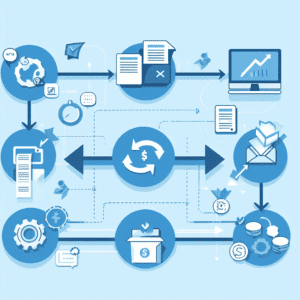
Disclaimer: the first two pictures on this post were generated with AI.

6672

publish

2024-12-10 12:00:05

train-ai-models-digital-data

5 Popular Business Resolutions for 2025

|||

Are you making resolutions for your business for next year? A new year marks a figurative fresh start and naturally lends itself to focus on new opportunities to streamline the way you do business.

Below are some of our customers’ most popular business resolutions for 2024, and easy ways to help your organization achieve them!

1. Do More with Less

Do a deep dive into the software you currently use to see if there are features you’re not taking advantage of or could be added for a small fee. Workflow automation and robotic process automation (RPA) can save your business hundreds of work hours per year and generally come standard in most leading content, customer, or payroll management software.

Depending on what you can and choose to automate, this could mean that you don’t have to fill an open position or hire additional workers.

2. Start/Continue/Finish Your Digital Transformation

Most of our customers are in the middle of their digital transformation. Many have done some combination of scanning their backfile records, implementing a day-forward scanning approach to their files, or eliminating paper at the start by switching to e-forms and secure online portals. However, it’s rare that every organization has done all of these things.

Sit down and identify which processes or departments haven’t made the full switch to digital, and then prioritize them for implementation. We recommend starting with the process or department that will transition quickest as that gives your organization a win and motivates employees to continue with the transformation.

Check out this article which outlines tips for going paperless: 8 Tips for How to Go Paperless.

3. Implement Artificial Intelligence (AI) Tools

two robots working with piles of paperMany organizations are racing to implement AI tools into their processes and workflows. The important thing to know is that not all AI tools are created equal, and not all of them are appropriate for every business case.

For example, you may have heard of businesses using tools like ChatGPT to write social media copy, email blasts, and blog posts. The issue with this is that ChatGPT is trained on a wide range of data from across the internet, writes with biases, and has only recently learned to access news about current events. It doesn’t know your business or industry the way that your business’ data and the leaders within your industry do.

A good option to explore is investing in your own Large Language Model (LLM) and feeding it with data extracted from your own company documents, files, content, and industry knowledge. This will let you ask questions like “when was the last amendment made to the employee handbook?, compile data like “show us all IT expenses from last quester,” or prompt it to tell you “key terms and conditions from our supplier contracts.”

Additionally, this is the tool you would want to use to generate blog posts and other content. Just make sure you have it reviewed by a topic expert before publishing!

It’s important to note that your personal generative AI tools are only as good as the data you train them on. So make sure that your company documents are digitized so you can easily feed that data into the LLM.

4. Improve Collaboration Across Teams

Whether you’re a fully remote organization, have distributed teams, or just maintain a hybrid policy of in-office and remote work, the need for effortless collaboration is more important than ever.

When it comes to collaboration tools, you may immediately think of chat programs like Slack or the whiteboard functionality in Microsoft Teams. But another incredibly important collaboration software is a document management system.

Document management systems ensure that there is only one set of documents, and everyone refers to and works off of said documents. This eliminates email chains where content can be slightly changed and then forwarded to the next person, resulting in multiple versions of the same document. If by some chance the wrong version of a document is uploaded into your repository, you can quickly revert back with document versioning and secure future access with document and user  controls.

5. Increase Cybersecurity

Last, but certainly not least, our customers want to put an emphasis on choosing leading cybersecurity software and training their employees to be more resilient against phishing attempts. While many small businesses don’t think that they’re going to be targets for hackers, recent research suggests that over 60 percent of SMBs were hit by a cyberattack in 2021. 60 percent!

Experts agree that the percentage is only going to increase, so this should really be one of your top priorities in the new year if you haven’t addressed it yet. You don’t have to lose company information or customer data—or worse, be of the 60% of small businesses that close after a cyberattack—to bad actors!

Start by going to review sites like G2 or Gartner to read reviews (both professional and user generated) on solutions. Make a shortlist and then reach out to these companies for demos or trials.

If this all seems like too much work, or you don’t have the resources to explore these solutions with your in-house staff, considering partnering with a consultant. Yes, you will need to pay for their expertise, but they’ll be able recommend the best solution for your organization, which will save you time in the long run!

If your organization has made any of these or other digital transformation resolutions, we’d love to help you reach your goals. From award-winning content management systems to generative AI tools, we help businesses streamline their processes, make decisions faster, and save money.

Contact us or give us a call at 630-321-0601 to talk about how we can help your company!

Have a different resolution? Find us on LinkedIn to talk about this blog post!

6640

publish

2024-12-02 18:01:19

digital-transformation-business-resolutions

Streamline Your Office: 8 Tips for How to Go Paperless in 2025

Going paperless, the fully-digital office—these have been buzzy possibilities for years, but very few organizations have achieved a fully or mostly paperless office.

And yes, there are a lot of moving parts and change is hard. But in a new decade, one of the best things you can do for your organization is to cut the paper and streamline your business processes.

So below are eight tips for taking your company in a paperless direction.

1. Establish (or Enforce) File Naming Conventions

collaborate with integrated document management softwareBefore you do anything with software, hardware, or processes, you really need to decide what your file and naming conventions are going to be. Will you organize by department? Client name? Type of document? Year?

There isn’t a standard across industries or verticals, but generally names should be as descriptive as possible while also being as short as possible. Naming files with 20 words separated by hyphens is going to be a pain to sort through later.

Make sure that anyone who will be adding documents to your content management system or shared drive is trained in these naming conventions and file destinations.

Here are some resources for developing your naming conventions:

2. Stop Paper Intake with E-forms

As anyone who is in charge of onboarding employees, patients, or members can tell you, there’s a lot of paper involved with taking in new people.

But instead of printing out hundreds of copies of welcome packets or paperwork, what if you could send a new employee a link to a private website to fill out forms prior to their first day in the office? How about handing a patient a tablet to fill out their change of insurance?

fill out eforms anywhere document managementE-forms allow you to do just that. You can take pretty much any paper form imaginable and convert it into an electronic form. The best part? You can set up pre-selected group of choices or ensure that a user has to fill out a box before they submit. Not only will this cut down on paper, but also on errors and precious time trying to figure out what someone’s handwriting says.

For example: one of our clients uses an e-form for healthcare open enrollment. Being able to control answers and ensure that people have to fill out all required fields has nearly eliminated the human hours needed to check and input data.

3. Start Using Digital Signatures

Hand in hand with electronic forms is electronic signatures. How many contracts or paperwork do you need to print off just so a customer or patient can sign it?

Electronic signature software allows for employees, customers, and patients to sign forms without a hard copy. No longer will you need to worry about printing out paperwork or having multiple copies floating around. Digital signatures are also easier to track for compliance or audit reasons.

4. Purchase Desktop Scanners to Digitize Incoming Paper

epson ds530 document scanner

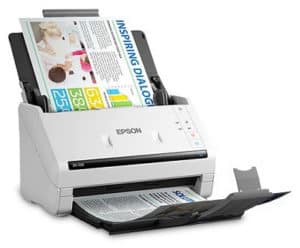
Another great, easy way to eliminate incoming paper is to scan documents as you receive them. This can be done on a central network scanner or personal desktop scanners. Instead of filling desk drawers and filing cabinets with paper, all of your invoices, applications, claims, and other paper documents can be scanned and filed away in your document management system or central server.

Depending on the amount of paper you need to scan every day, there are scanners that cost as low as $350, like the Epson DS-530 pictured on this page, that can get the job done. Many come bundled with software that allow you to easily view, modify, and file away the image.

Desktop scanners offer far superior quality to just using the scan option on your multi-function printer.

5. Research and Implement a Document or Content Management System

Even if you cut down on paper with scanners and e-forms, you’re still going to need a way to manage that information. That’s where a document and/or content management system comes in.

laptop document management systemThese systems are specifically designed to store, find, and move information. A document management system is best for storing, retrieving, and sharing your scanned and electronic documents. A content management system (like Laserfiche) allows for storing all kinds of information (pictures, mp3 files, videos, digital faxes, etc. in addition to documents) and has advanced features like workflow to help speed up your business processes.

Yes, Google Docs and Microsoft SharePoint can act as central repositories for your electronic documents. But specialized document management software will allow for editing, annotating, and much more secure sharing with easy integrations into the systems you already use.

There are a lot of choices for content management, so make sure that you do your research (or consult with a firm) and think about what you want the future state of your company to look like. Picking a system with the right advanced features, even if you don’t implement them all at once, will make sure that you stay committed!

To learn more about document and content management, see our blog posts: Everything You Need to Know About Document Management and Everything You Need to Know About Content Services.

6. Let Integrations Image-Enable Your Existing Systems

Image enable existing systems with document management integrationOne of the things that we hear frequently is that companies don’t want to change systems. And because they don’t want to change systems, they’re still doing a lot of their work on paper.


We get that! When your organization is comfortable with a system, it’s really hard to make every employee learn a new one. The good news is that you don’t necessarily have to give up the system you like so much just to go paperless.

Consultants (like us!) can write integrations between your LOB system and a basic document management system so that you can pull up documents with a hot key or click of a mouse. This means more information at your fingertips without massive retraining.

7. Consider Outsourcing Your Mailroom

Another way to cut out paper is to switch to an outsourced mailroom. By outsourcing mailroom activities, you can let another company handle your mail (physical and even electronic). They can collect it, scan it, and deliver it to the recipient or send it directly into a workflow.

So invoices? Scanned and sent to accounts payable. Insurance claims? Scanned and sent to your processing department. All of your business processes can still be carried out without your office having to see a single piece of paper.

8. Don’t Change Everything at Once

There are two approaches you can take to make this a successful transformation:

  1. A full overhaul with project timeline
  2. Incremental change where you do one thing at a time

Neither is the “right” way. It all depends on your company. If you’re a large organization with many people and applications, you’ll probably need to plan out an entire multi-year overhaul with multiple milestones.

If you’re a smaller organization with more flexibility, you may want to start with just one or two things, wait for your employees to get used to the change, and then implement another thing. For example: maybe you’ll start by buying scanners and using e-forms and then later implement robotic process automation (RPA) or start automating your AP processes.

No matter what step you take first, your organization will be well on your way to streamlining your business and cutting out the paper.

Are you looking to go paperless this year? Then we’d love to help out. Contact us or give us a call at (630) 321-0601.

Questions or comments on this article? Find us on LinkedIn or Twitter.

4659

publish

2024-10-01 11:00:26

office-tips-go-paperless

Are You Meeting the FADGI Guidelines? A Quick Overview

|a table that covers technical guidelines for modern textual records to meet FADGI compliance|fadgi logo

As of July 1, 2024, there’s been a huge change in US government recordkeeping. All documents and materials submitted to the National Archives and Records Administration (NARA) or the Library of Congress (LOC) must meet Federal Agency Digital Guidelines Initiative (FADGI) guidelines. These guidelines also ensure compliance with federal mandates M-19-21 and M-23-07.

If you routinely submit documents to these government bodies, then you’re likely already in compliance. But if you’re new to these kinds of submissions, or perhaps new a recordkeeping position, you will have to ensure that all of your submitted digital files comply with these guidelines.

We’ll cover the basics below.

What is FADGI Compliance?

fadgi logoFADGI is a government effort to move entirely to digital record keeping. As government records need to last forever, the movement specifically focuses on quality guidelines that need to be met when submitting media, documents, pictures, movies, etc.


And this doesn’t just mean a high-quality record in terms of clarity. These guidelines also include formats, required meta data, color management, and tools used to capture or evaluate data.

FADGI is technical, expansive, and covers a lot of data! For the sake of simplicity, we will only be covering digitized electronic images (e.g. scanned paper, maps, etc.) in this post. So just a few things of note:

  • Guidelines for audio/visual content can be found here.
  • Documents that are created digitally (in word processors, LOB applications, and other software) still need to comply with FADGI guidelines.

Who Needs to Comply with FADGI?

Essentially, any organization that manages government projects. This includes federal agencies and companies that scan and/or store documents that will be sent to the National Archives or Library or Congress.

As digital transformation continues, it’s likely that more federal agencies will require FADGI compliance. Even if you don’t have to meet these guidelines now, it’s good to know them in case you need to submit documents to federal agencies in the future.

How Do Images Meet FADGI Compliance?

FADGI places an extreme importance on image quality and consistency of that quality. This image quality can be achieved by following best practices, using high quality software and hardware, and training staff.

Documents fall into two broad categories: Modern Textual Records (MTR) and heritage/cultural media.

Modern Textual Records (MTR)

MTR compliance covers documents created on modern office paper. These are documents that have a well-defined print type and moderate to high contrast between the ink of the text and the background on the paper.

Practically every typed document that you print out on your office printer should fall into this definition, and thus, MTR is what most organizations will be working with. Formats can be specialty TIFF, JPEG, PNG, or PDF/A.

Here are some of the technical guidelines for Modern Textual Records.

a table that covers technical guidelines for modern textual records to meet FADGI compliance

For full technical specifications, please see the FADGI guidelines.

Basic Takeaway: your images will need to be one of those four formats, at least 300 dpi, and in either color or grayscale.

Heritage and Cultural Media

Heritage and cultural media guidelines cover historical and antique documents. Because of the wide range of types and age of these records, the guidelines are a bit more complicated. For this, FADGI created a star system to grade image quality.

From the FADGI guidelines, the star system is:

One-Star imaging is appropriate for applications where the intent is to provide a reference to locate the original or when there is no ability to image to a higher star level.

Two-Star imaging is appropriate where there is no reasonable expectation of having the capability to achieve three-star conformance, or when three-star conformance is not needed for the intended use of the digital image. Two-star conformance is the minimally acceptable rating for most professional digitization activity.

Three-Star imaging is defined as producing a very good professional image that is appropriate for most uses.

Four-Star defines the best imaging practical today. Images created at the FADGI four-star level represent the current state of the art in image capture.

Again, since there is a wide range of types of historical and cultural documents, please refer to the FADGI guidelines for your specific needs. Bound materials, maps, film negatives, and more all have slightly different requirements!

Here is an example of the technical requirements when submitting digitized bound volumes of rare and special materials:

a table of technical requirements for bound media meeting fadgi requirements

For full technical specifications, please see the FADGI guidelines.

Basic Takeaway: every type of media has a slightly different makeup of technical requirements, but all want 300 dpi and Three-Star imaging is required for submitting documents. In general, the required formats are TIFF, JPEG 2000, or PDF/A, but larger media (like maps) and photo-based media must be submitted in TIFF or JPEG.

Once again, refer to the FADGI guidelines for your specific media!

How Can I Ensure my Images are Meeting FADGI Compliance?

When it comes to digitizing your files, there are two options: scanning them yourself or outsourcing the project to a trusted partner.

Outsourcing

datamation employees sitting at scannersIf you are currently outsourcing, contact your scanning partner and make sure that they are aware of the criteria for submissions. This should’ve been established during the beginning of the project, but it never hurts to quickly touch base and review.

If instead you are evaluating a scanning partner, bring up the guidelines and ensure the company has proper equipment and software to produce the images you require. Large scanning companies should know these guidelines. If you are working with a smaller or more niche company, ask for a sample of scanned pages and then test them for quality with automated tools. The FADGI guidelines specifically point out free-to-use tools like JHOVE and Jpylyzer for verifying your files.

In-House

If you are currently doing the scanning in-house, then refer to the linked tools above to test the quality of your images. Assuming that you’re already using leading production scanners and software, it’s incredibly likely that your images are already compliant with the guidelines. However, a quick test will ensure compliance.

To simplify FADGI compliance, leading scanning companies like Kodak Alaris and Canon sell FADGI compliant scanner bundles. These scanners come out of the box with everything your organization needs to scan your documents to meet the MTR guidelines. Some scanners are as simple as toggling on and off a FADGI mode so that you can switch between image quality seamlessly.

FADGI Compliance Next Steps

FADGI guidelines are not simple, but these are the next steps you should take after reading this blog post.

  • Evaluate what media you must submit and note all the different types.
  • Read the FADGI guidelines. Pay close attention to the process recommendations for each type of media. Again, audio and video media guidelines are here.
  • If scanning in-house: review your current image output with free tools like JHOVE and Jpylyzer; make changes to processes, software, or hardware if necessary.
  • If using a scanning partner: schedule a call to review process and quality.

The most important (and complicated) part of FADGI compliance is creating the right process for digitization. But once you have your hardware, software, and workflow in order, digitizing and submitting documents will become commonplace.

If at any point you need assistance, don’t hesitate to reach out to us here at Datamation. We have over 25 years of experience digitizing documents and submitting them to government agencies. Whether you want to build your FADGI compliant system in-house, or outsource it to a trusted partner, we’re here to help. Give us a call at (630) 321-0601 or contact us!

6683

publish

2024-07-30 14:32:44

fadgi-guidelines-overview

6 Ways AI Can Enhance Document Management

|

Even though it seems that Artificial Intelligence (AI) has only recently become trendy, it’s actually been around since the 1950s. You may not have been using terms like “generative AI” and “LLM” until the last few months, but it’s likely that you have been using AI somewhere, even if you didn’t realize it! Every time you use the autosuggested text offered to you when you compose an email or let your presentation program redesign your slides, you’re using AI!

Document management has also been enhanced using AI. Leading DMS companies have already started implementing AI into their software, and for good reason. AI takes the step from simple document retrieval to processing the data in your documents and helping you make smarter business decisions in a fraction of the time.

Here are some of the ways that AI can help content management.

1. Enhanced Search

Today, you likely search your document repository via clicking into the project or folder you want to view. Or, if everything in your document repository is text-searchable, you can search by keyword or phrase.

With an AI-powered search, you can take that to the next level. It becomes search, retrieval, and data extraction.

Instead of clicking into every invoice for a month, you will be able to prompt your repository for things like “give me the full total of how much we spent with Company X last month.”  Searching through your organization’s minutes for instances of a topic? Prompt your repository with “show me every document from 2010 that mentions “Topic X.”

2. Optical Character Recognition (OCR)

Optical character recognition (OCR) technology can convert the non-text-searchable content in your repository into searchable text. However, OCR technology simply looks for text and transcribes it so that you can search for that document in your repository. Standard OCR tools are typically programmed for each particular document type and don’t perform as well if fed different documents.

AI-powered OCR technology not only looks for the text and transcribes it, but it also reads and understands the document. This means that you can run multiple types of documents into the technology, and it won’t only transcribe the document for you, but it will also extract proper metadata. A great example of this is Laserfiche’s Smart Invoice Capture. It lets you upload an invoice from any of your suppliers and it will use AI and machine learning to extract all key information without any human intervention.

And this doesn’t stop at text documents. AI-powered OCR technology can also look at images and create a text summary of what is in the image. Additionally, it can transcribe video and audio files so you can search that content just like you would a document.

3. Document Summarization

If you’re short on time, you can have AI read and summarize lengthy documents for you. AI will be able to tell you what the main points of the document are, if there are any action items, and even the tone of the document.

This is a feature that content management platforms like Laserfiche already have available for their users.

4. Document Classification and Metadata Tagging

Instead having to manually file a document in your repository and filling in all of the metadata fields, AI can automate the process!

For example, this technology could look at a health insurance enrollment form and deduce that it is an insurance document. Based on the metadata requirements previously set up, it can also automatically pick out information like name, birthdate, social security number, etc. and fill out those metadata fields.

Now, there are current technologies that do this excellently, both with and without AI. But AI can take this to the next level by also understanding whether the uploaded document is complete. It can also flag discrepancies like missing or incomplete inputs.

Additionally, it can use natural language processing (NLP) to understand the sentiment of the document. That means the AI can review the text of the document and determine if the sentiment of the document is positive or negative. If you regularly work with customer or employee feedback, this can easily identify which documents you need to address.

Automated document classification will streamline your document intake process and then allow for review or workflow automation, which will be explained more in the next point.

5. Next-Level Workflow Automation

We’ve talked a lot about workflow automation and there’s a good chance that you’re already using workflow automation in your organization. Workflows are automated by pre-defined rules. It can be as simple as “when a file is added to X folder, email Y.”

AI can take your automation further by making predictions and prioritizing tasks. In the previous example we discussed how NLP can infer the sentiment of a document. An AI-powered workflow can prioritize these documents based on the strength of the sentiment.

For example, let’s say you’re collecting customer feedback. AI-powered workflows can determine how upset a customer is and rank the feedback accordingly. This way, you know exactly which customers need your attention first.

6. Document Security

AI can also help with the security of your documents. If you work in an industry or department where there is a lot of sensitive information in your documents, AI can identify the information and automatically redact it.

You can also train AI to enforce access controls based on the type of document uploaded. Additionally, it can analyze the document and assign a retention schedule to it, so you aren’t storing documents longer than you need to.

AI can also monitor your repository to ensure that all documents uploaded are in compliance with all applicable rules and regulations. It can flag documents that are not in compliance for review.

As you can see from these points, Artificial Intelligence is a serious complement to any document management system, and a vital part of any organization’s information management plan. AI helps businesses save money, and free their employees from monotonous, time-intensive work.

If you want to harness the power of AI for your business’ content management, please contact us or call 630-3210-0601. We’ll be happy to talk about your AI and content management needs, suggest the best software for your organization, and make sure that your files are digitized so you can make the most out of your AI tools.

Questions or comments on this article? Find us on LinkedIn.

6644

publish

2024-07-09 11:00:22

ai-document-management

Datamation Awarded Digitech Systems’ Circle of Excellence for 16th Year

Datamation Imaging Services is proud to announce that we have been inducted into Digitech Systems’ Circle of Excellence for 2024. Being in the Circle of Excellence means we are among the top five resellers of Digitech Systems software. This is Datamation’s 16th time in the Circle of Excellence.

Circle of Excellence members are selected from Digitech Systems’ Value-added Reseller (VAR) community. The selection process recognizes VARs who are growing their business as they resell ImageSilo®, PaperVision® Enterprise, PaperVision® Capture, the PaperVision® Forms Magic technology, and PaperVision® Enterprise WorkFlow, and other Digitech Systems solutions. The Circle of Excellence also honors organizations that uphold and exemplify Digitech Systems’ Goals and Values to the entire community.
We value our partnership with Digitech Systems and the solutions their software provides for our clients. Hundreds of our clients streamline processes, work smarter, and save time and money with the Digitech Systems’ suite of software.

Datamation is unique as a full-service value-added reseller. When customers work with us for their document management solutions, they will work with us from beginning to end. We handle setup, training, onboarding—everything you need to succeed with your new content management solution. We will never outsource you to another company to finish your training or setup.

Since we handle all aspects of customer service, we’ve developed best practices across nearly every industry. We’ve developed direct integrations with most third-party applications, with highly-specialized solutions for the education and benefit fund industries. These integrations allow our clients to access all the information that they need without having to flip between systems. PaperVision Enterprise and Capture make up the foundation of our Datamation on Demand hosted electronic content management and capture solution.

When you work with Datamation, you leverage our experience to reduce implementation time and save you money.

To learn more about Digitech Systems software or how else Datamation can help you streamline your business processes, contact us or call (630) 321-0601.

6222

publish

2024-02-06 12:00:44

datamation-digitech-circle-of-excellence

Datamation Imaging Services Receives SOC 2 Type 2 Report

As an outsourced document scanning and document management service provider, we value the security and confidentiality of our customer’s information and data. And to reinforce those values, Datamation Imaging Services has once again gone through a SOC 2 Type 2 audit covering the Trust Services of Security and Confidentiality.

All of our service commitments, processes, and systems requirements were examined and tested to ensure that we achieved all criteria relevant to the Trust Services of Security and Confidentiality with no exceptions.

The SOC 2 Type 2 Report is based on an objective audit via a third-party firm in accordance with attestation standards established by the American Institute of Certified Public Accountants.

Our audit ensured that all controls and procedures in place by Datamation are suitably designed and followed to meet these standards. Our Type 2 Report shows that we followed these standards for one calendar year.

What Does Having a SOC 2 Type 2 Report Mean?

Service providers who complete a SOC 2 Type 2 Audit have gone above and beyond to show their commitment to privacy and integrity of their procedures. It means that you can trust us with your confidential medical records, student files and data (e.g. for compliance with the Illinois SOPPA law), and other documents.

When considering a partner for a document scanning (or any) project where sensitive data is a factor, you should check whether your potential vendor has these certifications. A SOC audit demonstrates that business will keep your data safe. There are only a handful of vendors in the document scanning and management industry who have completed this audit.

Datamation is proud to have this distinction for many years now so that all current and future customers know that we treat their data, documents, and business with the utmost care.

You can learn more about the SOC audit here. You can contact Datamation Imaging Services at (630) 321-0601.

4632

publish

2023-08-31 13:00:45

soc2-type2-report

The Ultimate Guide to Organizing and Naming Your Documents

|||||

When you or your employees are looking for information, can everyone find the exact document or form they need in thirty seconds or less, every single time?

If the answer to that is no, then there are ways to organize, name, and store your information to make it more easily accessible and retrievable.

Below are ways to name and organize your documents to make everything easier to find.

Table of Contents

Digitizing Your Records

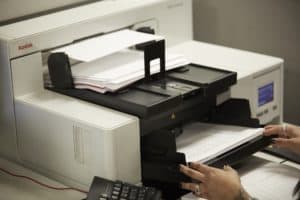
running paper through a kodak production scannerThe first step, if you haven’t done so already, is to scan your paper or microfilm backfile so you have all your records in a digital format. Depending on how many years your organization has been active, and the retention guidelines for keeping information, this could be many, many records. It could be so many records and documents that you may not even know where to start.
Our first tip is to look up state and federal guidelines for document retention. It’s very likely that you do not need to keep all the files that you currently have. For example, in many states you only need to keep financial records for seven years (or fewer!). So those invoices from 2002 could likely be destroyed instead of scanned.

If you decide to outsource your backfile scanning, your document scanning company should be able to assist with best practices and suggestions from their work with other organizations. But we want to stress that you should look up retention guidelines and consult with your legal counsel before destroying any documents.

Additional resources for document digitization:

Determining Your Folder or Project Structure

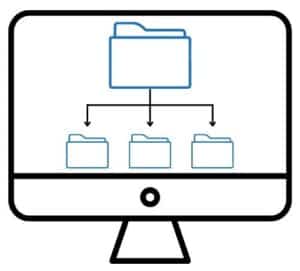
animation of a folder structure on a computer screenOnce your files are digital (or if they already are), you need to create the highest level of your organizational structure. Every system has a different name for their organizational structure, such as folder or project. For this blog post we’ll stick with “folder,” but know that your system may refer to it differently.

Most organizations opt for departments as the highest-level folders (e.g. HR, Accounting, Marketing, etc.). From there, sub-folders are generally broken down by file type, or in the case of departments like HR, employee name. This will vary from organization to organization as only you will know the best way to break down your folder structure.

A great thing about storing your files digitally (instead of on paper) is that every user can customize their interface to show the information they access most often. For lack of a better term, they can “pin” or favorite folders in place for quick access without changing where the files are in your repository.

Naming Your Files

a person working on a laptopIf you look at the various files on your computer or server, is there any rhyme or reason to how they are named? If you have a strict naming convention and stick to it every single time you create a document, then you can skip to the next step. But if you don’t, keep reading.
When you create and save a file, it’s crucial to name it something that’s easy to understand and find. Obviously this is easier said than done, especially when you have multiple copies of a contract or presentation, additional collaborators, and/or employees who will make different naming choices.

The good news is that if you’re having trouble enforcing naming conventions, many enterprise content management systems/content services platforms allow you to create workflows that automatically rename documents. This can be set up based on what folders or projects the documents are added to or by intelligent data extraction.

Speaking of intelligent data extraction, that brings us to the next identifying method.

Indexing Your Documents

laptop document management systemIndexing your documents is when you assign metadata to a document for easy categorizing or retrieval. For example, if you’re indexing new employee documents, you may want to index by name, social security number, and file type. For engineering drawings, it may be part numbers and designers.

The drawback to indexing is that it can be time-consuming and expensive. Technology has evolved to where information can be extracted and auto-assigned as metadata. But if the documents are older, handwritten, or in poor condition, indexing will have to be done manually by a human.

However, no matter how you index, it will make your information so much easier to find. You will be able to navigate to the document(s) you need via a few clicks or simple search.

Tagging Your Information

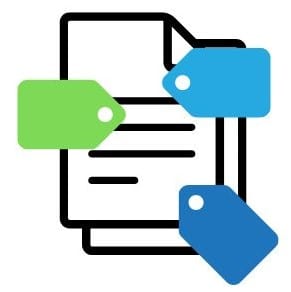
animation of tagging documentsTags are yet another way to sort and categorize your information. Tags are a great supplement to indexing. Not every content management system has tag functionality, but if yours does, you should definitely take advantage of it.
For example, if you normally index all your invoices by vendor and/or date, you can also use tags to categorize them by event, department, or project. This allows you to see all information associated with that topic without having to manually search for it.

For more ideas about how you can use tags, check out this section of an article by Zapier.

Another benefit of tags is that you can set permissions at the tag level, which can allow project members to see all documents related to the project without giving them permissions to an entire folder.

Please note that some systems allow for document color coding which can be used in a similar way to tagging.

Making Your Entire Document Repository Text-Searchable

animation of a magnifying glass over wordsThe number one way to ensure that everyone in your organization can find the information they need quickly is to make every single document in your repository text-searchable. This is done by running optical character recognition (OCR) as you add new files and/or retroactively on files already in your repository. In fact, some content management systems will transcribe video and audio files so you can easily search through that media as well.

In full disclosure, running OCR with a large quantity of documents can be expensive. But the benefits of being able to find the information you need—even if the document is accidentally misnamed or misfiled—are more than worth the investment.

Making your document repository text-searchable is also a great opportunity to find information if you only have your records filed by document type. For example, we have a school district customer that had all their files run through OCR. They use this to search their school board meeting minutes for every mention of a topic. So when they need to gather every instance about a policy, previous discussion, or hot-button issue, they simply have to type in a search term to pull up every piece of supporting documentation.

While implementing all these methods will super-charge your information’s findability, the good news is that you only need to do just one of these steps to put your business in a better position than it is now. Going from paper or microfilm records to digital ones will save your employees a serious amount of time with their lookup tasks. Tagging, indexing, and/or using OCR will only reduce that time further.

Any steps that you take now to organize your information will pay back several times over in time saved later.

If you’re ready to simply your information’s findability, contact us or give us a call at (630) 321-0601.

Questions or comments on this article? Find us on LinkedIn or Twitter.

6610

publish

2023-06-28 19:45:38

organizing-naming-documents

Best Document Scanners for Remote Work from Home

Whether your employees are working from home temporarily or permanently, you still need to make sure that all of your business’ processes keep moving. But if any of those processes rely on paper, you can’t just head down the hall or to another floor to hand off the document. Instead, you’ll need to scan that paper so you can collaborate on documents virtually.

With that in mind, Datamation has compiled this list of the best document scanners for your staff to use while they’re working from home.

Please note: these document scanners are ranked in descending order by the maximum number of documents the scanner should scan per day. Each has various features and price points. It’s best to evaluate your individual scanning needs.

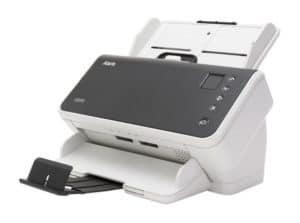
Kodak S2070 Document Scanner1. KODAK S2070: Up to 7,000 pages per day; 3-year warranty
If you need to scan lots of paper while at home (or even if you’re at the office), there’s no better choice than the KODAK S2070 document scanner. This is ideal for remote workers that normally process a high volume of documents and are having the office mail rerouted to them at home.

The S2070 doesn’t need to be connected to a PC.

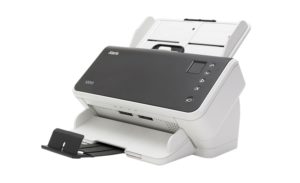
Kodak S2050 Document Scanner2. KODAK S2050: Up to 5,000 pages per day; 3-year warranty
The KODAK S2050 is a reliable, high-quality scanner that’s perfect for keeping your business processes moving. Scanning 50 pages per minute, and featuring a feeder capacity of 80 pages, this scanner delivers great digital images in no time. Like the S2070, the S2050 does not need to be connected to a PC.

With an accessible user interface and 20 job pre-sets, this scanner is a great choice for those processing a lot of different documents.

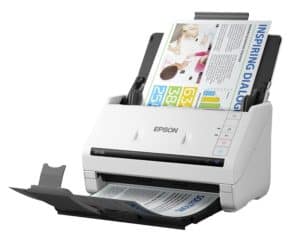
Epson DS-530 Color Duplex Document Scanner3. Epson DS-530: Up to 4,000 pages per day; 3-year warranty
The Epson DS-530 document scanner isn’t just a popular choice for use at home. It’s one of the best-selling document scanners period. Its compact and powerful design means less space on your desk, but without sacrificing performance.

This scanner can easily be setup to scan to just about anywhere: your computer, a document management system, cloud storage, etc.

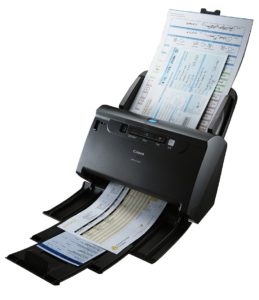
Canon imageFORMULA DR-C240 Office Document Scanner4. Canon DR-C240: Up to 4,000 pages per day; 1-year warranty
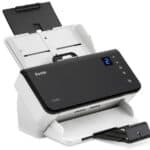
If you’re scanning a variety of documents (think passports, embossed cards, mixed sizes of paper), then the Canon DR-C240 may be a great choice. When not in use, the scanner folds up to save room on your desk.

With the DR-C240 you can scan directly to third-party applications like Evernote™, Microsoft® SharePoint®, Google Drive™, and more.

5. KODAK E1040: Up to 5,000 pages per day; 3-year warranty
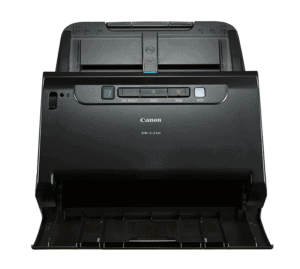
The KODAK E1040 is simple to setup and use. You power it on and in less than 10 seconds you can start scanning your paper documents. You can configure up to nine different jobs, so this scanner is ideal for people who work with a large volume of the same structured forms or documents.

This scanner scans quickly and accurately. The built-in OCR technology makes digital files text searchable.

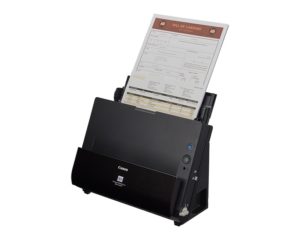
Canon imageFORMULA DR-C230 Office Document Scanner6. Canon DR-C230: Up to 3,500 pages per day; 3-year warranty
When you need to scan documents and items of various materials, the Canon DR-C230 is the scanner for you. In addition to standard paper documents, this desktop scanner can handle plastic and embossed cards, along with passports.

It’s small enough to transport back and forth from the office as needed. You can also use a network accessory which allows the scanner to connect via WiFi in addition to standard USB.

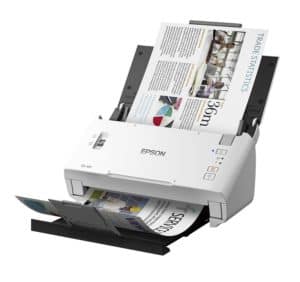
Epson DS-410 Document Scanner7. Epson DS-410: Up to 3,000 pages per day; 3-year warranty
The Epson DS-410 balances affordability, speed, and compatibility. This scanner scans documents at 26 pages per minute and connects seamlessly with just about any document management system.

Users can also scan to online storage accounts or create simple text-searchable PDFs.

Canon imageFORMULA DR-C225 II Office Document Scanner8. Canon DR-C225 II: Up to 1,500 pages per day; 1-year warranty


The best feature of the Canon DR-C225 II document scanner is that it was designed to sit upright and save space. The slim profile means that it won’t take up space on your desk and can easily be tucked away when you finish your scanning.

This scanner is easy-to-use and lets you scan directly to third-party cloud applications.

Those are our top picks for the best document scanners to use for remote work. The best news? All of these scanners are reliable, simple to setup, and come with at least a 1-year warranty for peace of mind. And as powerful as they are at home, they can easily be transported back to the office for use there.

If you’re still not sure which is best for you, give our scanner selection tool a try or contact us today!

If there’s a scanner you think should be added to the list, find us on LinkedIn!

5660

publish

2023-05-26 11:00:55

document-scanners-work-from-home

6 Reasons It’s Time to Outsource Your Mailroom

||

The first step most organizations take on their digital transformation journey is scanning their paper files and trying not to generate any new paper documents. But if you have a large client base or membership, it’s likely that you also have a busy, paper-filled mailroom. Digitizing mail is just another step in the digital transformation journey!

Like all steps in digital transformation, it can be a tricky process to switch from paper to digital. But outsourcing your mailroom into a virtual mailroom is an easy transition with a lot of immediate benefits!

Below are some reasons why you should consider outsourcing your mailroom.

1. Most or All of Your Employees are Working Hybrid (or from Home)

man sitting at home office deskWith employees working from home either full-time or with a hybrid schedule, it’s far more difficult to get them the mail they need in a timely manner. Envelopes could sit on desks for days (or weeks). Checks could go missing if not processed immediately.

When you outsource your mailroom, this ensures that all mail is accounted for, scanned, and delivered to the organization quickly and efficiently. Mail can either be uploaded to a repository or secure FTP site for manual sorting, or workflows can be built to deliver the mail directly to the recipient. However it is delivered, employees will have the information they need to continue their tasks without interruption or the need to drive into the office.

2. You Can Repurpose the Space (or Downsize Your Office)

No matter the size of your mailroom, it’s still taking up valuable space in your office. Whether you want to put an office or two in the mailroom space, or downsize your office all together, outsourcing the mailroom instantly reduces your square footage.

And while you’re repurposing your mailroom, this may also be the time to examine how much space your filing cabinets and other paper storage take up. Scanning those files will immediately free up valuable office space.

3. You Don’t Have to Staff or Manage the Mailroom

This is an obvious one, but when you outsource your mailroom, you don’t have to hire staff to handle that mail. If you’ve been having issues finding the right people to hire for the job, or would rather repurpose your current mailroom staff to other work, this is an easy way to reshuffle your workforce.

This also means that you don’t have to buy or maintain expensive equipment. This includes the service contracts necessary to keep your equipment running in top condition.

4. You Need Better Compliance and Audit Tracking

How many times have you gone looking for a piece of mail just for it to not be there? Unfortunately, lost mail and misfiling are still common problems.

But with a digital mailroom, you never have to worry about not having a piece of mail. You simply log into your repository and pull it up. Depending on your content management solution, this will also make a log of who assessed that document and when. It’s essential for audits!

Additionally, having your mail scanned with full text searchability completely eliminates the problem of misfiles. You can find any document you need with a simple search.

5. Your Business Needs the Ability to Quickly Scale Up

Is your business growing and you’re receiving more mail than ever? With an outsourced mailroom you don’t ever have to worry about the issues that come with quickly scaling up. You simply need to inform your vendor (and depending on the volume, negotiate your pricing and delivery expectations), and they will take care of the rest.

Why take on that operational stress when you don’t need to? Your vendor will be well-versed in how to scale their workforce to support the increase in your mail.

6. Your Information Deserves the Best Possible Security

security lock remote work document managementWhen you handle your mail internally, what’s to stop someone from picking up a letter from another person’s desk? Even with a clean desk policy, employees may not immediately file away information or secure letters in their desk before getting up.

When you outsource your mailroom, your trusted vendor will pick up the mail, bring it back to their physically secure facility, scan the paper, and securely transmit the images to you via FTP or directly into your content services platform.

When interviewing prospective vendors for your digital mailroom, make sure you ask about their security. Some good questions are:

  • Who has physical access to the building?
  • Do they have a SOC II Type 2 audit?
  • What cybersecurity products do they use to ensure that customer data is protected?

Those are just six reasons that it’s time to look into digital mailrooms. With lower costs, improved efficiency, and less operational hassle, it’s a natural next step for your digital transformation!

If you’re ready to learn more about outsourcing your mailroom, contact us or give us a call at (630) 321-0601.

Questions or comments on this article? Find us on LinkedIn or Twitter.

6596

publish

2023-03-28 14:23:36

reasons-outsource-mailroom