5 Popular Business Resolutions for 2025

|||

Are you making resolutions for your business for next year? A new year marks a figurative fresh start and naturally lends itself to focus on new opportunities to streamline the way you do business.

Below are some of our customers’ most popular business resolutions for 2024, and easy ways to help your organization achieve them!

1. Do More with Less

Do a deep dive into the software you currently use to see if there are features you’re not taking advantage of or could be added for a small fee. Workflow automation and robotic process automation (RPA) can save your business hundreds of work hours per year and generally come standard in most leading content, customer, or payroll management software.

Depending on what you can and choose to automate, this could mean that you don’t have to fill an open position or hire additional workers.

2. Start/Continue/Finish Your Digital Transformation

Most of our customers are in the middle of their digital transformation. Many have done some combination of scanning their backfile records, implementing a day-forward scanning approach to their files, or eliminating paper at the start by switching to e-forms and secure online portals. However, it’s rare that every organization has done all of these things.

Sit down and identify which processes or departments haven’t made the full switch to digital, and then prioritize them for implementation. We recommend starting with the process or department that will transition quickest as that gives your organization a win and motivates employees to continue with the transformation.

Check out this article which outlines tips for going paperless: 8 Tips for How to Go Paperless.

3. Implement Artificial Intelligence (AI) Tools

two robots working with piles of paperMany organizations are racing to implement AI tools into their processes and workflows. The important thing to know is that not all AI tools are created equal, and not all of them are appropriate for every business case.

For example, you may have heard of businesses using tools like ChatGPT to write social media copy, email blasts, and blog posts. The issue with this is that ChatGPT is trained on a wide range of data from across the internet, writes with biases, and has only recently learned to access news about current events. It doesn’t know your business or industry the way that your business’ data and the leaders within your industry do.

A good option to explore is investing in your own Large Language Model (LLM) and feeding it with data extracted from your own company documents, files, content, and industry knowledge. This will let you ask questions like “when was the last amendment made to the employee handbook?, compile data like “show us all IT expenses from last quester,” or prompt it to tell you “key terms and conditions from our supplier contracts.”

Additionally, this is the tool you would want to use to generate blog posts and other content. Just make sure you have it reviewed by a topic expert before publishing!

It’s important to note that your personal generative AI tools are only as good as the data you train them on. So make sure that your company documents are digitized so you can easily feed that data into the LLM.

4. Improve Collaboration Across Teams

Whether you’re a fully remote organization, have distributed teams, or just maintain a hybrid policy of in-office and remote work, the need for effortless collaboration is more important than ever.

When it comes to collaboration tools, you may immediately think of chat programs like Slack or the whiteboard functionality in Microsoft Teams. But another incredibly important collaboration software is a document management system.

Document management systems ensure that there is only one set of documents, and everyone refers to and works off of said documents. This eliminates email chains where content can be slightly changed and then forwarded to the next person, resulting in multiple versions of the same document. If by some chance the wrong version of a document is uploaded into your repository, you can quickly revert back with document versioning and secure future access with document and user  controls.

5. Increase Cybersecurity

Last, but certainly not least, our customers want to put an emphasis on choosing leading cybersecurity software and training their employees to be more resilient against phishing attempts. While many small businesses don’t think that they’re going to be targets for hackers, recent research suggests that over 60 percent of SMBs were hit by a cyberattack in 2021. 60 percent!

Experts agree that the percentage is only going to increase, so this should really be one of your top priorities in the new year if you haven’t addressed it yet. You don’t have to lose company information or customer data—or worse, be of the 60% of small businesses that close after a cyberattack—to bad actors!

Start by going to review sites like G2 or Gartner to read reviews (both professional and user generated) on solutions. Make a shortlist and then reach out to these companies for demos or trials.

If this all seems like too much work, or you don’t have the resources to explore these solutions with your in-house staff, considering partnering with a consultant. Yes, you will need to pay for their expertise, but they’ll be able recommend the best solution for your organization, which will save you time in the long run!

If your organization has made any of these or other digital transformation resolutions, we’d love to help you reach your goals. From award-winning content management systems to generative AI tools, we help businesses streamline their processes, make decisions faster, and save money.

Contact us or give us a call at 630-321-0601 to talk about how we can help your company!

Have a different resolution? Find us on LinkedIn to talk about this blog post!

6640

publish

2024-12-02 18:01:19

digital-transformation-business-resolutions

Streamline Your Office: 8 Tips for How to Go Paperless in 2025

Going paperless, the fully-digital office—these have been buzzy possibilities for years, but very few organizations have achieved a fully or mostly paperless office.

And yes, there are a lot of moving parts and change is hard. But in a new decade, one of the best things you can do for your organization is to cut the paper and streamline your business processes.

So below are eight tips for taking your company in a paperless direction.

1. Establish (or Enforce) File Naming Conventions

collaborate with integrated document management softwareBefore you do anything with software, hardware, or processes, you really need to decide what your file and naming conventions are going to be. Will you organize by department? Client name? Type of document? Year?

There isn’t a standard across industries or verticals, but generally names should be as descriptive as possible while also being as short as possible. Naming files with 20 words separated by hyphens is going to be a pain to sort through later.

Make sure that anyone who will be adding documents to your content management system or shared drive is trained in these naming conventions and file destinations.

Here are some resources for developing your naming conventions:

2. Stop Paper Intake with E-forms

As anyone who is in charge of onboarding employees, patients, or members can tell you, there’s a lot of paper involved with taking in new people.

But instead of printing out hundreds of copies of welcome packets or paperwork, what if you could send a new employee a link to a private website to fill out forms prior to their first day in the office? How about handing a patient a tablet to fill out their change of insurance?

fill out eforms anywhere document managementE-forms allow you to do just that. You can take pretty much any paper form imaginable and convert it into an electronic form. The best part? You can set up pre-selected group of choices or ensure that a user has to fill out a box before they submit. Not only will this cut down on paper, but also on errors and precious time trying to figure out what someone’s handwriting says.

For example: one of our clients uses an e-form for healthcare open enrollment. Being able to control answers and ensure that people have to fill out all required fields has nearly eliminated the human hours needed to check and input data.

3. Start Using Digital Signatures

Hand in hand with electronic forms is electronic signatures. How many contracts or paperwork do you need to print off just so a customer or patient can sign it?

Electronic signature software allows for employees, customers, and patients to sign forms without a hard copy. No longer will you need to worry about printing out paperwork or having multiple copies floating around. Digital signatures are also easier to track for compliance or audit reasons.

4. Purchase Desktop Scanners to Digitize Incoming Paper

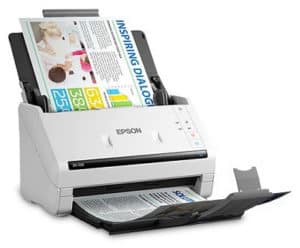
epson ds530 document scanner

Another great, easy way to eliminate incoming paper is to scan documents as you receive them. This can be done on a central network scanner or personal desktop scanners. Instead of filling desk drawers and filing cabinets with paper, all of your invoices, applications, claims, and other paper documents can be scanned and filed away in your document management system or central server.

Depending on the amount of paper you need to scan every day, there are scanners that cost as low as $350, like the Epson DS-530 pictured on this page, that can get the job done. Many come bundled with software that allow you to easily view, modify, and file away the image.

Desktop scanners offer far superior quality to just using the scan option on your multi-function printer.

5. Research and Implement a Document or Content Management System

Even if you cut down on paper with scanners and e-forms, you’re still going to need a way to manage that information. That’s where a document and/or content management system comes in.

laptop document management systemThese systems are specifically designed to store, find, and move information. A document management system is best for storing, retrieving, and sharing your scanned and electronic documents. A content management system (like Laserfiche) allows for storing all kinds of information (pictures, mp3 files, videos, digital faxes, etc. in addition to documents) and has advanced features like workflow to help speed up your business processes.

Yes, Google Docs and Microsoft SharePoint can act as central repositories for your electronic documents. But specialized document management software will allow for editing, annotating, and much more secure sharing with easy integrations into the systems you already use.

There are a lot of choices for content management, so make sure that you do your research (or consult with a firm) and think about what you want the future state of your company to look like. Picking a system with the right advanced features, even if you don’t implement them all at once, will make sure that you stay committed!

To learn more about document and content management, see our blog posts: Everything You Need to Know About Document Management and Everything You Need to Know About Content Services.

6. Let Integrations Image-Enable Your Existing Systems

Image enable existing systems with document management integrationOne of the things that we hear frequently is that companies don’t want to change systems. And because they don’t want to change systems, they’re still doing a lot of their work on paper.

We get that! When your organization is comfortable with a system, it’s really hard to make every employee learn a new one. The good news is that you don’t necessarily have to give up the system you like so much just to go paperless.

Consultants (like us!) can write integrations between your LOB system and a basic document management system so that you can pull up documents with a hot key or click of a mouse. This means more information at your fingertips without massive retraining.

7. Consider Outsourcing Your Mailroom

Another way to cut out paper is to switch to an outsourced mailroom. By outsourcing mailroom activities, you can let another company handle your mail (physical and even electronic). They can collect it, scan it, and deliver it to the recipient or send it directly into a workflow.

So invoices? Scanned and sent to accounts payable. Insurance claims? Scanned and sent to your processing department. All of your business processes can still be carried out without your office having to see a single piece of paper.

8. Don’t Change Everything at Once

There are two approaches you can take to make this a successful transformation:

  1. A full overhaul with project timeline
  2. Incremental change where you do one thing at a time

Neither is the “right” way. It all depends on your company. If you’re a large organization with many people and applications, you’ll probably need to plan out an entire multi-year overhaul with multiple milestones.

If you’re a smaller organization with more flexibility, you may want to start with just one or two things, wait for your employees to get used to the change, and then implement another thing. For example: maybe you’ll start by buying scanners and using e-forms and then later implement robotic process automation (RPA) or start automating your AP processes.

No matter what step you take first, your organization will be well on your way to streamlining your business and cutting out the paper.

Are you looking to go paperless this year? Then we’d love to help out. Contact us or give us a call at (630) 321-0601.

Questions or comments on this article? Find us on LinkedIn or Twitter.

4659

publish

2024-10-01 11:00:26

office-tips-go-paperless

The Ultimate Guide to Organizing and Naming Your Documents

|||||

When you or your employees are looking for information, can everyone find the exact document or form they need in thirty seconds or less, every single time?

If the answer to that is no, then there are ways to organize, name, and store your information to make it more easily accessible and retrievable.

Below are ways to name and organize your documents to make everything easier to find.

Table of Contents

Digitizing Your Records

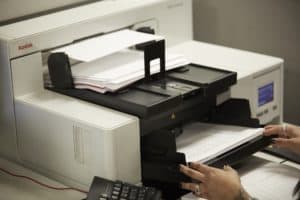
running paper through a kodak production scannerThe first step, if you haven’t done so already, is to scan your paper or microfilm backfile so you have all your records in a digital format. Depending on how many years your organization has been active, and the retention guidelines for keeping information, this could be many, many records. It could be so many records and documents that you may not even know where to start.

Our first tip is to look up state and federal guidelines for document retention. It’s very likely that you do not need to keep all the files that you currently have. For example, in many states you only need to keep financial records for seven years (or fewer!). So those invoices from 2002 could likely be destroyed instead of scanned.

If you decide to outsource your backfile scanning, your document scanning company should be able to assist with best practices and suggestions from their work with other organizations. But we want to stress that you should look up retention guidelines and consult with your legal counsel before destroying any documents.

Additional resources for document digitization:

Determining Your Folder or Project Structure

animation of a folder structure on a computer screenOnce your files are digital (or if they already are), you need to create the highest level of your organizational structure. Every system has a different name for their organizational structure, such as folder or project. For this blog post we’ll stick with “folder,” but know that your system may refer to it differently.

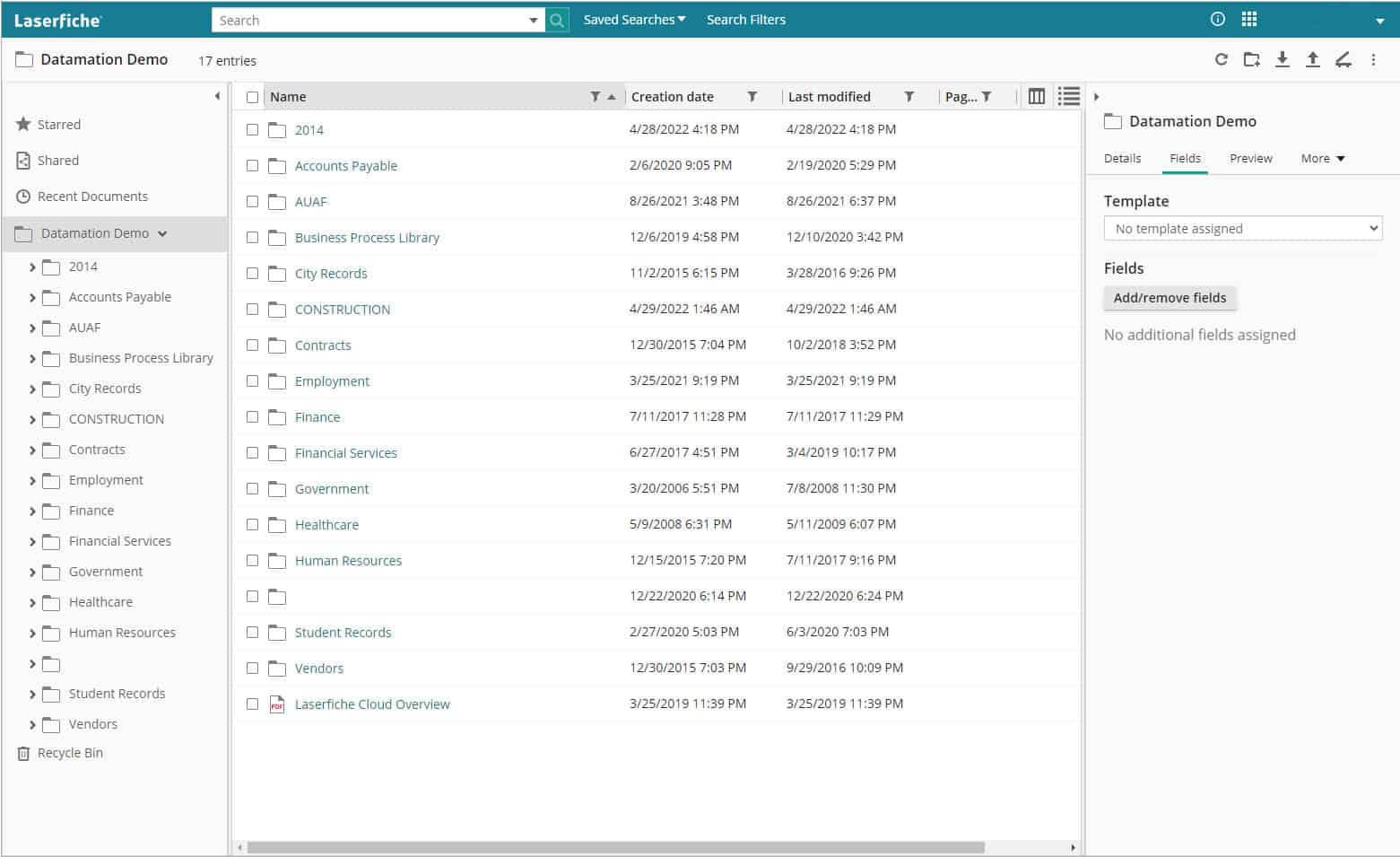
Most organizations opt for departments as the highest-level folders (e.g. HR, Accounting, Marketing, etc.). From there, sub-folders are generally broken down by file type, or in the case of departments like HR, employee name. This will vary from organization to organization as only you will know the best way to break down your folder structure.

A great thing about storing your files digitally (instead of on paper) is that every user can customize their interface to show the information they access most often. For lack of a better term, they can “pin” or favorite folders in place for quick access without changing where the files are in your repository.

Naming Your Files

a person working on a laptopIf you look at the various files on your computer or server, is there any rhyme or reason to how they are named? If you have a strict naming convention and stick to it every single time you create a document, then you can skip to the next step. But if you don’t, keep reading.

When you create and save a file, it’s crucial to name it something that’s easy to understand and find. Obviously this is easier said than done, especially when you have multiple copies of a contract or presentation, additional collaborators, and/or employees who will make different naming choices.

The good news is that if you’re having trouble enforcing naming conventions, many enterprise content management systems/content services platforms allow you to create workflows that automatically rename documents. This can be set up based on what folders or projects the documents are added to or by intelligent data extraction.

Speaking of intelligent data extraction, that brings us to the next identifying method.

Indexing Your Documents

laptop document management systemIndexing your documents is when you assign metadata to a document for easy categorizing or retrieval. For example, if you’re indexing new employee documents, you may want to index by name, social security number, and file type. For engineering drawings, it may be part numbers and designers.

The drawback to indexing is that it can be time-consuming and expensive. Technology has evolved to where information can be extracted and auto-assigned as metadata. But if the documents are older, handwritten, or in poor condition, indexing will have to be done manually by a human.

However, no matter how you index, it will make your information so much easier to find. You will be able to navigate to the document(s) you need via a few clicks or simple search.

Tagging Your Information

animation of tagging documentsTags are yet another way to sort and categorize your information. Tags are a great supplement to indexing. Not every content management system has tag functionality, but if yours does, you should definitely take advantage of it.

For example, if you normally index all your invoices by vendor and/or date, you can also use tags to categorize them by event, department, or project. This allows you to see all information associated with that topic without having to manually search for it.

For more ideas about how you can use tags, check out this section of an article by Zapier.

Another benefit of tags is that you can set permissions at the tag level, which can allow project members to see all documents related to the project without giving them permissions to an entire folder.

Please note that some systems allow for document color coding which can be used in a similar way to tagging.

Making Your Entire Document Repository Text-Searchable

animation of a magnifying glass over wordsThe number one way to ensure that everyone in your organization can find the information they need quickly is to make every single document in your repository text-searchable. This is done by running optical character recognition (OCR) as you add new files and/or retroactively on files already in your repository. In fact, some content management systems will transcribe video and audio files so you can easily search through that media as well.

In full disclosure, running OCR with a large quantity of documents can be expensive. But the benefits of being able to find the information you need—even if the document is accidentally misnamed or misfiled—are more than worth the investment.

Making your document repository text-searchable is also a great opportunity to find information if you only have your records filed by document type. For example, we have a school district customer that had all their files run through OCR. They use this to search their school board meeting minutes for every mention of a topic. So when they need to gather every instance about a policy, previous discussion, or hot-button issue, they simply have to type in a search term to pull up every piece of supporting documentation.

While implementing all these methods will super-charge your information’s findability, the good news is that you only need to do just one of these steps to put your business in a better position than it is now. Going from paper or microfilm records to digital ones will save your employees a serious amount of time with their lookup tasks. Tagging, indexing, and/or using OCR will only reduce that time further.

Any steps that you take now to organize your information will pay back several times over in time saved later.

If you’re ready to simply your information’s findability, contact us or give us a call at (630) 321-0601.

Questions or comments on this article? Find us on LinkedIn or Twitter.

6610

publish

2023-06-28 19:45:38

organizing-naming-documents

The Beginner’s Guide to Robotic Process Automation (RPA)

Robotic Process Automation (RPA) is a huge buzzword right now, even though the technology has been available for a few years. The reason it’s trending is because thousands of companies are implementing RPA every single year, with percentages growing exponentially.

According to estimates from PwC, about 45% of work activities can be automated. So why let software do it? Simply put: the world generates more data than ever and companies need to keep up. RPA allows for automating time-consuming manual processes and letting your employees focus on higher level (and ideally, more rewarding) work.

Read on for more about RPA, or use our quick links to jump to a section:

What is Robotic Process Automation (RPA)?

Despite the name (and our cute robot picture), Robotic Process Automation has nothing to do with actual, physical robots. RPA is specialized software (or “bots”) that can learn repeatable business processes and perform them without human interaction. It’s essential for linking separate systems if you don’t have APIs or extensive IT resources.

For example, let’s say you spend a bunch of time every day copying and pasting data from one system into another. An RPA “bot” can watch screen movements and keystrokes and learn what needs to be copied. Also, if you’ve ever programmed Excel macros, RPA works similarly, but with a lot less programming.

Best of all, RPA doesn’t require any programming skills or heavy maintenance by your IT department. It acts like another employee, logging into systems, scraping data, and filling out forms. So, while your bot does the grunt work (also known as busy work, swivel chair work, etc.), your employees can focus on more important work like strategy and special projects.

How Does Robotic Process Automation (RPA) Work?

Essentially, RPA works as another employee, just faster, more consistently, and 24 hours per day.

The process in its simplest form looks like this:

  • IT/an administrator installs or activates the RPA software on your computer system
  • RPA watches screen and mouse movements, along with keystrokes
  • RPA records the process and uses AI to analyze the steps
  • RPA does the process to your specifications, which includes running automatically when new data is found
  • RPA continues to do the process until you tell it to stop

RPA can be turned off or reprogrammed at any time, which also makes it great for work that you may have previously hired temporary workers to complete.

What are the Benefits of RPA?

The biggest and most immediate benefit of implementing RPA is that you can speed up cumbersome, repetitive, manual processes. A process that can take even the speediest human an hour can be cut down to minutes (or even seconds!) with robotic process automation.

Here are some of the other benefits:

  • Increase in productivity
  • Reduction of process time
  • Consistency of task completion
  • Extreme accuracy and reduction in errors
  • No programming skills or APIs required
  • 24/7 processing ability
  • Lower costs
  • No need to switch to new systems or software
  • Full compliance with audit trail history
  • Potential return on investment of anywhere from 30–200%

What Processes are Right for Robotic Process Automation?

Any process that is highly structured and rules based is a great candidate for robotic process automation.

It’s important to note that any process that requires a human decision can’t be completely automated. You’re still going to need a human to make a decision. But if most of the process before and after is very structured, then you can have RPA and human employees work together to complete it.

Other things to look for in a process that could be performed by RPA:

  • Extremely repetitive and takes a substantial amount of time
  • Requires manual data entry tasks across multiple systems or applications
  • Includes a lot of extracting, reformatting, merging, copying, or pasting data
  • Uses two monitors to copy data from one system into another
  • Generates emails or fills out forms

You can even have RPA go out and scrape data from social media or websites. So, if you’re in the marketing department, you can have your “bot” go out and scrape follower numbers from all of your competitors on all of their social media sites and it will deposit it nicely in a spreadsheet for you.

What are Some Real-Life Examples and Use Cases of RPA?

Okay, so that all sounds good, but sometimes real-world examples are best to show what a “bot” can do for your business.

Here are ways that RPA is currently used in companies:

  • Financial institutions use it to pull credit reports to speed up underwriting and loan processing
  • HR departments use it to read timesheets and generate paychecks
  • Accounting departments use it to continually check for new purchase orders and upload them into ERPs/LOB applications
  • Recruiters use it to read all submitted resumes and cover letters. Documents with the correct keywords are automatically routed to the proper recruiter
  • IT departments use it to set up user accounts when their company hires new employees or to close accounts when an employee leaves
  • Sales teams use it to generate and deliver invoices

And that’s just a sampling. There are uses for RPA no matter your industry or department.

What Do I Need to Do to Get Started with RPA?

It’s important that you start with your end goal in mind. What process do you need to be faster? Which is the least disruptive with the most benefits? The most successful RPA implementations include clear communication and goals, so you need to make sure that everyone is on the same page.

Identify Your Process

The first thing you’ll need to do is to identify a process that’s good candidate for automation (see criteria from section What Processes are Right for RPA?). It should be simple in nature, but also a huge pain point for your current state.

Have a process that never gets completed on time? Need something completed but you can never find the resources? Have one (or multiple) processes programmed by IT to run overnight? These are all signs that a task is the right candidate for robotic process automation (and you don’t necessarily need IT to oversee it!).

Assess Current Software

Before you do a deep dive into researching robotic process automation solutions, take a look at what software you’re currently using. Many programs–including leading LOB, ERP, and document and information management software–have already rolled out RPA “bots.”

For example: both Digitech and Laserfiche feature RPA technology with their document management software. Depending on whether you have on-premise or cloud software, this may already be part of your license, or can be added for a small fee.

If you’re happy with systems you have, and their RPA software can do what you need, then a huge part of the implementation is already done!

Research New RPA Software

If none of your current software has RPA capabilities, then start researching other alternatives. It’s best to dive right in with a search for the “best RPA software” and start reading reviews and product specifications. Be careful on top ten review sites, as sometimes companies pay for better rankings and reviews.

Once you have a list of a few options, reach out to the companies or resellers and ask for demos or a free trial.

If you don’t have the time or resources for a lengthy research period, you may want to consider hiring a consultant to work with you on selecting the best software.

We covered a lot, so here are those section links again if you want to jump back:

Otherwise, we hope this guide was a good starting point in your RPA journey!

If you’d like to know more about RPA options and/or how to take your document-based processes to the next level, please contact us or call (630) 321-0601. We’re passionate about finding the right solution for your business needs.

Have a question or something you’d like to add? Find us on Twitter or LinkedIn. We’d love to hear from you!

4615

publish

2023-01-23 12:00:58

guide-robotic-process-automation-rpa

Everything You Need to Know about Content Services

||||

A couple of years ago, software reviewer Gartner proclaimed that enterprise content management, as a term, was dead. Instead, they repackaged and expanded the concept into a term called “Content Services.”

Even though the proclamation happened a few years ago, the term really hasn’t caught on. The general public – and the industry – still widely calls it document management software or enterprise content management.

laptop document management systemHere on the Datamation blog we’ve talked about the difference between document management and enterprise content management. So what’s the deal with content services?

We cover a lot about content services in this blog post, so here are quick links if you wanted to jump to a particular section:

What are Content Services?

Content Services is a term used to describe the entire ecosystem of your company’s information. This can include document management systems, workflow, application programming interfaces (APIs) and integrations, web-based tools and platforms, and anything used to help your information move smarter and your employees be more productive.

What is the Difference between Content Services and ECM?

The idea of an enterprise content management system was that this one system would be the go-to source for all content in the company. However, this rarely happened in practice. Invoices would be created in one location, employee information was stored elsewhere, and there were many legacy systems that needed specialized integrations.

ECM was envisioned as a “closed” environment that would handle all information needs. Content services promotes openness and connectivity among multiple repositories and systems.

In practice, you’ll likely hear people use ECM and Content Services interchangeably. But for specific definitions:

Document management system (DMS) refers specifically to how you store and access your documents, along with monitoring the lifecycle of those documents.

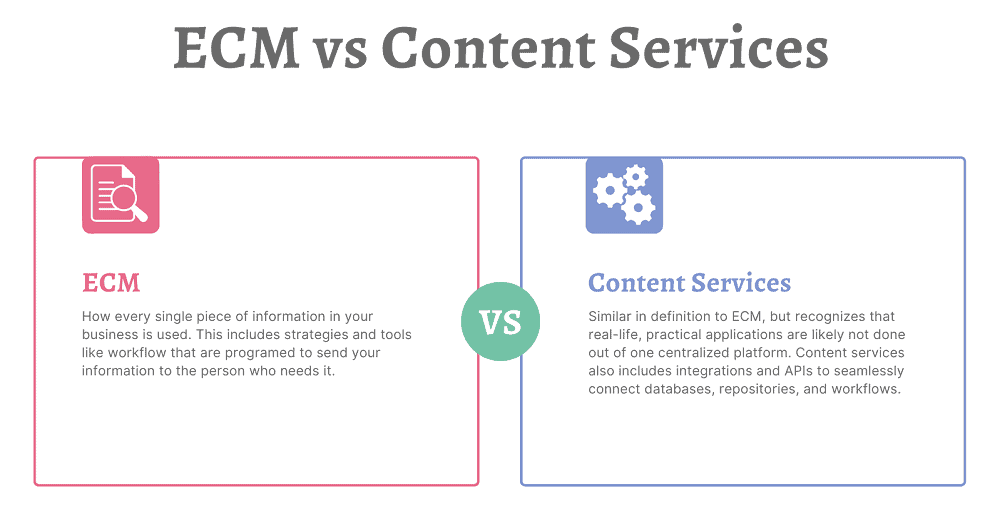
Enterprise content management (ECM) is how every single piece of information in your business is used. This includes strategies and tools like workflow that are programed to send your information to the person who needs it.

Content services (CS) is very similar in definition to ECM, but recognizes that real-life, practical applications are likely not done out of one centralized platform. Content services also includes integrations and APIs to seamlessly connect databases, repositories, and workflows.
That being said, there are many platforms that aim to store, streamline, and automate your content that are also rich in integration opportunities. Those are called Content Services Platforms (CSPs).

What is a Content Services Platform?

According to Gartner, a content services platform is:

“a set of services and microservices, embodied as an integrated product suite and applications that share common APIs and repositories. A CSP exploits diverse content types and serves multiple constituencies and numerous use cases across an organization.”

small version of animated robot for rpaEssentially, a Content Services Platform is the next evolution of an enterprise content management system. It allows organizations to create, store, manage, and transfer information. A content services platform can include:

  • Electronic forms
  • Workflow automation
  • Robotic (RPA) and other intelligent process automation
  • Integrations with leading software (ERP, CRM, HRM, etc.)

Again, while CSPs are designed to be the main system of information management, they also feature the ability to be integrated into other software.

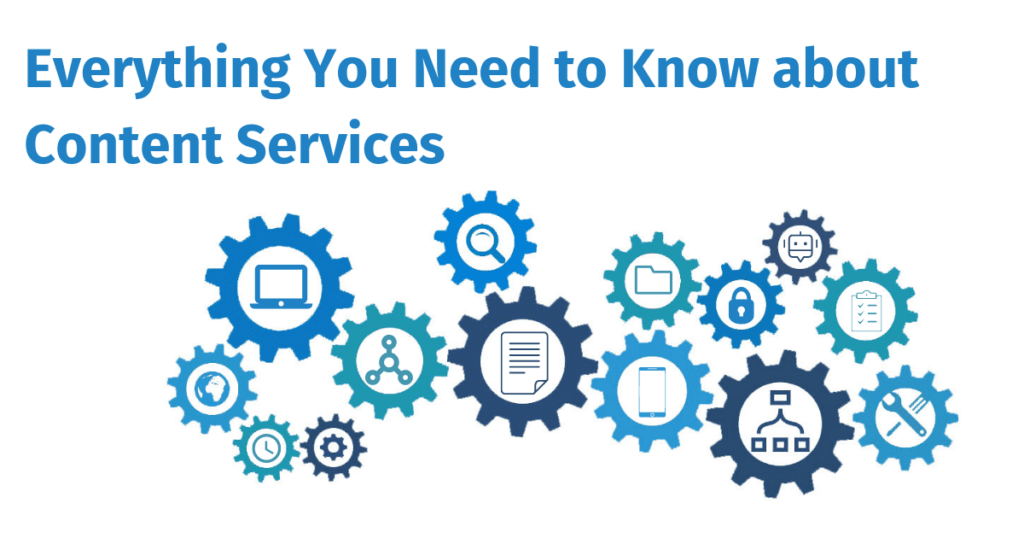
What Are the Different Elements of Content Services?

Content Services are broken into three main elements:

1. Content Services Platforms: the base platform that includes a content repository and acts as the main connector to other services. See above section for more details.

2. Content Services Applications: applications that provide business-focused solutions for functions like HR or IT. These can be separate or built into the content services platform. A good example is the Solution Marketplace for Laserfiche.

3. Content Services Components: components that provide a very specific function. This includes (but is not limited to) document imaging/data capture, electronic signatures, and language translation.
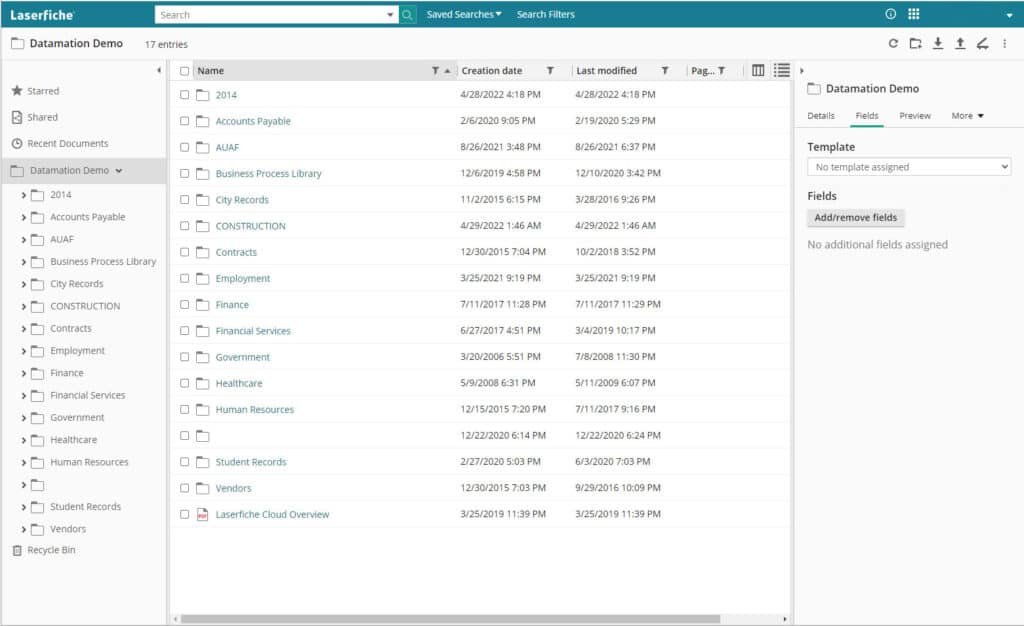
(click image to enlarge)

Why Do I Need a Content Services Platform?

One question that we hear a lot is: why do I need a content services platform when I can just store my files on our company servers or in general cloud storage?

The difference comes down to whether your files are living, active documents or just archival records.

If you’re storing archival records that rarely need to be accessed, then keeping them on your internal servers is a solution that will likely work well. As long as your network is secure, there shouldn’t be any problems with storing those records.

But companies that have lots of active, living documents that need to be accessed by multiple employees and/or departments can gain serious benefits by managing these files in a content services platform.

Benefits of a Content Services Platform

There are many benefits to investing in and using a content services platform.

Known Costs

Content services platforms will have upfront pricing based either on users or storage. There will be no surprises when your bill comes around and it’s easy to estimate costs if you need to scale up.

If you are using an online storage system (like Google Drive, OneDrive, Box, etc.), you can easily reach your free storage limit. We’ve had customers who reached that limit, but continued to upload documents, and were being billed without realizing it.

Records Retention
animated drawing of filing cabinetOften when it comes to records retention, companies just keep everything—just in case. But there’s no reason to. For example, most accounting-related information only needs to be kept for seven years (and depending on the document type, even less than that).

The problem with storing documents in a network folder is that you can’t assign searchable metadata to those files. So you either have to set up a very elaborate folder structure and hope that your employees stick to it, or manually search through the data to determine what can be deleted.

Content services platforms can automate all of this. Simply import documents, and the CSP can pull out relevant metadata (or you can add yourself), file the document in the correct folder, and tag it for a deletion report when it hits the end of its life. What may have taken hours or days manually will take minutes with a content services platform.

Standardized Filing

If you go into any organization, you will find that every employee names and files their documents a little differently.

With a content services platform, decision makers can determine a filing structure and then enforce it across the organization. Permission levels can be set to make it impossible for employees to change or modify the filing structure. This not only makes finding documents easier today but will make it easier for generations to come.

 Accessibility

A paper file can only be in one place at a time (unless there are multiple printed copies and that can cause other issues). An electronic file on a server can likely only be accessed at the office (or via a VPN). Content services platforms are designed specifically so your employees can access them from anywhere. The leading services are cloud-based so employees simply need to log into a portal from a browser.

One thing we hear a lot is that organizations don’t require a CSP because they store all their documents as PDFs in their ERP or CRM system. Not only does this not allow them to be widely searchable, but it can potentially make it harder for employees to access the documents they need if they are not in a centralized repository.

Security

data security privacy integrityDigital documents already have more security than paper ones, because people can’t just pick them up from a desk or pluck them from a filing cabinet.

But content services platforms take security even further. Administrators can assign special permissions to employees (either separately or as a group) so that they are only allowed to see the documents that they should and, if applicable, cannot delete anything from the repository. This means that only people processing invoices can see the Accounts Payable documents and only the highest level of Human Resources managers can see sensitive personal information.

These systems also feature document history and audit trails, so you know exactly who has opened and edited documents.

Additionally, CSPs feature some of the leading cybersecurity to keep your data safe and secure. Most also allow for two-factor authentication for organizations that want to add another layer of security.

Productivity and Time Savings

Being able to log into a document repository, make a search, and immediate find the information you need will allow your employees to work efficiently and service your customers (or students, or members, or whoever you need to provide information to) faster than ever before.

Additionally, process automation tools practically eliminate the time needed for basic tasks. When you’re working on paper, or even with digital documents, how long does it take you to get full and final approval? When you digitize and automate that process, you can reduce approval turnaround from days to minutes.

Ease of Use

Content services platforms are designed for anyone to use. Like all new software, there is a learning curve, but once you get the basics down, you can quickly find whatever information you’re looking for. Folders and projects are simple to add documents to, which is essential for your active, living files.

Most CSPs are built on folder or project structures, which means you can click down into the documents you need. Or you can do a text search and bring up all matching documents that you have access to.

CSPs are low- or no-code platforms, which means that advanced features like e-forms, workflow, and RPA (bots) are easy for people to setup without advanced coding knowledge.

Though for organizations with developers on staff, there is plenty of advanced functionality where you can design robust e-forms, workflows, and integrations. More about integrations in the next section.

Integrations

One of the most useful things about content services platforms is their ability to integrate with your other applications.

Think about the next time you hire an employee. With the click of a button, your HR management system can push information to your content services platform, which will in turn generate documents, inform relevant parties, email the onboarding forms, and kick off workflows for ordering equipment or creating user accounts on other systems.

Integrations are key for CSPs, and many of the leading platforms have native integrations with some of the leading accounting, HR, CRM, and ERP systems either right out of the box or easily added. There are also APIs and robotic process automation to connect the CSP to other disparate systems.

Now that we’ve covered some of the many benefits of a content services platform, let’s look at what you need to consider when selecting one for your business.

What Should I Consider When Shopping for a Content Services Platform?

There are a lot of CSPs, and each has their own strengths and weaknesses. However, you can find the right one for your business by doing some research.

animated checklist icon1. Determine which of your current systems are essential for business

As in, make a list of the software that you use and want to keep using for your organization. This includes ERPs, HR and/or accounting software, CRMs, and other custom applications built and used in your business (commonly referred to as line of business or LOB applications). You’ll want to have this list ready to see if your prospective content services platform features any direct integrations or easily added connector software.

Running older programs that don’t generally have APIs or integrations? Not to worry – depending on what you use the software for, RPA can likely log in and perform basic tasks (e.g. data scraping, copy/pasting).

2. Think about what functions your organization will use now and how you would like to grow

While having all of your documents digitized in one centralized location is a great start to digital transformation, the real power of content services platforms is how you collect and use data. Think about what information you collect via paper forms and your processes around them. It’s likely that all of that can be digitized, and a lot of it can be automated, but you’ll need to make sure that your CSP has that capability.

3. Partner with a consultant

Because there are so many different content services platforms, we recommend finding a trusted consultant or partner who can match your company and its needs with the right software.

We recommend this because consultants are intimately acquainted with the software and can answer your questions, offer realistic recommendations, provide best practice scenarios, and determine what integrations or workflows you will need. They also work closely with the software companies, so they will know about new features coming up in the product development. Additionally, they have access to demo accounts so you can try systems for free before you commit.

In full disclosure: Datamation is a content services consultant, and we would love to work with any company on their digital transformation journey!

4. Start your research

If you prefer to handle your project internally, then it’s time to do some research. Armed with your notes from steps one and two, it’s time to start diving into systems.

Start by going to software review websites to see how experts and customers rank their systems. Some great places to start are:

Remember: Enterprise content management systems and document management systems can also be content services platforms.

Pay extra attention to platforms listed as customers’ choice—these are ranked by actual users of the platform and not the website review team. It’s good to know how actual users feel because it doesn’t matter how cool a system looks, or how many features it boasts, if your employees don’t use it. It is not worth your investment.

Make a list of 5-10 content services platforms that you would like to research further and then go to their websites. The software websites will show you top features more in-depth and should have a listing of their integrations.

From there, you should be able to narrow down your list to 2-3 platforms. This is when you would request information from the sales team or setup a demo account. When you have demo accounts, make sure to use actual files from your organization so you can test how you and others would interact with the platform.

After gathering more information and/or trying the demo accounts, the right CSP for you should be obvious. But if you’re still unsure, consider looking for that right consultant or partner for more guidance!

There’s a lot to content services, so if you want to review a section, here are the quick links again:

Thinking about a new content services platform for your organization? We’d love to help you find the right one for your business. Contact us or give us a call at (630) 321-0601.

Questions or comments on this article? Find us on LinkedIn or Twitter.

6511

publish

2022-07-15 16:51:38

content-services

Top 3 Areas Driving Demand for Digital Files Due to COVID-19

When state governments enacted stay at home orders to slow the spread of COVID-19, the need for digital files skyrocketed. While many companies were already making a transition to paperless offices or had formal work from home policies, there some that were still relying heavily on paper.

As a document scanning and management company, we’ve seen a large interest in digitizing files in three areas: human resources, mailrooms, and microfilm records. These three departments are rapidly digitizing, no matter what the industry. This makes sense as all of these areas require timeliness, privacy, and accessibility for their records.

Let’s get into why these areas are seeing such a demand in digitizing.

1. Digitizing Human Resource Records and Processes

Human Resources is by far the most common area where businesses are scanning their records. We’ve spoken with industry peers across the country and they are also seeing a huge demand in human resources scanning.

And really, this makes a lot of sense. Human Resources is heavily dependent on paper and information. They require lots of processes and approvals for a variety of daily functions. When offices closed, they didn’t have access to their filing cabinets. But employees still needed to perform essential functions like hiring and onboarding. Having all existing and incoming personnel paperwork digitial enables the HR employee to work productively even while remote.

Here at Datamation we’ve seen a large increase in web traffic and calls about scanning HR files. Some are smaller companies that previously relied on paper-based processes. However, most are large companies with multiple offices that absolutely need virtual access and digital routing of personnel records. Without the ability to access their records virtually, HR employees are heading to the office to access records. Depending on the company, this can require management clearance, an exception to the remote work policy, and an office cleaning. Not to mention it can possibly compromise the employee’s health and safety.

2. Incoming Mailroom Processing and Scanning

Even if your employees aren’t in the office because of COVID-19, your mail is still heading there. As many companies don’t want to compromise the health of an employee, or need to make cuts due to the current recession, they’re looking to outsource their mailroom.

The process is simple: incoming is mail is picked up or routed to a scanning company (like us!) or sent to a P.O. Box managed by the third-party company. The company opens, scans, and indexes the mail by the intended recipient. After that, the digital images are uploaded to an FTP site so the company can download the images and process them accordingly, or a cloud-based document management system so each user can access their own mail independently.

Receiving your mail digitally enforces privacy. It also ensures quick document delivery to remote workers for prompt processing. Businesses need to receive about 50 pieces of mail per day to really see the benefit, but it’s simple to implement and cost-effective.

3. Scanning and Digitizing Microfilm and Microfiche

One of the most surprising things has been the increase in demand for microfilm scanning. While converting microfilm and microfiche to digital is one of our standard services, we’ve seen organizations of all sizes and industries reach out about digitizing this type of media.
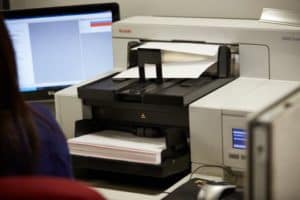
This is because so many more people are working remotely and can’t access the microfilm and appropriate reader equipment at the office. For any company that was considering a conversion but wasn’t quite ready to make the investment, the pandemic reshuffled their priorities.

Records on microfilm and microfiche are generally archival in nature, so they don’t need to be accessed that often. But when they do (for example: when needing to check a 45-year-old life insurance policy or a 57-year-old student record), someone still has to go find the right piece of fiche or roll of film and then use antiquated equipment to find the right cell. Digitizing these records doesn’t just mean instant access at home—it also means that you never have to use a microfilm reader again.

Digitizing these records also increases their privacy. You can lock a digital file in a content management system with a password and/or user permissions so only those with the proper access can see it.

Finally, converting film and fiche to digital images means that the data will be around forever. Despite early claims that microfilm and microfiche could last for hundreds of years, much of it has started to degrade.

Other In-Demand Applications for Document Scanning

These three areas have seen a huge increase in digital files, but those aren’t the only places. Here are a few other applications for document imaging that we’ve worked on over the past few months:

  • Customer Service: With customer service employees working from home, they don’t have access to customer files in an office filing cabinet or on a server. Virtual access allows them to maintain a high level of customer service while working remotely.
  • Contracts: Storing contracts on a content management system allows for secure sharing. Proper approval parties can receive contracts via workflow. A system can keep all versions of this document without any kind of physical copy.
  • Tax Records: Sales tax, payroll tax, state tax, tax exemption and other large tax records frequently require office access to see these records. This is especially true in the event of an audit. Now employees and auditors alike can access these files remotely.
  • Legal Files: Virtual access to legal files provides fast access and more time for lawyers to perform billable services.
  • Accounting: Many companies are either outsourcing their accounts payable or using an in-house system where invoices can be digitized, and key data extracted so that their system can then automatically receive, route, and pay invoices.

The demand for digital files and these applications has increased this year. And it’s unlikely this will end when the COVID-19 pandemic does. Workplaces have been trending digital for the last few decades, and this was simply a push to accelerate the process. With fewer costs, more productivity, and less needed office space, there are so many benefits from having your records digitized and on a document management system.

If you need to digitize your files or a better way to access those files, we’re happy to help. Contact us or give us a call at (630) 321-0601.

Has your company adopted digital files for any of these departments or applications? What other trends have you noticed because of the pandemic? Find us on Twitter or LinkedIn.

6156

publish

2020-12-09 06:00:05

demand-digital-files-covid-19

How to Get Started with Document Management and Scanning

Many offices have the goal of achieving the paperless office. However, going paperless is a seriously intricate task, with many paths and solutions. Where do you start? What do you need?

As we have helped hundreds of clients start their paperless journey, we wanted to share the steps you need to take to move towards streamlined document management.

While we have numbered the steps for simplicity, you will want to keep all of these things in mind throughout the process.

Step 1: Outsource Your Document Scanning to a Trusted Partner

document scanning equipmentConverting the paper you already have into digital files must be one of your first steps. And the reason that we recommend it as the first step is because a seasoned document management and scanning company will be a great partner in helping you go paperless. Not only do they have the experience in scanning your files, but a good company will also be up to date on document management software and strategies.

Outsourcing your scanning allows you to immediately gain office space and/or stop paying monthly storage fees for boxes.

After selecting that scanning partner, they will work with you to determine the right document management strategy for your business. Once you understand proper scanning procedures, you and your document management partner can determine your future state. Is this something you would prefer to take in-house with your own scanners, continue to outsource, or take a blended approach?

Step 2: Transform Your Paper Forms into Digital Intake

fill out eforms anywhere document managementWhile you’re having your current paper documents scanned, you’re also going to want to think about how to eliminate the creation of new paper documents.

Instead of printing and mailing, many documents can be delivered via email or secure share as PDF files. This is the easiest change to make as it requires only a simple process change.

Next, much of your paperwork can probably be converted to electronic forms. Consider building forms for processes that require a lot of paper but rarely change in content, like HR onboarding.

If your business works with outside vendors, or you are a public body that answers to citizens, you should build an online portal. With an online portal, your partners and customers can self-serve or use a form to make a request.

Step 3: Choose Your Document Management Software

laptop document management systemYou should be researching document management software along with your scanning and electronic forms. After all, you’ll need to know where you’re going to store electronic files, in what format, and how they can be accessed.

At first, a simple folder structure on a network or shared drive may be a sufficient archive. But as you work with active digital files, you will need more flexibility and features.

Document Management Solutions

You will need to determine what kind of system is best for your organization. For businesses that want to have complete control over their software and hardware, you’ll want to invest in an on-premises solution. This does require significant hardware and personnel to manage appropriately.

If you still want to have control over your software but don’t want to have the burden of physical hardware, consider a hosted content management solution. A cloud hosted solution allows for a third-party company (possibly your document management partner) to maintain and upgrade your content management.

For the latest updates and lowest maintenance, consider a cloud subscription. This software is a set monthly rate that doesn’t require an investment in software, hardware, or personnel. Like the hosted option, a cloud subscription means that you can access your files from anywhere. This is key for distributed teams, multiple offices, or remote workers.

There are many options and features with document management, which is why we recommend connecting with a document management expert. A good partner will be able to work with you to discuss immediate needs and how you’d like to grow, and then determine the best system for you. If you didn’t connect with a document management and scanning company in step one, this is the time to look for one.

Step 4: Take it to the Next Level with Automation

workflow feature document managementThis step, unlike the first three, can be put off until later. But eventually, you will want to take full advantage of your electronic files and streamline your processes with automation. Workflow and robotic process automation can move files, process invoices, and eliminate repetitive tasks. They help your business run smarter and let your employee focus on better work.

Most document management software has automation options, either at the base level or for an additional cost. Make sure that you talk with your document management company or a consultant about your options and what kinds of process automation they recommend.

While you can’t change your company overnight, these steps will get you well on your way to achieving a paperless, efficient office. Make your plan, find a good partner, research your options, and make gradual changes.

Thinking about moving from paper to digital files and processes? Don’t hesitate to contact us or call (630) 321-0601.

Comments or questions on this article? Find us on LinkedIn or Twitter.

This post is part of the Datamation Guide to Document Scanning.

5737

publish

2020-08-04 06:00:29

get-started-document-management-scanning

The Benefits of Accounts Payable Automation

Even if you have your accounts payable processes down to a fine science, mistakes can still happen. That’s just the nature of mostly paper-based processes. And if you’ve ever found yourself wondering, “Did we pay that?” and unable to confirm that in less than a minute, then you should consider automating your AP processes. Eliminating mistakes and having immediate knowledge of your invoice status are just some of the benefits you can realize with accounts payable automation.

Read on for the rest of the benefits of automating your AP processes.

1. Significant Cost Savings

ap automation save costs on suppliesCost savings comes first because the savings are truly substantial. When you automate your accounts payable processes, you’ll see significant cost savings across the department.

Some examples are:

  • Less money spent on mailing invoices for approval
  • No costs to print or copy documents
  • Less money spent on office supplies
  • Free up your staff to work on other projects
  • Take advantage of early payment discounts

We’ve even heard from a client who had someone in their AP department retire, and because of how much was automated, they didn’t need to replace them. Not only did that save them in payroll, but also any costs associated with hiring and onboarding.

2. Eliminate Manual Data Entry Errors

No matter how skilled your AP employees are, there’s always the possibility of manual data entry error. We can’t help it! We’re human! But by automating your AP processes, you can eliminate costly data entry errors.

When you add documents to your software, the software automatically grabs important information and indexes it. An automatic workflow kicks off as soon as the invoice is confirmed and goes right to the designated approver. Once the process is over and everything is paid, your records are stored securely in your ERP and document management systems.

3. Better Vendor Relationships

ap automation better vendor relationshipsNo matter how great your vendors are, they’re going to get annoyed if you continually pay them late.

But when you implement AP automation, one of the benefits is that you can ensure that your vendors are paid on time, or early, every time. This will strengthen your relationship and that can lead to:

  • Early payment discounts
  • Product or service discounts
  • Industry insights you’re unaware of
  • Early access to new products or services
  • More customization to your specific needs
  • Referrals of your business to others

Once you get comfortable with your automated AP software, there are some that even allow for a vendor portal. Your vendors could log in and see the status of their invoices, which will eliminate many of the calls and emails.

If you don’t want to give vendors that kind of access, at least you’ll be able to give them the information quickly by just checking your system.

4. Immediate Approval Workflow

Ah, approvals. How much time in your day do you lose to chasing down approvals either in-person or by email?

One of the benefits of accounts payable automation is that you can create workflows that will immediately send off the invoice to an approver. And if the approver takes a while to approve? Follow up emails can be programmed to send with a reminder.

If you have multiple approvers, you can build the workflow to send to every single one. And if one of your approvers doesn’t approve the invoice? No problem. The workflow will send the document back to the AP department to handle whatever needs to be fixed.

Best of all, that entire document history is saved within your system, so you’ll know exactly who approved which invoice and when.

5. Easier 2-Way and 3-Way Matching

ap automation 2 3 way matchingWe don’t need to tell you why 2- and 3-way matching is important in accounts payable. What we can tell you is that automating makes this process much easier and take far less time.

You can do this by following these simple steps:

  • Add your documents to your document management software either by scanning paper or uploading PDFs
  • The system pulls the information from the documents (or you can manually enter it into index fields)
  • Do a simple search or run workflow to group the related documents together by the PO number

That’s it! Your days of getting up to pull documents from the filing cabinet and cross-referencing them by hand are over. The only time a human hand touches the invoice is if you scan it into your system.

This is also helpful if you have an audit – just pull up the related documents via a simple search! More on that later.

6. Quickly Identify and Solve Exception Processing

Another one of the benefits of accounts payable automation is that it will immediately identify invoices that don’t match the purchase order.

Once the invoice is brought into the system, based on rules you set up, it will try and match itself to the accompanying PO. Then you will be able to compare the documents and make sure that the amount matches.

If it doesn’t, you’ll have all the information right in front of you when you call the vendor to solve the error.

7. Stress-Free Accounts Payable Audits

Even though they’re important, nobody looks forward to an audit. Combing through files just to find a single document is time consuming for both the employees and the auditor.
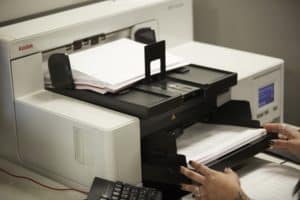
With AP automation, audits take much less time and are far less stressful than keeping everything on paper. Here’s how:

  • Putting every invoice, purchase order, receipt, etc. into the system means that you can find any document you need with a simple search
  • Document audit trails show exactly when a document was added, who looked at it and when, who approved the invoice, and when it was marked paid
  • Auditors can spot discrepancies quickly via the dashboard or a search

It’s also highly likely that the last bullet point won’t even happen, but it’s better to know about a problem sooner rather than later.

With AP automation, audits are over in a snap and your department can get back to work.

8. Greater Visibility into Business Finances

When your invoices and purchase orders are all on paper, it’s hard to have a sense of what stage of approval or processing that every invoice is in. That also doesn’t make it easy to know how much money has been paid compared to how much still needs to be sent out.

But with a good AP Automation software, you’ll be able to have instant insight into the status of your invoices.

Some software features an impressive dashboard feature that lets you look at your invoices holistically and see their status, history, and accuracy. Software like Square 9 GlobalSearch lets you group invoices into specialized searches so you can see what’s outstanding and where it is in the approval and payment process.

As you can tell, automating your AP processes will truly give you some powerful benefits and take your department to the next level. With invoices handled quickly and completely when they come in, your employees will have the time to focus on higher level work.

Interested in learning more about how AP automation can help your business? Give us at call at (630) 321-0601 or contact us.

This post is part of the comprehensive Datamation Guide to AP Automation.

4558

publish

2019-09-12 06:00:07

benefits-accounts-payable-automation

Everything You Need to Know About Document Management

Are you still doing the majority of your organizational tasks on paper? Do you loathe a request because you know that you’re going to need to walk down to the storage room and rummage around paper files for an hour? Then it sounds like it’s time for a document management solution.

Every day business moves faster, more goes digital, and it’s costly to stick to old systems and habits just because it’s what you’ve been doing. Scanning your files and media provides a ton of benefits and you don’t necessarily have to change everything overnight.

Let’s go through the three levels of document management, what they each mean, and how you can implement them for your own business.

If you want to jump to a specific section:

1. Basic Scanning and Archiving

The first level is basic archiving. This means scanning your records how they are in their file folders and naming your new digital files after the folder. Once documents are scanned, you can store digital files on your network server or an external hard drive. Not only will this clean up your paper files, but it creates a reliable back up in case of a disaster.

You have two options when you want to scan your files: do it yourself or outsource it to a document scanning company.

DIY, Internal Scanning

If you want to scan your own files, you’ll need to purchase or rent a document scanner. Personally, we recommend desktop scanners from Kodak or Epson. These scanners are easy to use and can usually be purchased for under $350. If you know you’re not going to need or want a scanner after conversion, these and other production scanners can also be rented.

Outsourced Scanning

If you choose to outsource your scanning, the company will come to your office, box up your records, take them back to their office, and scan them at your specifications. Make sure that you decide prior to conversion exactly how you want your files to be named and what format you want them in (e.g. PDF, TIFF, etc.). If unsure, ask the company!

Outsourcing will also allow your files to be made text searchable so you can find anything you need within the body of the document.

The cost to outsource is around $.05 to $.08 per image scanned. This makes a standard banker’s box of files cost around $200 for a full scan with text searchability.

Related resource: Should You Outsource Document Scanning or Do It In-House?

2. Document Management System for Storage and Retrieval

The next level, and what most companies are migrating towards these days, is a document management system for storage and retrieval. You may have also heard these referred to as content management systems or imaging systems. The focus of this system is to have a centralized repository of all of your content – and not just your previously scanned files. These can include emails, PDFs, spread sheets, video, audio, and CAD files, among others.

Are Document Management and Enterprise Content Management the Same Thing?

laptop document management systemSometimes document management system is used interchangeably with enterprise content management, but they aren’t entirely the same thing.

Document management system (DMS) refers specifically to how you store and access your documents, along with monitoring the lifecycle of those documents.

Enterprise content management (ECM) is how every single piece of information in your business is used. This includes strategies and tools like workflow that are programed to send your information to the person who needs it. We’ll touch on ECM more in level three.

Now that you know the basic differences, let’s go more in-depth with document management software.

Benefits of a Document Management System

The power of a document management system lies in its capability and scalability to become an enterprise solution. Benefits of a document management system include:

  • improving business processes
  • protecting information from theft and disaster
  • helping comply with regulations and guidelines
  • collaborating among teams, whether in-person or remote

Types of Document Management Systems

Cloud computing imageThere are two methods for implementing a document management system: on-premises software or an outsourced cloud.
For an internal, on-site system, you’ll need to purchase software. These sell for around $1,800 to $2,500 per license, though does not include any kind of installation or training services. All of this is hosted on your own servers and will need continual IT resources.

Outsourced cloud solutions start around $120 per month. For some software, you can have unlimited users. Others, they may charge per user but provide far more features. There is no term minimum or maximum – you use the system as long as you want. And since the software is hosted and maintained elsewhere, you do not need to have nearly as many dedicated IT resources, if any.

Which Document Management System is Best for My Business?

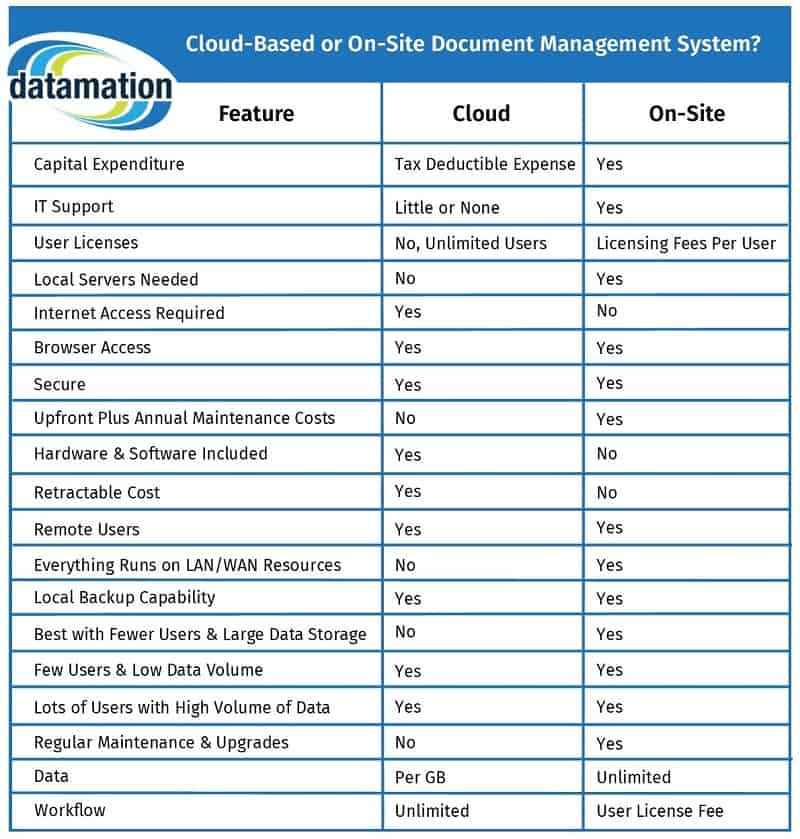
Either solution is a good solution, but it’s really up to your organization and culture to decide what will work best for you. Here’s a side-by-side comparison chart to help.

Please note that this chart compares PaperVision Enterprise software to ImageSilo. Other software comparisons may differ.

cloud-based or on-site document management chart datamation

For a downloadable PDF of this chart, click here.

More and more small and mid-sized businesses are choosing cloud-based systems so they don’t have to invest heavily in IT support. Larger organizations tend to favor on-premises systems so that they have full control over every facet of their information.

That being said, it’s still best to analyze your current and future business goals when making this decision!

3. Fully Integrated Document Management Solution

collaborate with integrated document management softwareThe last level is implementing advanced system features to have a fully integrated document management solution. This is basically your enterprise content management, or possibly content services, as you will need to consider multiple processes and tools in addition to your document storage.

At this level, you can use advanced features to really revolutionize the way that you work. You can change your business processes to be more efficient than ever. In fact, many companies choose their document management systems based on what advanced features they can have.

Depending on the system you have, these will either be included in your price or need to be purchased as add-on licenses.

The advanced system features fall into three main buckets:

  • workflow
  • integration
  • e-forms

Workflow

workflow feature document managementThe most commonly implemented advanced feature is workflow. Workflow provides automated routing, checklists, approvals, integrations, and reporting.

Examples include:

  • Tracking and assigning insurance claims based on workload and processor specialty
  • Routing an invoice to a department head for approval and general ledger (GL) coding
  • Matching and approving an invoice based on the purchase order (PO) and receiving information
  • Administering and calculating a retirement benefit based on the appropriate plan for that employee

Integration

Integration is a powerful capability that connects the document management system with other key applications in your organization. This helps improve productivity and service levels as the systems will be able to speak with each other. Also, employees won’t manually have to switch back and forth between applications.

Some examples include:

  • A school employee works in the school student information system. By clicking an “open file” button she can pull up the student file from the document management system
  • A Human Resources specialist works in the HR information system. By entering CNTL and F9, he can pull up an employee’s personnel file
  • An accountant can look at their accounting system, and while on the phone with a vendor, pull up the vendor invoice without switching back to the DMS
  • An employee working in their claims processing application can have an insurance claim appear immediately

E-forms

fill out eforms anywhere document managementThe main benefit of electronic forms (e-forms) is that they cut down on paper, in addition to increasing accuracy and productivity. Examples of e-forms you’ve probably seen are online application forms and online shopping.

Business-based examples include:

  • Order forms: workflow and integrations automatically route and process the order
  • Health history and HIPAA forms in a physician’s office: fill out on a tablet and then PDF files can be routed and emailed to you and the physician’s office
  • An emergency contact card for a student: fill out on-line by a parent or guardian
  • A job application form: fill out using an e-form and routed to the proper party for review
  • A survey form: collect data without having to locate and process paper surveys

Just about any process that you perform on paper can be converted with a fully integrated document management system that include these advanced features.

Wrapping it up

Okay, we covered a lot, so here’s a brief synopsis:

  • Level One: Basic Scanning and Archiving means scanning your documents so you can clear out your office and find information easier.
  • Level Two: Document Management System for Storage and Retrieval means investing in a document management system so you can store those scanned documents in a centralized location that, depending on permissions, can be accessed by any employee from anywhere.
  • Level Three: Fully Integrated Document Management Solution means completely revolutionizing your business processes with workflow and other tools.

Every organization has different needs, so it’s possible that level one will be enough for your business. You may also want to completely revolutionize your paper-based processes and are aiming for level three. The good news is that no matter which level you implement, you’ll definitely be in a better position than you were before.

If you’re ready to implement one of these levels, we’d love to help you do it. Give us a call at (630) 321-0601 or contact us.

Have a question or comment about this article? Find us on Twitter or LinkedIn. We’d love to hear from you.

4509

publish

2019-09-05 06:00:00

everything-document-management