The Beginner’s Guide to Robotic Process Automation (RPA)

Robotic Process Automation (RPA) is a huge buzzword right now, even though the technology has been available for a few years. The reason it’s trending is because thousands of companies are implementing RPA every single year, with percentages growing exponentially.

According to estimates from PwC, about 45% of work activities can be automated. So why let software do it? Simply put: the world generates more data than ever and companies need to keep up. RPA allows for automating time-consuming manual processes and letting your employees focus on higher level (and ideally, more rewarding) work.

Read on for more about RPA, or use our quick links to jump to a section:

What is Robotic Process Automation (RPA)?

Despite the name (and our cute robot picture), Robotic Process Automation has nothing to do with actual, physical robots. RPA is specialized software (or “bots”) that can learn repeatable business processes and perform them without human interaction. It’s essential for linking separate systems if you don’t have APIs or extensive IT resources.

For example, let’s say you spend a bunch of time every day copying and pasting data from one system into another. An RPA “bot” can watch screen movements and keystrokes and learn what needs to be copied. Also, if you’ve ever programmed Excel macros, RPA works similarly, but with a lot less programming.

Best of all, RPA doesn’t require any programming skills or heavy maintenance by your IT department. It acts like another employee, logging into systems, scraping data, and filling out forms. So, while your bot does the grunt work (also known as busy work, swivel chair work, etc.), your employees can focus on more important work like strategy and special projects.

How Does Robotic Process Automation (RPA) Work?

Essentially, RPA works as another employee, just faster, more consistently, and 24 hours per day.

The process in its simplest form looks like this:

  • IT/an administrator installs or activates the RPA software on your computer system
  • RPA watches screen and mouse movements, along with keystrokes
  • RPA records the process and uses AI to analyze the steps
  • RPA does the process to your specifications, which includes running automatically when new data is found
  • RPA continues to do the process until you tell it to stop

RPA can be turned off or reprogrammed at any time, which also makes it great for work that you may have previously hired temporary workers to complete.

What are the Benefits of RPA?

The biggest and most immediate benefit of implementing RPA is that you can speed up cumbersome, repetitive, manual processes. A process that can take even the speediest human an hour can be cut down to minutes (or even seconds!) with robotic process automation.

Here are some of the other benefits:

  • Increase in productivity
  • Reduction of process time
  • Consistency of task completion
  • Extreme accuracy and reduction in errors
  • No programming skills or APIs required
  • 24/7 processing ability
  • Lower costs
  • No need to switch to new systems or software
  • Full compliance with audit trail history
  • Potential return on investment of anywhere from 30–200%

What Processes are Right for Robotic Process Automation?

Any process that is highly structured and rules based is a great candidate for robotic process automation.

It’s important to note that any process that requires a human decision can’t be completely automated. You’re still going to need a human to make a decision. But if most of the process before and after is very structured, then you can have RPA and human employees work together to complete it.

Other things to look for in a process that could be performed by RPA:

  • Extremely repetitive and takes a substantial amount of time
  • Requires manual data entry tasks across multiple systems or applications
  • Includes a lot of extracting, reformatting, merging, copying, or pasting data
  • Uses two monitors to copy data from one system into another
  • Generates emails or fills out forms

You can even have RPA go out and scrape data from social media or websites. So, if you’re in the marketing department, you can have your “bot” go out and scrape follower numbers from all of your competitors on all of their social media sites and it will deposit it nicely in a spreadsheet for you.

What are Some Real-Life Examples and Use Cases of RPA?

Okay, so that all sounds good, but sometimes real-world examples are best to show what a “bot” can do for your business.

Here are ways that RPA is currently used in companies:

  • Financial institutions use it to pull credit reports to speed up underwriting and loan processing
  • HR departments use it to read timesheets and generate paychecks
  • Accounting departments use it to continually check for new purchase orders and upload them into ERPs/LOB applications
  • Recruiters use it to read all submitted resumes and cover letters. Documents with the correct keywords are automatically routed to the proper recruiter
  • IT departments use it to set up user accounts when their company hires new employees or to close accounts when an employee leaves
  • Sales teams use it to generate and deliver invoices

And that’s just a sampling. There are uses for RPA no matter your industry or department.

What Do I Need to Do to Get Started with RPA?

It’s important that you start with your end goal in mind. What process do you need to be faster? Which is the least disruptive with the most benefits? The most successful RPA implementations include clear communication and goals, so you need to make sure that everyone is on the same page.

Identify Your Process

The first thing you’ll need to do is to identify a process that’s good candidate for automation (see criteria from section What Processes are Right for RPA?). It should be simple in nature, but also a huge pain point for your current state.

Have a process that never gets completed on time? Need something completed but you can never find the resources? Have one (or multiple) processes programmed by IT to run overnight? These are all signs that a task is the right candidate for robotic process automation (and you don’t necessarily need IT to oversee it!).

Assess Current Software

Before you do a deep dive into researching robotic process automation solutions, take a look at what software you’re currently using. Many programs–including leading LOB, ERP, and document and information management software–have already rolled out RPA “bots.”

For example: both Digitech and Laserfiche feature RPA technology with their document management software. Depending on whether you have on-premise or cloud software, this may already be part of your license, or can be added for a small fee.

If you’re happy with systems you have, and their RPA software can do what you need, then a huge part of the implementation is already done!

Research New RPA Software

If none of your current software has RPA capabilities, then start researching other alternatives. It’s best to dive right in with a search for the “best RPA software” and start reading reviews and product specifications. Be careful on top ten review sites, as sometimes companies pay for better rankings and reviews.

Once you have a list of a few options, reach out to the companies or resellers and ask for demos or a free trial.

If you don’t have the time or resources for a lengthy research period, you may want to consider hiring a consultant to work with you on selecting the best software.

We covered a lot, so here are those section links again if you want to jump back:

Otherwise, we hope this guide was a good starting point in your RPA journey!

If you’d like to know more about RPA options and/or how to take your document-based processes to the next level, please contact us or call (630) 321-0601. We’re passionate about finding the right solution for your business needs.

Have a question or something you’d like to add? Find us on Twitter or LinkedIn. We’d love to hear from you!

4615

publish

2023-01-23 12:00:58

guide-robotic-process-automation-rpa
Everything You Need to Know about Content Services

||||

A couple of years ago, software reviewer Gartner proclaimed that enterprise content management, as a term, was dead. Instead, they repackaged and expanded the concept into a term called “Content Services.”

Even though the proclamation happened a few years ago, the term really hasn’t caught on. The general public – and the industry – still widely calls it document management software or enterprise content management.

laptop document management systemHere on the Datamation blog we’ve talked about the difference between document management and enterprise content management. So what’s the deal with content services?
We cover a lot about content services in this blog post, so here are quick links if you wanted to jump to a particular section:

What are Content Services?

Content Services is a term used to describe the entire ecosystem of your company’s information. This can include document management systems, workflow, application programming interfaces (APIs) and integrations, web-based tools and platforms, and anything used to help your information move smarter and your employees be more productive.

What is the Difference between Content Services and ECM?

The idea of an enterprise content management system was that this one system would be the go-to source for all content in the company. However, this rarely happened in practice. Invoices would be created in one location, employee information was stored elsewhere, and there were many legacy systems that needed specialized integrations.

ECM was envisioned as a “closed” environment that would handle all information needs. Content services promotes openness and connectivity among multiple repositories and systems.

In practice, you’ll likely hear people use ECM and Content Services interchangeably. But for specific definitions:

Document management system (DMS) refers specifically to how you store and access your documents, along with monitoring the lifecycle of those documents.

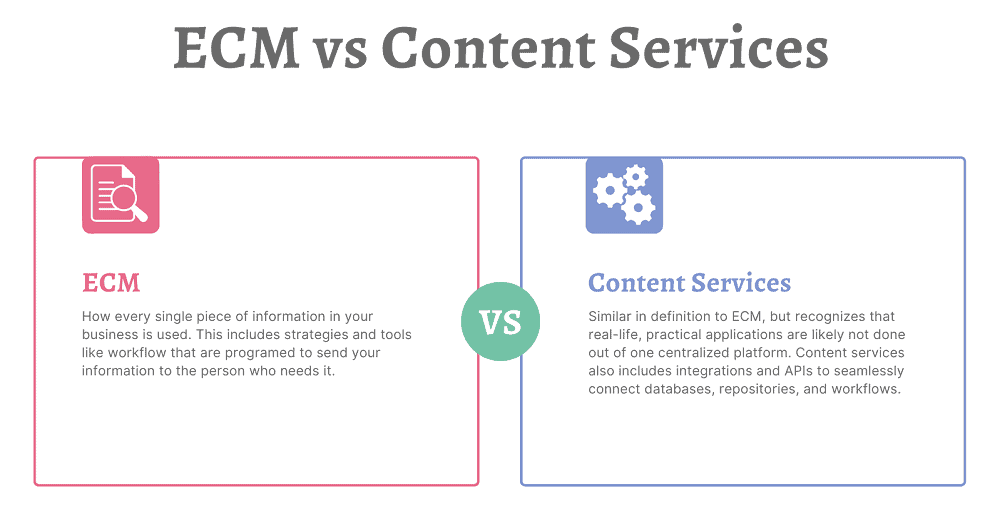
Enterprise content management (ECM) is how every single piece of information in your business is used. This includes strategies and tools like workflow that are programed to send your information to the person who needs it.

Content services (CS) is very similar in definition to ECM, but recognizes that real-life, practical applications are likely not done out of one centralized platform. Content services also includes integrations and APIs to seamlessly connect databases, repositories, and workflows.

That being said, there are many platforms that aim to store, streamline, and automate your content that are also rich in integration opportunities. Those are called Content Services Platforms (CSPs).

What is a Content Services Platform?

According to Gartner, a content services platform is:

“a set of services and microservices, embodied as an integrated product suite and applications that share common APIs and repositories. A CSP exploits diverse content types and serves multiple constituencies and numerous use cases across an organization.”

small version of animated robot for rpaEssentially, a Content Services Platform is the next evolution of an enterprise content management system. It allows organizations to create, store, manage, and transfer information. A content services platform can include:
  • Electronic forms
  • Workflow automation
  • Robotic (RPA) and other intelligent process automation
  • Integrations with leading software (ERP, CRM, HRM, etc.)

Again, while CSPs are designed to be the main system of information management, they also feature the ability to be integrated into other software.

What Are the Different Elements of Content Services?

Content Services are broken into three main elements:

1. Content Services Platforms: the base platform that includes a content repository and acts as the main connector to other services. See above section for more details.

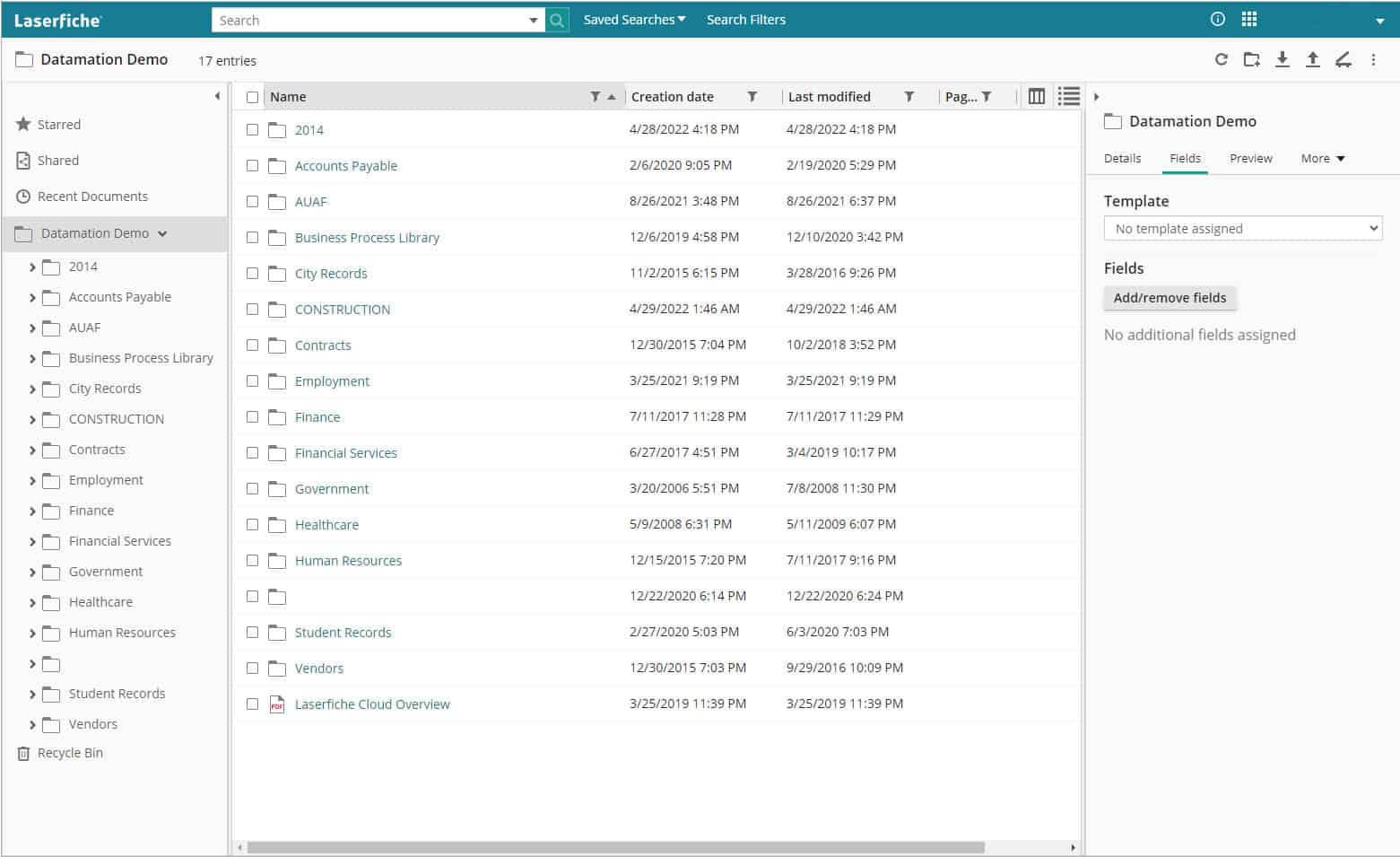
2. Content Services Applications: applications that provide business-focused solutions for functions like HR or IT. These can be separate or built into the content services platform. A good example is the Solution Marketplace for Laserfiche.

3. Content Services Components: components that provide a very specific function. This includes (but is not limited to) document imaging/data capture, electronic signatures, and language translation.

(click image to enlarge)

Why Do I Need a Content Services Platform?

One question that we hear a lot is: why do I need a content services platform when I can just store my files on our company servers or in general cloud storage?

The difference comes down to whether your files are living, active documents or just archival records.

If you’re storing archival records that rarely need to be accessed, then keeping them on your internal servers is a solution that will likely work well. As long as your network is secure, there shouldn’t be any problems with storing those records.

But companies that have lots of active, living documents that need to be accessed by multiple employees and/or departments can gain serious benefits by managing these files in a content services platform.

Benefits of a Content Services Platform

There are many benefits to investing in and using a content services platform.

Known Costs

Content services platforms will have upfront pricing based either on users or storage. There will be no surprises when your bill comes around and it’s easy to estimate costs if you need to scale up.

If you are using an online storage system (like Google Drive, OneDrive, Box, etc.), you can easily reach your free storage limit. We’ve had customers who reached that limit, but continued to upload documents, and were being billed without realizing it.

Records Retention

animated drawing of filing cabinetOften when it comes to records retention, companies just keep everything—just in case. But there’s no reason to. For example, most accounting-related information only needs to be kept for seven years (and depending on the document type, even less than that).

The problem with storing documents in a network folder is that you can’t assign searchable metadata to those files. So you either have to set up a very elaborate folder structure and hope that your employees stick to it, or manually search through the data to determine what can be deleted.

Content services platforms can automate all of this. Simply import documents, and the CSP can pull out relevant metadata (or you can add yourself), file the document in the correct folder, and tag it for a deletion report when it hits the end of its life. What may have taken hours or days manually will take minutes with a content services platform.

Standardized Filing

If you go into any organization, you will find that every employee names and files their documents a little differently.

With a content services platform, decision makers can determine a filing structure and then enforce it across the organization. Permission levels can be set to make it impossible for employees to change or modify the filing structure. This not only makes finding documents easier today but will make it easier for generations to come.

 Accessibility

A paper file can only be in one place at a time (unless there are multiple printed copies and that can cause other issues). An electronic file on a server can likely only be accessed at the office (or via a VPN). Content services platforms are designed specifically so your employees can access them from anywhere. The leading services are cloud-based so employees simply need to log into a portal from a browser.

One thing we hear a lot is that organizations don’t require a CSP because they store all their documents as PDFs in their ERP or CRM system. Not only does this not allow them to be widely searchable, but it can potentially make it harder for employees to access the documents they need if they are not in a centralized repository.

Security

data security privacy integrityDigital documents already have more security than paper ones, because people can’t just pick them up from a desk or pluck them from a filing cabinet.

But content services platforms take security even further. Administrators can assign special permissions to employees (either separately or as a group) so that they are only allowed to see the documents that they should and, if applicable, cannot delete anything from the repository. This means that only people processing invoices can see the Accounts Payable documents and only the highest level of Human Resources managers can see sensitive personal information.

These systems also feature document history and audit trails, so you know exactly who has opened and edited documents.

Additionally, CSPs feature some of the leading cybersecurity to keep your data safe and secure. Most also allow for two-factor authentication for organizations that want to add another layer of security.

Productivity and Time Savings

Being able to log into a document repository, make a search, and immediate find the information you need will allow your employees to work efficiently and service your customers (or students, or members, or whoever you need to provide information to) faster than ever before.

Additionally, process automation tools practically eliminate the time needed for basic tasks. When you’re working on paper, or even with digital documents, how long does it take you to get full and final approval? When you digitize and automate that process, you can reduce approval turnaround from days to minutes.

Ease of Use

Content services platforms are designed for anyone to use. Like all new software, there is a learning curve, but once you get the basics down, you can quickly find whatever information you’re looking for. Folders and projects are simple to add documents to, which is essential for your active, living files.

Most CSPs are built on folder or project structures, which means you can click down into the documents you need. Or you can do a text search and bring up all matching documents that you have access to.

CSPs are low- or no-code platforms, which means that advanced features like e-forms, workflow, and RPA (bots) are easy for people to setup without advanced coding knowledge.

Though for organizations with developers on staff, there is plenty of advanced functionality where you can design robust e-forms, workflows, and integrations. More about integrations in the next section.

Integrations

One of the most useful things about content services platforms is their ability to integrate with your other applications.

Think about the next time you hire an employee. With the click of a button, your HR management system can push information to your content services platform, which will in turn generate documents, inform relevant parties, email the onboarding forms, and kick off workflows for ordering equipment or creating user accounts on other systems.

Integrations are key for CSPs, and many of the leading platforms have native integrations with some of the leading accounting, HR, CRM, and ERP systems either right out of the box or easily added. There are also APIs and robotic process automation to connect the CSP to other disparate systems.

Now that we’ve covered some of the many benefits of a content services platform, let’s look at what you need to consider when selecting one for your business.

What Should I Consider When Shopping for a Content Services Platform?

There are a lot of CSPs, and each has their own strengths and weaknesses. However, you can find the right one for your business by doing some research.

animated checklist icon1. Determine which of your current systems are essential for business

As in, make a list of the software that you use and want to keep using for your organization. This includes ERPs, HR and/or accounting software, CRMs, and other custom applications built and used in your business (commonly referred to as line of business or LOB applications). You’ll want to have this list ready to see if your prospective content services platform features any direct integrations or easily added connector software.

Running older programs that don’t generally have APIs or integrations? Not to worry – depending on what you use the software for, RPA can likely log in and perform basic tasks (e.g. data scraping, copy/pasting).

2. Think about what functions your organization will use now and how you would like to grow

While having all of your documents digitized in one centralized location is a great start to digital transformation, the real power of content services platforms is how you collect and use data. Think about what information you collect via paper forms and your processes around them. It’s likely that all of that can be digitized, and a lot of it can be automated, but you’ll need to make sure that your CSP has that capability.

3. Partner with a consultant

Because there are so many different content services platforms, we recommend finding a trusted consultant or partner who can match your company and its needs with the right software.

We recommend this because consultants are intimately acquainted with the software and can answer your questions, offer realistic recommendations, provide best practice scenarios, and determine what integrations or workflows you will need. They also work closely with the software companies, so they will know about new features coming up in the product development. Additionally, they have access to demo accounts so you can try systems for free before you commit.

In full disclosure: Datamation is a content services consultant, and we would love to work with any company on their digital transformation journey!

4. Start your research

If you prefer to handle your project internally, then it’s time to do some research. Armed with your notes from steps one and two, it’s time to start diving into systems.

Start by going to software review websites to see how experts and customers rank their systems. Some great places to start are:

Remember: Enterprise content management systems and document management systems can also be content services platforms.

Pay extra attention to platforms listed as customers’ choice—these are ranked by actual users of the platform and not the website review team. It’s good to know how actual users feel because it doesn’t matter how cool a system looks, or how many features it boasts, if your employees don’t use it. It is not worth your investment.

Make a list of 5-10 content services platforms that you would like to research further and then go to their websites. The software websites will show you top features more in-depth and should have a listing of their integrations.

From there, you should be able to narrow down your list to 2-3 platforms. This is when you would request information from the sales team or setup a demo account. When you have demo accounts, make sure to use actual files from your organization so you can test how you and others would interact with the platform.

After gathering more information and/or trying the demo accounts, the right CSP for you should be obvious. But if you’re still unsure, consider looking for that right consultant or partner for more guidance!

There’s a lot to content services, so if you want to review a section, here are the quick links again:

Thinking about a new content services platform for your organization? We’d love to help you find the right one for your business. Contact us or give us a call at (630) 321-0601.

Questions or comments on this article? Find us on LinkedIn or Twitter.

6511

publish

2022-07-15 16:51:38

content-services

Top 3 Areas Driving Demand for Digital Files Due to COVID-19

When state governments enacted stay at home orders to slow the spread of COVID-19, the need for digital files skyrocketed. While many companies were already making a transition to paperless offices or had formal work from home policies, there some that were still relying heavily on paper.

As a document scanning and management company, we’ve seen a large interest in digitizing files in three areas: human resources, mailrooms, and microfilm records. These three departments are rapidly digitizing, no matter what the industry. This makes sense as all of these areas require timeliness, privacy, and accessibility for their records.

Let’s get into why these areas are seeing such a demand in digitizing.

1. Digitizing Human Resource Records and Processes

Human Resources is by far the most common area where businesses are scanning their records. We’ve spoken with industry peers across the country and they are also seeing a huge demand in human resources scanning.

And really, this makes a lot of sense. Human Resources is heavily dependent on paper and information. They require lots of processes and approvals for a variety of daily functions. When offices closed, they didn’t have access to their filing cabinets. But employees still needed to perform essential functions like hiring and onboarding. Having all existing and incoming personnel paperwork digitial enables the HR employee to work productively even while remote.

Here at Datamation we’ve seen a large increase in web traffic and calls about scanning HR files. Some are smaller companies that previously relied on paper-based processes. However, most are large companies with multiple offices that absolutely need virtual access and digital routing of personnel records. Without the ability to access their records virtually, HR employees are heading to the office to access records. Depending on the company, this can require management clearance, an exception to the remote work policy, and an office cleaning. Not to mention it can possibly compromise the employee’s health and safety.

2. Incoming Mailroom Processing and Scanning

Even if your employees aren’t in the office because of COVID-19, your mail is still heading there. As many companies don’t want to compromise the health of an employee, or need to make cuts due to the current recession, they’re looking to outsource their mailroom.

The process is simple: incoming is mail is picked up or routed to a scanning company (like us!) or sent to a P.O. Box managed by the third-party company. The company opens, scans, and indexes the mail by the intended recipient. After that, the digital images are uploaded to an FTP site so the company can download the images and process them accordingly, or a cloud-based document management system so each user can access their own mail independently.

Receiving your mail digitally enforces privacy. It also ensures quick document delivery to remote workers for prompt processing. Businesses need to receive about 50 pieces of mail per day to really see the benefit, but it’s simple to implement and cost-effective.

3. Scanning and Digitizing Microfilm and Microfiche

One of the most surprising things has been the increase in demand for microfilm scanning. While converting microfilm and microfiche to digital is one of our standard services, we’ve seen organizations of all sizes and industries reach out about digitizing this type of media.

This is because so many more people are working remotely and can’t access the microfilm and appropriate reader equipment at the office. For any company that was considering a conversion but wasn’t quite ready to make the investment, the pandemic reshuffled their priorities.

Records on microfilm and microfiche are generally archival in nature, so they don’t need to be accessed that often. But when they do (for example: when needing to check a 45-year-old life insurance policy or a 57-year-old student record), someone still has to go find the right piece of fiche or roll of film and then use antiquated equipment to find the right cell. Digitizing these records doesn’t just mean instant access at home—it also means that you never have to use a microfilm reader again.

Digitizing these records also increases their privacy. You can lock a digital file in a content management system with a password and/or user permissions so only those with the proper access can see it.

Finally, converting film and fiche to digital images means that the data will be around forever. Despite early claims that microfilm and microfiche could last for hundreds of years, much of it has started to degrade.

Other In-Demand Applications for Document Scanning

These three areas have seen a huge increase in digital files, but those aren’t the only places. Here are a few other applications for document imaging that we’ve worked on over the past few months:

  • Customer Service: With customer service employees working from home, they don’t have access to customer files in an office filing cabinet or on a server. Virtual access allows them to maintain a high level of customer service while working remotely.
  • Contracts: Storing contracts on a content management system allows for secure sharing. Proper approval parties can receive contracts via workflow. A system can keep all versions of this document without any kind of physical copy.
  • Tax Records: Sales tax, payroll tax, state tax, tax exemption and other large tax records frequently require office access to see these records. This is especially true in the event of an audit. Now employees and auditors alike can access these files remotely.
  • Legal Files: Virtual access to legal files provides fast access and more time for lawyers to perform billable services.
  • Accounting: Many companies are either outsourcing their accounts payable or using an in-house system where invoices can be digitized, and key data extracted so that their system can then automatically receive, route, and pay invoices.

The demand for digital files and these applications has increased this year. And it’s unlikely this will end when the COVID-19 pandemic does. Workplaces have been trending digital for the last few decades, and this was simply a push to accelerate the process. With fewer costs, more productivity, and less needed office space, there are so many benefits from having your records digitized and on a document management system.

If you need to digitize your files or a better way to access those files, we’re happy to help. Contact us or give us a call at (630) 321-0601.

Has your company adopted digital files for any of these departments or applications? What other trends have you noticed because of the pandemic? Find us on Twitter or LinkedIn.

6156

publish

2020-12-09 06:00:05

demand-digital-files-covid-19

Why Manual Data Entry Causes Problems (and What You Can Do!)

No matter the situation, no matter the employee, no matter the time, any situation that involves manual data entry is going to be subject to error. And it’s not necessarily someone’s fault—there are lots of things that can happen to make your data entry just a little less than perfect.

Here are some of the problems that can be caused with manual data entry:

1. Human Error

The first on our list is perhaps the most obvious. No matter how great of an employee you have, there will be mistakes—it happens to everyone. People can have an off day, they may have their fingers on the wrong keys, or they could have a workplace distraction. Now multiply that by however many people you have doing data entry.

2. Expense

Not only do you have the expense of an employee’s salary, but also their workstation, computer, and any time taken to train them. On top of that, if the training is inadequate, employees will not perform at their best.

With any manual task, data entry by hand takes up a lot of time. Employees have to look at the file or record to enter, enter the data, and then double check their work. While these aren’t many steps, this does take a lot of time to perform and just as much to check.

Worst case scenario, these errors can cost your organization millions.

3. Missing Items

With manual data entry, the employee usually will be handling paper invoices, bills, and other important documents. With the documents being delivered, sorted, used, and filed, it’s not uncommon for something to go missing. If the wrong file goes missing, it can lead to financial penalties and strained relationships with clients and suppliers. It can also lead to our next problem.

4. Inaccurate Data

When data is entered incorrectly, it can lead to all sorts of problems. You may have wrong account numbers, prices, or information. And if you rely on this kind of information to make big decisions, you could be making the wrong ones.

data entry problems

So what can you do about it?

If you want to stick with manual data entry, make sure that you invest the time in proper training and build in some quality control checks to ensure that your employees are giving the best output.

But another choice, especially when it comes to accounts payable, is to invest in an automated AP system. An automated AP system not only cuts down on expenses and human error, but you can also:

  • Use AP processing data to forecast cash flow
  • Form better cash management plans
  • Increase visibility into invoice processing
  • Build up relationships with suppliers

When it comes to suppliers, you can even incorporate a portal for them. This gives them the ability to get a better idea of where they stand with payment, deliveries, and other information. Also having that open line of communication between suppliers and other departments makes almost every process and function much smoother and less prone to error.

Finally, sometimes suppliers give businesses an early payment discount. With your system streamlined and costs cut back, you can take advantage of these savings which will save your business even more!

Interested in learning more about what automated AP can do for your business? Contact Datamation or give us a call at (630) 321-0601 today.

This post is part of the comprehensive Datamation Guide to AP Automation.

1676

publish

2019-02-12 00:00:00

why-manual-data-entry-causes-problems

Cloud Document Management and Storage FAQ

Datamation’s cloud based document storage system, ImageSilo, is a great way to store your documents digitally. And while the number of companies choosing cloud storage increases every day, its important to weigh your options between on-premise document storage and cloud storage. We’ve compiled some of the most frequently asked questions about cloud storage below, and we’ve also developed a comparison chart to show you the similarities and differences of cloud-based systems and on-site systems line-by-line.

1. How much will it cost me to implement?

When you purchase ImageSilo, your initial investment into the system is tax-deductible, meaning that ultimately, you wont be spending any of your own capital. On-site systems, on the other hand, are not tax-deductible, so your capital expenditure will be much higher.

2. Do I have to pay for individual user licenses?

ImageSilo allows your company to have unlimited users, with no licensing fees. This allows information to be readily accessible across projects, departments, and business locations. Most on-site systems charge per system user, which means the more users your company has, the more fees you will incur.

3. How does IT maintain a cloud system versus an on-site system?

Cloud systems like ImageSilo do not require any maintenance from your IT team! Instant upgrades are performed by Digitech Systems, and the information is monitored automatically, 24/7. This means that your IT team is free to deal with more immediate issues that help drive the company forward. An on-site system requires regular maintenance from your internal IT team.

4. What is uptime, and why does it matter?

Uptime is the amount of time that a system is up and running, measured in percentages. ImageSilo has an unmatched uptime of 99.999% since 1998, which means that in 20 years, the ImageSilo system has almost never been down. This matters because systems that experience frequent downtime may not be as secure, and are obviously not as accessible at all times. ImageSilo has a proven track record of being continuously operational.

5. How long is the contractual obligation with either type of system?

Most on-site systems have a contractual term of 23 years, during which you are obligated to use that system. ImageSilo, however, can be used month to month. If you find another system, you don’t have to wait years for a contract to expire.

6. Will our information be secure when it is stored digitally?

The security of on-site systems may largely depend on the system that you use, and the actions that your company takes to secure that information. Some companies simply feel safer knowing that their information is on-site, in their own hands. However, that in no way means that cloud storage is less secure. On the cloud storage side, ImageSilo has five layers of security to keep all of your data safe and invisible to even Digitech employees. You can even track who has accessed what information with an audit trail.

7. How long will it take to train employees on a new system?

It depends on the system. If you are replacing your long-standing system with a completely new one that doesn’t utilize any of your company’s current applications, then training will take some time. Because ImageSilo allows your company to use your current line-of-business software and has a point-and-click integration module, it takes about five minutes or so to train employees on the system.

You wouldn’t hire a new employee without checking out their employment history and qualifications, would you? Finding the right document management system is no different. When you are deciding between on-site or cloud-based, use these questions and your company’s needs to guide your decision. Download the chart below for an even more comprehensive look at the differences.

on-site vs. cloud document storage

1772

publish

2018-08-14 00:00:00

cloud-document-storage-faq

7 Reasons to Streamline Your Employee Record Management

Employee records are incredibly important in order to make sure your employees are safe and qualified, but they are also important for your company’s organizational needs. Your HR department is in charge of those records, ensuring that they are complete and accessible at all times. These records contain sensitive files like medical records, employment history, payroll information, emergency contacts, and more information that if destroyed or stolen, could endanger the company and the employee. Paper records simply can’t stand up to these human or environmental factors. Here are seven reasons to digitize employee record management.

(more…)

5 Benefits of Digitizing Your Records Management

Regardless of industry, managing records correctly is the best way to ensure ongoing compliance. As your company grows and paperwork multiplies, it becomes increasingly difficult to keep track of retention dates and ensure the security of sensitive information. The best way to keep track of your paperwork and the important information it contains is to digitize your records management system.

Check out five benefits you’ll see immediately if you do.

1. You’ll comply with document retention guidelines.

Document retention is a serious matter, as non-compliance can lead to legal penalties. While some companies think that the best way to avoid these penalties is to just keep everything, keeping documents too long is just as bad as not keeping them long enough. The more information your company has in storage, the higher the likelihood of theft and leaks.

With a records management system, optical character recognition (OCR) and record indexing can be used to track record retention times automatically, alerting you when a document is eligible to be destroyed.

2. You’ll keep records safe and secure.

Storing your records in filing cabinets or boxes doesn’t provide enough security for sensitive information like financial records, health records, and employee documentation. Digitizing records keeps them under layers of password protected security, and also tracks who accesses a document and when. Automatic retention policies eliminate documents once they have passed their retention dates, reducing the potential for information breaches.

3. Your records are backed up in case of a disaster.

You can’t prevent a flood, fire, or earthquake, but you can certainly plan for one. Think about the process of recovering all of your company’s vital records. At best, its tedious, and at worst, you cant recover those records at all. Having digital copies ensures that even after an unpredictable event, you can get back on track immediately.

4. You can access documents within seconds, anytime and from any location.

Digging through dusty piles of paper to find a single record among hundreds can take valuable time out of anyone’s workday. When records are digitized, you can find them in seconds with a simple keyword search, boosting productivity and giving your employees time to focus on tasks that add value to your company.

5. Everyone is doing it.

As more businesses in a variety of industries begin to realize the scope of the benefits provided by digitization, paper management is becoming obsolete. With the ability to access records quickly, keep them secure, and even automate some of the tasks surrounding paperwork, why wouldn’t you digitize?

147

publish

2018-07-10 00:00:00

5-benefits-of-digitizing-your-records-management

Document Conversion: Frequently Asked Questions

Whether you run a small family firm or manage a large corporation with multiple locations, document conversion can change the way you do business.

Organizing, storing, and sharing paper documents is not only inefficient, it leaves your company’s information susceptible to security breaches. Document conversion can save your company significant time, labor, and money by streamlining all your processes. This post will discuss frequently asked questions about document conversion.

When should I consider document conversion?

● When many people or departments need access to the same documents. If your business is spread across multiple locations, digitally stored documents make it easy for more than one person to have full access to a document.

● When the documents must be retained for a long period of time. These documents may include blueprints, maps, financial information, or employee records.

● When the documents are highly sensitive and/or vital to business operations and require backups. Document conversion ensures there is always a digital backup if a paper copy is destroyed.

● When storage costs exceed the cost of conversion. Consider not only the cost of storing documents at off-site facilities or cost per square foot for the space in your office, but the cost to find, retrieve, and re-store documents and the employee and client relation costs incurred when you are unable to locate a misfiled document.

What is the difference between scanning internally or outsourcing these services?

Scanning documents internally requires resources. You will need scanners, staff to prepare the documents for scanning, capture and imaging software, and staff for quality control after scanning. Consider the investment required for equipment, software, licensing, upgrades, and staffing to successfully scan your documents in-house.

Outsourcing document conversion means all the resources are provided for you. When you use Datamation, you will also have access to your documents during the conversion process and can track the progress of your project.

What does it cost to convert documents?

The cost to convert documents to digital images depends on several factors:

● How much paper do you need to scan? For reference, a standard bankers box full of paper costs between $130-$220 to scan. If you’re unsure, use our document scanning quote calculator for an estimate of your conversion costs.

● How much document prep is needed? Are the sheets full of paperclips, bindings, and tears?

● How many pages are included in each file?

● Does your company have any indexing or metadata requirements?

How do I select the best document scanning provider?

Make a list of your criteria. What are your company’s needs and wishes? Consider the following:

● Volume of paper. Can the provider accommodate the volume of documents within your timeframe?

● Do your documents need to be scanned in color, grayscale, black and white, or all of these?

● Is there a resolution requirement?

● Do the documents need to be searchable?

● Document destination. Are the documents going into a document management system?

● Image format. What format do the images need to be in?

● Do you need access to documents while the conversion process is taking place?

How do I choose a document conversion file format?

The format of your documents is usually chosen according to the ECM/ERP/EMR system where the documents will reside. The most common format is TIFF. However, if you’re using a document management system, check with your software manager because some prefer files in the PDF format.

Should I keep or destroy the documents once they are converted?

In most cases, the paper documents can be destroyed, but you should always check the legal requirements for your state and industry. Contact Datamation or your state archivist with questions.

This post is part of the Datamation Guide to Document Scanning.

1766

publish

2018-06-12 00:00:00

document-conversion-frequently-asked-questions